Best Laser Cutting Software: Complete Guide for Precision, Speed, and Workflow

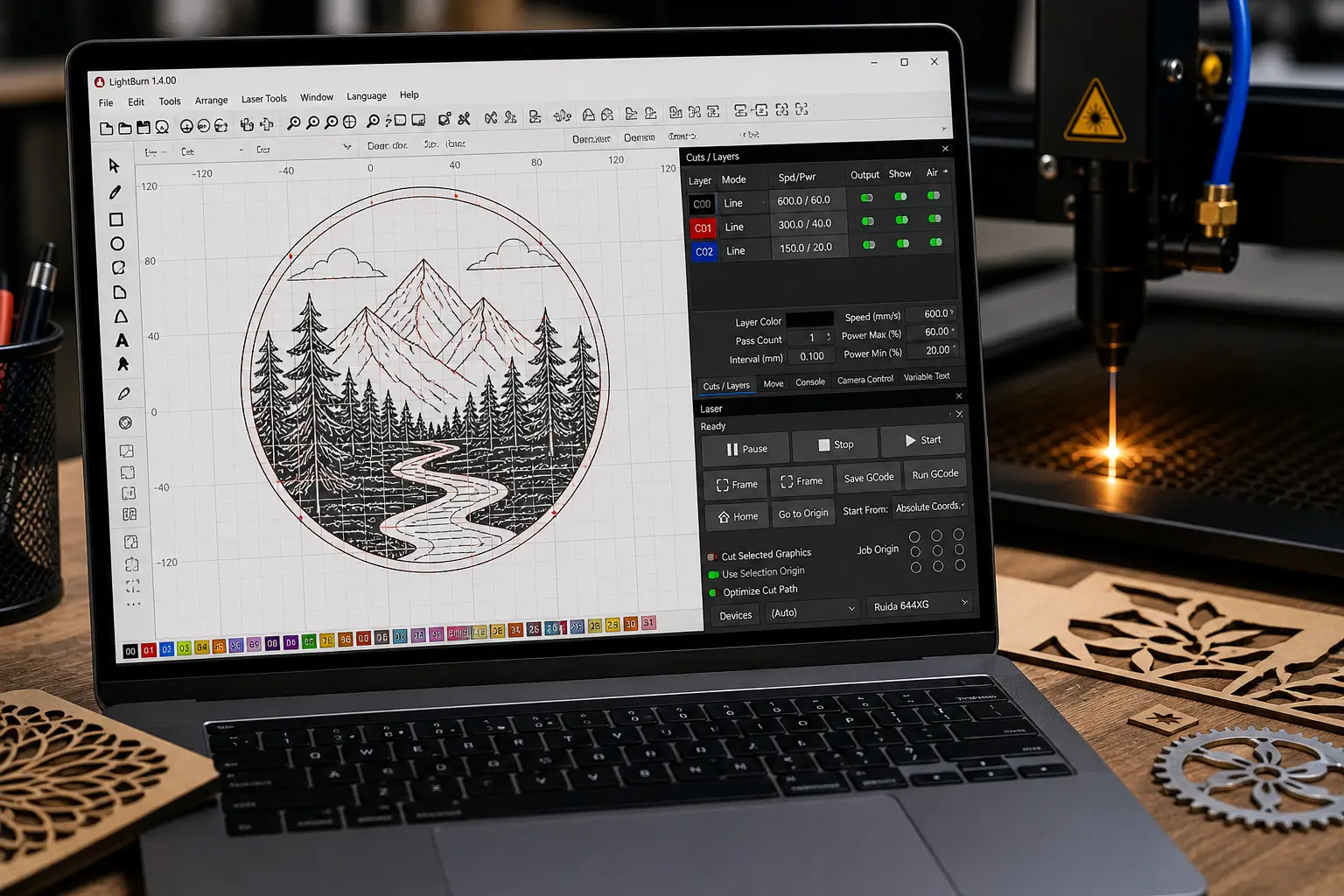
Choosing the right laser cutting software can make or break your workflow. The machine matters, but the software is where design becomes reality. It controls speed, power, paths, and precision.
If your cuts are rough, slow, or inconsistent, the problem is often not the machine. It is the software.
This guide explains the best laser cutting software options, what they do well, and how to choose the right one for your setup.
What Is Laser Cutting Software and Why Does It Matter?
Laser cutting software is used to:
- Create or import designs
- Convert designs into machine instructions
- Control speed, power, and movement
- Optimize cutting paths for efficiency
Without good software, even a high-end machine will produce poor results.
7 Best Laser Cutting Software Options
Here are the most widely used and trusted tools in the industry:
- LightBurn
- RDWorks
- CorelDRAW
- Adobe Illustrator
- LaserGRBL
- Inkscape
- Fusion 360
1. LightBurn
LightBurn is considered the industry standard for laser users, especially for CO2 and diode machines.
Key features:
- Works with most controllers
- Advanced layout and editing tools
- Powerful cut optimization
- Supports rotary setups
Best for:
- Beginners and professionals
- Small businesses
- Users who want one all-in-one solution
Why it stands out: It combines design, control, and optimization in one platform, which reduces the need for multiple tools.
2. RDWorks
RDWorks is commonly used with Ruida controllers found in many CO2 laser machines.
Key features:
- Direct machine control
- Basic design capabilities
- Reliable for production workflows
Best for:
- Users with Ruida-based machines
- Production environments
Limitations:
- Outdated interface
- Limited design flexibility
3. CorelDRAW
CorelDRAW is a powerful vector design software often used alongside laser machines.
Key features:
- Professional vector design tools
- High-precision artwork creation
- Plugin support for laser machines
Best for:
- Designers
- Advanced users
- Businesses focused on branding and graphics
Important note: It is not a control software by itself. It is used for design, not machine control.
4. Adobe Illustrator
Illustrator is another industry-standard design tool for creating vector files.
Key features:
- Advanced design capabilities
- Industry-standard file formats
- Precise vector editing
Best for:
- Professional designers
- Creative workflows
Limitation: Requires exporting designs to another software like LightBurn for cutting.
5. LaserGRBL
LaserGRBL is a free, open-source software designed for GRBL-based machines.
Key features:
- Simple interface
- Lightweight and fast
- Works well with entry-level machines
Best for:
- Beginners
- Hobby users
Limitation: Less advanced than paid tools.
6. Inkscape
Inkscape is a free vector design tool that works well for laser cutting preparation.
Key features:
- Open-source and free
- Good vector editing tools
- Large community support
Best for:
- Budget users
- Design preparation
Limitation: Needs separate control software for cutting.
7. Fusion 360
Fusion 360 is used for CAD-based designs and complex projects.
Key features:
- 3D modeling and CAD tools
- Parametric design
- Engineering-level precision
Best for:
- Engineers
- Industrial applications
- Complex parts
Best Software for Beginners
Top beginner-friendly options:
- LightBurn
- LaserGRBL
- Inkscape
Why these work for beginners:
- Easy to learn
- Strong community support
- Affordable or free
Best Software for Professional Use
Top professional choices:
- LightBurn
- CorelDRAW
- Adobe Illustrator
Why pros pick these:
- Advanced design control
- High precision
- Scalable workflows
How to Choose the Right Laser Cutting Software?
Consider these four factors before you commit to a tool:
1. Machine Compatibility
Make sure the software works with your laser controller.
2. Skill Level
Beginners should avoid overly complex tools.
3. Workflow Needs
Decide whether you need design, control, or both.
4. Budget
Free tools exist, but paid software often saves time.
Comparison Table: Best Laser Cutting Software
| Software | Type | Best For | Price | Difficulty |
|---|---|---|---|---|
| LightBurn | Design + Control | All users | Paid | Medium |
| RDWorks | Control | CO2 machines | Free | Medium |
| CorelDRAW | Design | Professionals | Paid | High |
| Illustrator | Design | Designers | Paid | High |
| LaserGRBL | Control | Beginners | Free | Low |
| Inkscape | Design | Beginners | Free | Low |
| Fusion 360 | CAD | Engineers | Free/Paid | High |
Mistakes to Avoid When Choosing Software
These are the most common traps:
- Ignoring machine compatibility
- Choosing overly complex software
- Using multiple tools without workflow planning
- Not learning optimization settings
How Software Impacts Cutting Quality
Software directly controls:
- Cutting speed
- Laser power
- Path optimization
- Edge smoothness
Even a small change in settings can drastically affect results.
The Best Setup for Most Users
For most users, the ideal workflow looks like this:
- Design in Illustrator or CorelDRAW
- Import into LightBurn
- Optimize and run the job
This setup balances creativity and performance.
FAQs
What is the best laser cutting software overall?
LightBurn is widely considered the best all-in-one solution.
Is there free laser cutting software?
Yes. LaserGRBL and Inkscape are popular free options.
Do you need both design software and control software?
Yes. Most workflows require both.
Can I use Illustrator directly with a laser cutter?
No. You need control software like LightBurn.
Which software is easiest to learn?
LaserGRBL and LightBurn are beginner-friendly.
What software works with CO2 lasers?
LightBurn and RDWorks are commonly used.
Is LightBurn worth it?
Yes. It saves time and improves cutting quality.
Once you choose your software, use our guide to making a laser engraving file to prepare artwork correctly, and learn how DPI affects engraving quality before running a production job.
Final Thoughts
The best laser cutting software depends on your workflow, not just your machine.
- Use LightBurn for the best all-in-one experience.
- Use CorelDRAW or Illustrator for advanced design.
- Use LaserGRBL or Inkscape if you are starting out.
If you choose the right software, your laser machine becomes faster, more precise, and far more profitable. That is where the real difference happens.