
Preface
This article will guide you through upgrading the WiFi board on your TITAN machine.
Warning: Since the firmware update software doesn't have an English version, you'll need to pay close attention to the Chinese characters on the buttons you need to click. Please follow the red boxes highlighted in the tutorial's images to proceed.
Steps to Follow
-
Download the file in the attachment, then unzip it. You will get the following folders.
Upgrade the WIFI board Firmware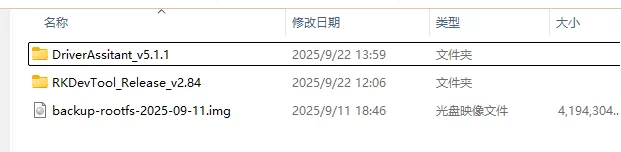
-
Connect the machine with PC via 3.0 Protocol USB cable.

Then click Device Manager > Other device, right-click the unknown device and select Update driver.

If the computer fails to recognize the unknown device, turn off the machine. Then keep pressing the black button on the WiFi board and restart the machine at the same time.
Check Device Manager to see if the device is recognized.
Click Browse my computer for driver software > Browse, select the "DriverAssitant_v5.1.1" folder, and click Next to update the driver.


-
Open "RKDevTool_Release_v2.84", locate RKDevTool and launch it, then verify whether the software has detected the device.
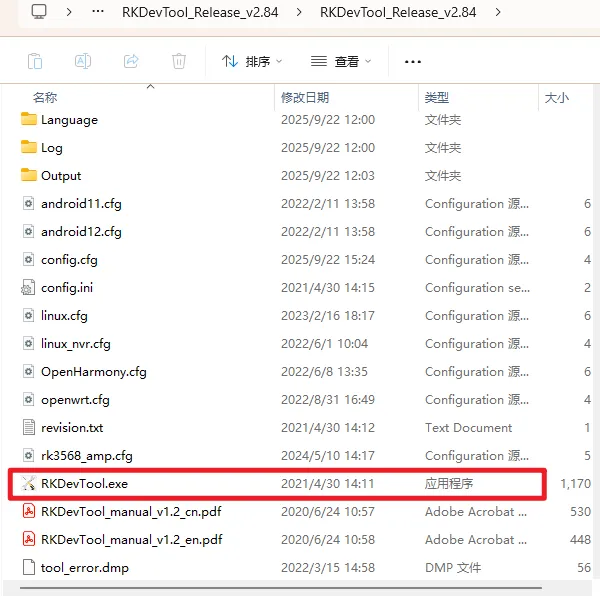

Note: "没有发现设备" means "Do Not Find Device".
If the software displays "没有发现设备", first disconnect the USB cable from the machine's PC port and the 24V signal cable from the WiFi board.

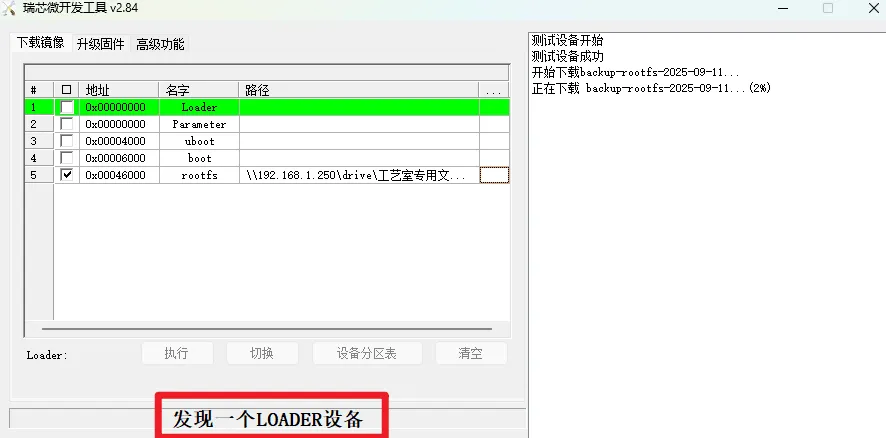
Then keep pressing the black button, then reconnecting the USB cable and 24V signal wire step by step. Finally, check if the software displays "发现一个LOADER设备".
Note: "发现一个LOADER设备" means "Find A LOADER Device".

-
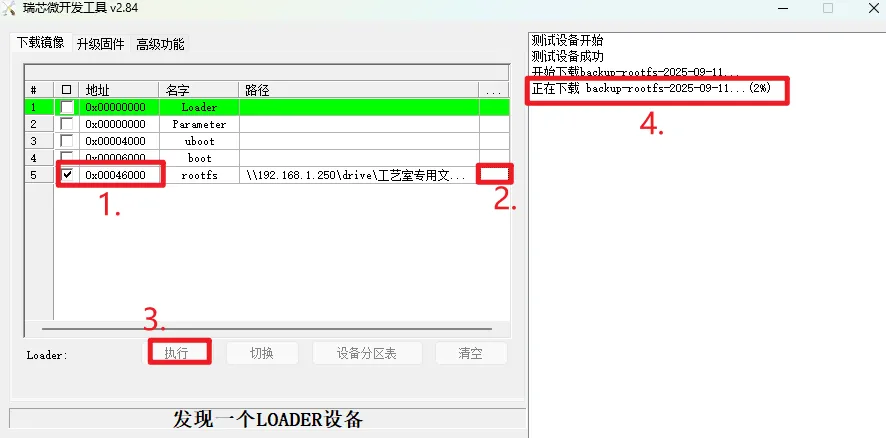
Click "下载镜像" > tick 0x00046000 > browse files and select "rootfs > backup-rootfs-2025-09-11", then click "执行".
The software will display "正在下载backup-rootfs-2025-09-11...(2%)".
When the progress text displays "正在下载backup-rootfs-2025-09-11...(100%)", the upgrade is successful.
Still stuck?
No bots, no runaround. Talk to a U.S.-based laser tech who knows your machine inside out.