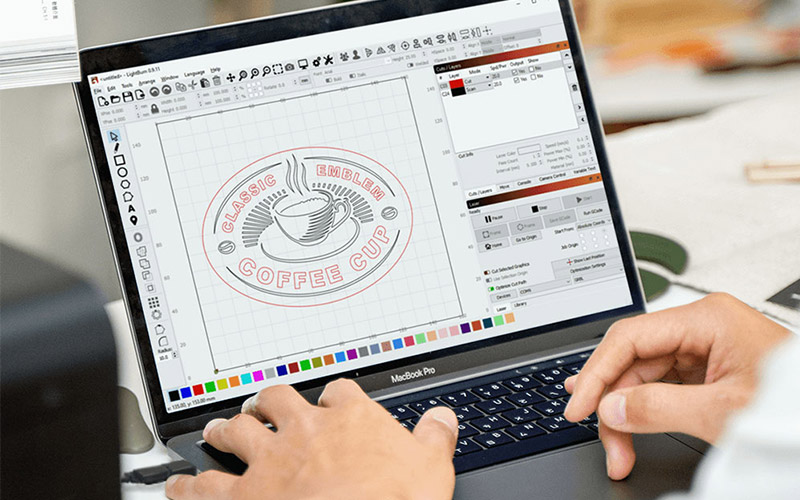

LightBurn is a powerful software used to control laser machines. It helps you design, edit, and send files directly to your CO₂ or fiber laser. Before you can start cutting or engraving, you need to set it up correctly.
In this guide, you’ll learn how to connect your laser machine to LightBurn, adjust the basic settings, and prepare your first job. The steps are simple and work for most CO₂ and fiber lasers.
Whether you’re new to laser cutting or switching to LightBurn, this setup guide will help you get started quickly and avoid common mistakes.
How to Set Up LightBurn for Your Laser Machine

Setting up LightBurn effectively is essential for optimal performance with CO2 and fiber laser machines. This process involves installing the software, configuring the device profile, and using the ‘Find My Laser’ feature to connect with the machine. Each step is critical to ensure a seamless workflow.
1. Installing LightBurn Step by Step
Start by downloading LightBurn from the official website. Once downloaded, run the installer and follow the on-screen instructions. LightBurn works on Windows, Mac, and Linux.
After installation, open the software and enter your license key to unlock all features. Make sure the correct drivers for your laser machine are installed. Once done, you’re ready to set up your laser in LightBurn.
2. Configuring Your Laser Device in LightBurn
After installing LightBurn, the next step is to set up your laser device. Click the “Devices” button on the main screen to start. You can create a new device profile by selecting your laser type, entering the bed size, and adjusting basic settings like power and origin.
For CO₂ and fiber lasers, make sure to choose the correct device type to ensure proper function. If you have a saved profile, such as a markcfg7 file, you can import it instead. A correct setup ensures smooth and accurate laser control during all your projects.
3. Connecting Your Laser with ‘Find My Laser’
Once the device profile is set, connect LightBurn to your laser machine using the ‘Find My Laser’ feature. This tool automatically detects connected lasers via USB or network.
Follow these steps:
- Click on “Find My Laser” in the device setup window.
- LightBurn will scan for connected lasers and show a list of detected devices.
- Select your machine from the list and confirm the connection.
- LightBurn will create a profile based on the detected settings.
After connection:
- Double-check key parameters like speed, power, and origin.
- Make sure the laser responds correctly before starting a job.
Getting this step right ensures smooth operation for cutting and engraving tasks.
Configuring Laser Parameters and Cut Settings
Setting up the laser parameters correctly is crucial for ensuring optimal performance and quality in both engraving and cutting tasks. Key aspects to focus on include adjusting the power and speed settings for specific materials while making effective use of LightBurn’s tools.
1. Adjusting Power and Speed
Power and speed are the primary settings that influence the outcome of a laser project. In LightBurn 1.7, the user can specify power levels as a percentage of the maximum output, ranging from 0 to 100%.
- Power Settings: Higher power is generally used for cutting, while lower power is ideal for engraving. Adjusting power according to material thickness ensures clean cuts and desirable engraving depth.
- Speed Settings: The speed, measured in mm/min, affects the duration the laser spends on each area. Slower speeds yield deeper cuts or more pronounced engravings, while faster speeds result in shallower effects.
It’s essential to test a few settings on scrap material before proceeding with the final piece.
2. Using the Cut Settings Editor
LightBurn’s Cut Settings Editor is a powerful tool for managing parameters effectively. Users can create and customize settings according to their project needs.
- Configuring Cuts: Within the editor, users can assign different speeds and power settings for each layer of the project. This allows for intricate designs, where engraving and cutting can occur in a single run.
- Layer Management: Each cut layer can be color-coded for easy identification. This visual aid helps in organizing different processes, such as prioritizing cuts over engravings.
Utilizing this editor streamlines the setup process, enabling users to achieve the desired results efficiently.
Advanced Features and Rotary Attachment Setup
Properly utilizing advanced features and setting up a rotary attachment can enhance the capabilities of both CO2 and fiber laser machines. Focusing on these elements allows users to achieve precise engravings and markings on cylindrical objects.
1. Working with the Rotary Setup Window
The Rotary Setup Window in LightBurn is essential for configuring a laser’s rotary attachment. Users can access it through the “Move” panel, where they enable the rotary mode by selecting the rotary tool.
Key settings include the diameter of the object, which helps in dimensioning the engraving correctly.
Another critical field is the Steps per Rotation, which defines how many steps the motor takes to complete a full 360°. Inputting accurate values ensures that the engravings maintain consistency across multiple items.
Once adjusted, the preview feature allows users to visualize the engraving path based on the selected parameters.
2. Axis Selection and Functionalities
Axis selection is crucial for rotary setups. In LightBurn, users can specify the axis for rotary operation, typically the Y axis for CO2 lasers.
This affects how the machine interprets rotational movement. For fiber lasers, the frequency settings may also require adjustment depending on the material being used for marking.
Using the rotary attachment, the user can perform tasks like cylindrical engraving, which requires proper tracking of the object’s rotation.
Additionally, axis offsets can be fine-tuned for more intricate designs, allowing for accurate placement on uneven surfaces.
Conclusion
Setting up LightBurn correctly is key to getting the best results from your CO₂ or fiber laser machine. From installation to device configuration, and from connecting your laser to fine-tuning cut settings, each step plays an important role in ensuring smooth operation and professional-quality output. With the right setup, you can confidently take on cutting and engraving projects with precision and efficiency.
If you’re looking for a reliable, high-performance laser machine, Thunder Laser USA offers top-tier CO₂ laser systems backed by expert support. Pairing a Thunder Laser with LightBurn gives you the perfect combination of hardware and software to bring your ideas to life.
Frequently Asked Questions
1. How do I configure Galvo settings in LightBurn for optimal performance?
To configure Galvo settings, access the Machine Settings within LightBurn. Here, users can optimize parameters such as speed, power, and frequency to match the laser’s capabilities. Fine-tuning these settings ensures better engraving and cutting quality.
2. What steps are involved in setting the home position using LightBurn software?
Setting the home position involves selecting the appropriate settings in the Move panel. Users should manually move the laser head to the desired home location and then click “Set Home”. This position will serve as the reference point for all operations.
3. How can I locate and use the laser window within LightBurn to monitor my laser’s activity?
The laser window can be found in the main workspace of LightBurn. This window provides real-time feedback on the laser’s status, including power levels, job progress, and speed. Monitoring this information is crucial for ensuring optimal performance during engraving or cutting.
4. Can you guide me through adjusting machine settings in LightBurn for precise control?
To adjust machine settings, navigate to the Machine Settings menu in LightBurn. Users can modify parameters such as maximum speed, acceleration, and step/mm values. Making these adjustments allows for finer control and enhanced results in the engraving or cutting process.
5. What should I do if LightBurn is not recognizing my laser machine when connected?
If LightBurn does not recognize the laser machine, first check the USB connection and ensure the correct driver is installed. Additionally, verify that the laser machine is powered on and set to the correct mode for USB communication. Restarting both the software and machine can also resolve connection issues.