
Aurora Driver Error for Windows Digital Signature Verification 52 for USBLMCV2
Preface: This article covers a few steps that may mitigate an Error 52 when installing the Driver for your Aurora Machine. Not everyone's Windows OS will have this issue, it is specific to your Windows OS settings/environment.
If you get this message on your Windows computer while installing the driver then lets try a few ways to mitigate.

Option 1: Install from File Folder Directly
This is a manual install of the driver, seems to work for most users.
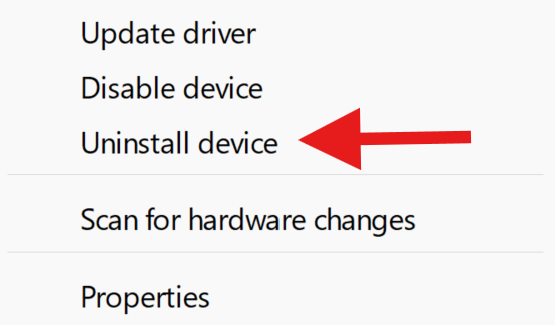
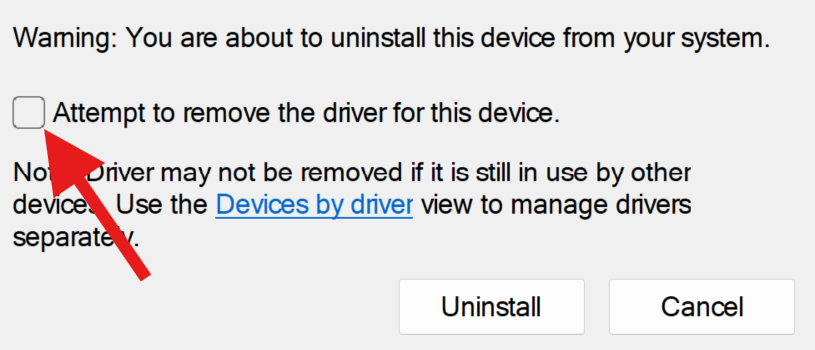
Be sure to use Windows Device Manager to un-install the device and driver if a BJJCZ device is showing up.
In Windows Device Manager:
| Check for this Device | Right Click, Uninstall Device | Check the Box to Uninstall Driver |
|---|---|---|
 |
 |
 |
Manual Driver Install
| Navigate to the Lightburn Folder on your Computer | Install Ezcad2 Driver |
|---|---|
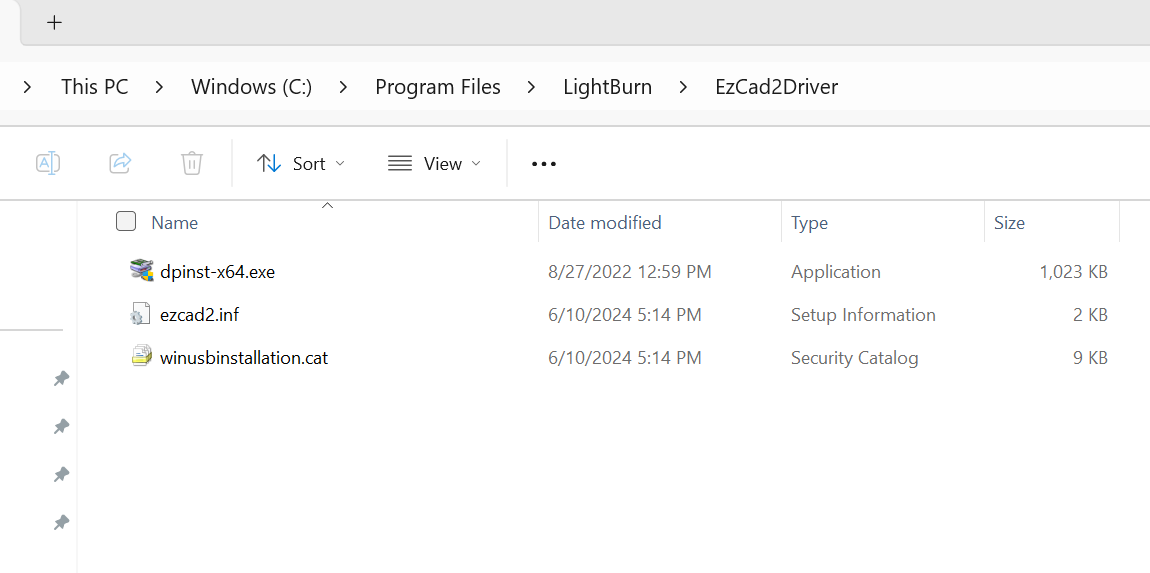
C:\Program Files\LightBurn\EzCad2Driver |
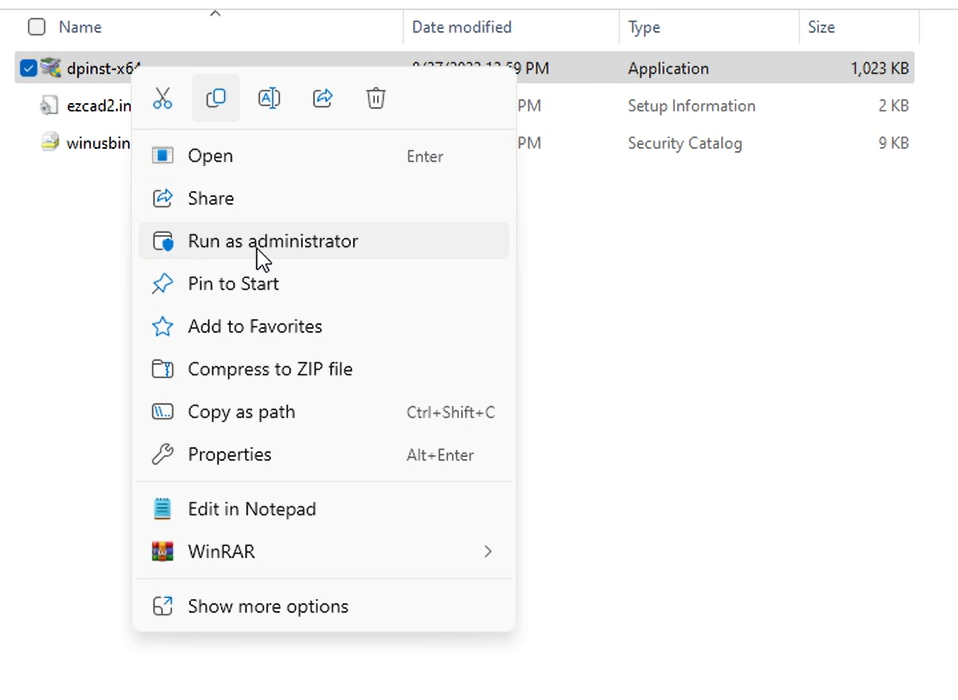
Right Click on the driver exe file and select Run as administrator |
| Accept the UAC if it pops up (YES) | Click Next to Begin |
|---|---|
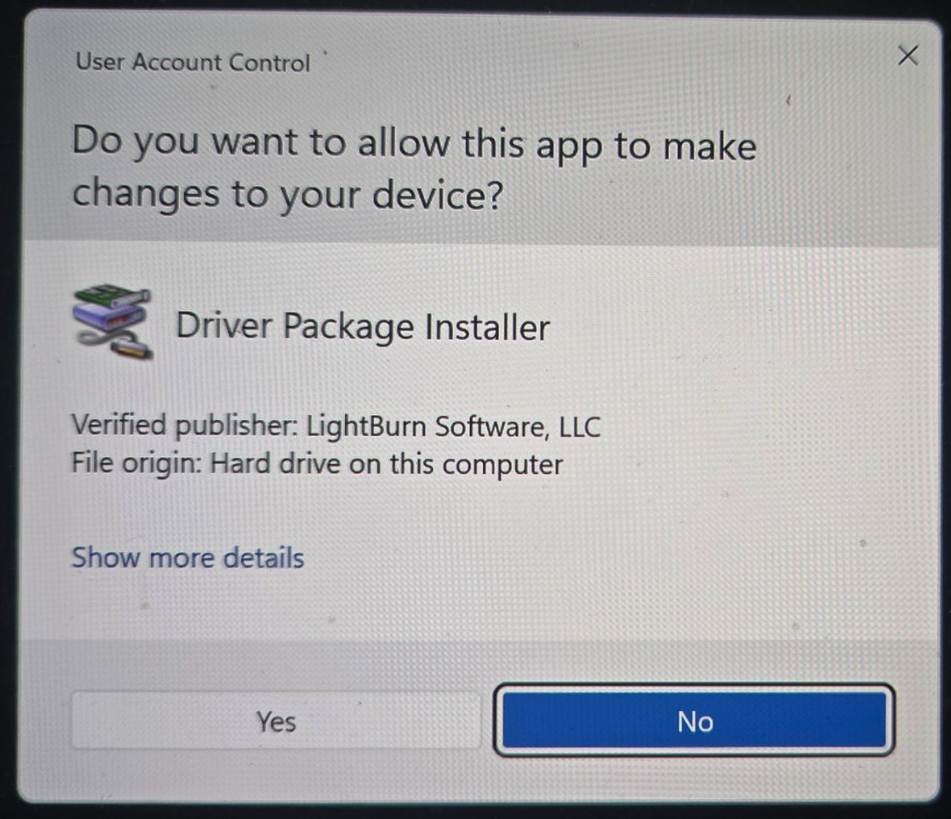 |
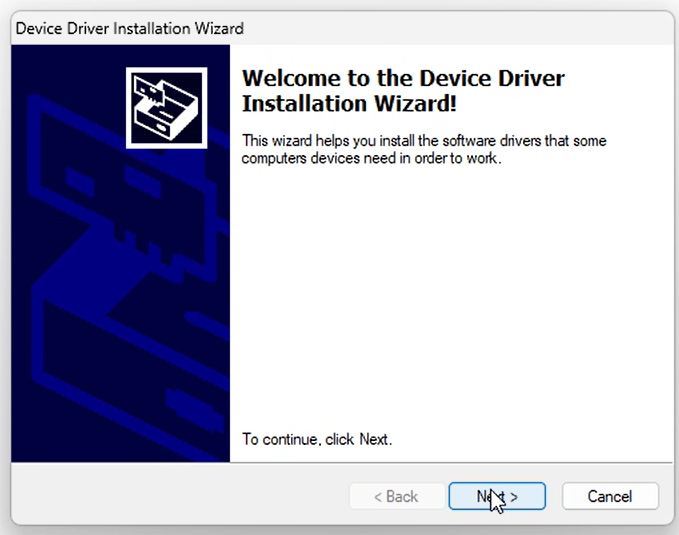 |
| Progress screen | Click Install to proceed |
|---|---|
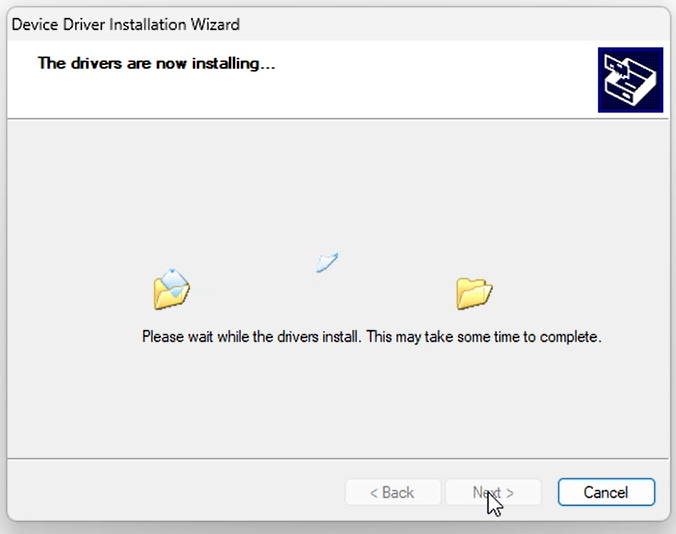 |
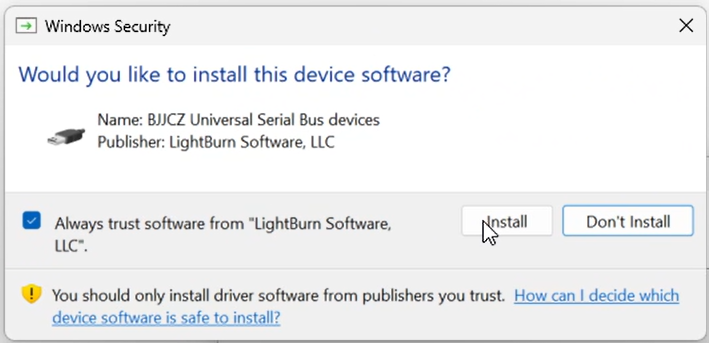 |
Success! Click Finish.
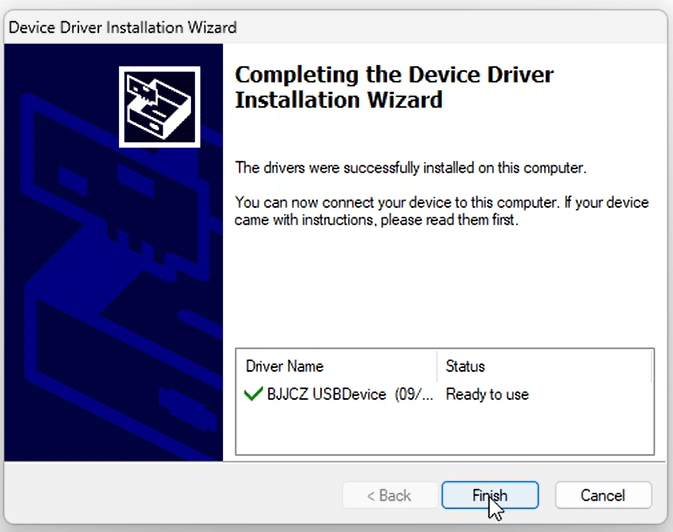
Once done, power up your machine all the way, plug in the USB and open up Lightburn and select the Aurora Device you wish to connect to. Check for the Ready status.
Option 2: Try these workarounds
If the above steps did not work, try this.
Solved: Driver Error Code 52 - Driver Easy
Then run the manual driver installer shown in Step 1 and try to install the driver again.
Option 3: Try these workarounds Part 2
If the above steps did not work, try this.
https://www.elevenforum.com/t/enable-or-disable-core-isolation-memory-integrity-in-windows-11.4942/
Then run the manual driver installer shown in Step 1 and try to install the driver again.
If the above steps do not work, please email [email protected] to start a ticket.
Still stuck?
Fastest response times in the industry from our US-based support team.