Galvo CO2 Initial Assembly

5 min read·Updated Oct 2026
Applies toGalvo CO2TopicGetting Started

How to Install and Set Up the Thunder CO2 Galvo

This article covers assembling a new Thunder CO2 Galvo, connecting it to your computer, and setting it up in either EzCad2 or LightBurn.

Assembled Thunder CO2 Galvo

Warning: The Controller Case and the Laser Source are joined by cables that cannot be disconnected. Always move them together during assembly to avoid straining or damaging the cables.

Overview

Watch the full installation video below, then follow the written steps. Machine assembly is covered in Section 1. For software, connect the machine to your computer (Section 2), then set up either EzCad2 (Section 3) or LightBurn (Section 4). You only need one.

Before You Begin

Tools Needed

  • M5 Allen wrench

  • M6 Allen wrench

  • M8 Allen wrench

  • Phillips screwdriver

Allen wrenches and Phillips screwdriver

Unpack the Components

Remove all components from the packaging: the Worktable, the Tower, the Galvo Head & Laser Source, the Controller Case, the signal cable, the power cord and the tool bag.

Machine components laid out after unpacking

Unpack the exhaust system components: the exhaust flange, the exhaust fan (HF-100), the exhaust duct and the hose clamps.

Exhaust flange, HF-100 fan, duct and hose clamps

1. Assemble the Machine

1.1 Install the Tower

  1. Place the Tower on the Worktable in the orientation shown.

Note: The Tower comes with the Controller Case holder and the Laser Source holder already installed.

Tower placed on the Worktable
  1. Align the edge of the Tower flush with the edge of the Worktable, then tighten the four M8 screws.

Tower edge aligned flush with the Worktable edge

1.2 Install the Controller Case

  1. Mount the Controller Case on its holder and tighten the four M5 screws.

Warning: The Controller Case is permanently cabled to the Laser Source. Move them together.

Controller Case mounted on its holder

1.3 Install the Galvo Head & Laser Source

  1. Lift the Galvo Head & Laser Source onto the Laser Source holder.

Warning: The Laser Source is permanently cabled to the Controller Case. Move them together.

Placing the Galvo Head and Laser Source on the holder
  1. Locate the pre-aligned positioning block on the underside of the Laser Source housing. It sets the correct mounting position.

Positioning block on the Laser Source housing
  1. Align the positioning block with the holder platform.

Positioning block aligned with the holder platform
  1. Leave enough clearance between the Laser Source and the Tower for the Z-axis to move freely.

Clearance between the Laser Source and the Tower
  1. Tighten the four M5 screws.

Tip: With the machine powered off, you can turn the knob on top of the Tower by hand to raise or lower the Laser Source holder to a comfortable working height before mounting.

Tightening the Laser Source M5 screwsHeight adjustment knob on top of the Tower

1.4 Connect the Power Cord and Z-Axis Signal Cable

  1. Connect the power cord and the Z-axis signal cable.

Power cord and Z-axis signal cable connections

1.5 Install the Exhaust Fan

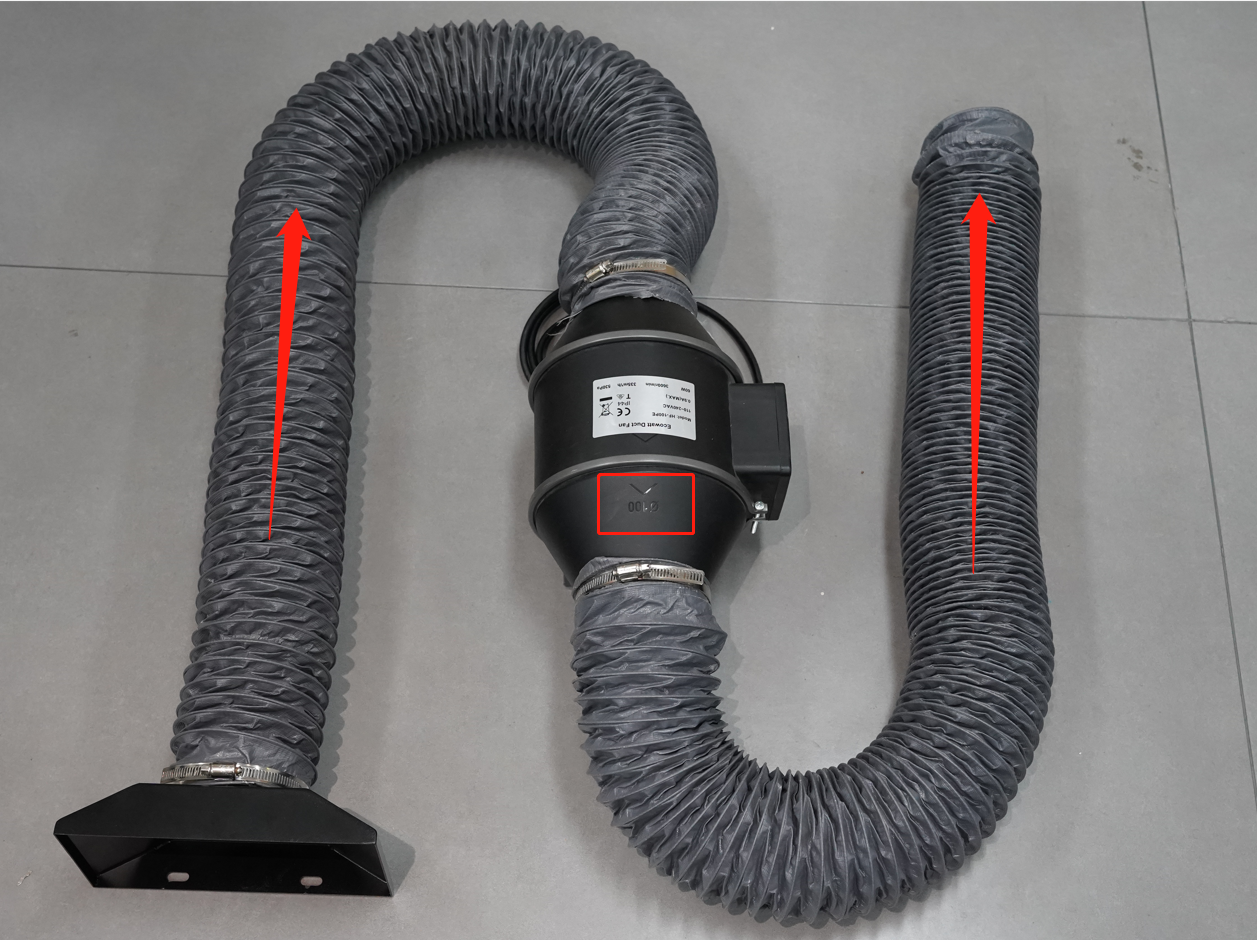
  1. Connect the exhaust duct and the exhaust flange to the exhaust fan, following the airflow arrow on the fan.

Route the outlet end of the duct outdoors to a well-ventilated area, or connect it to a fume extraction and filtration system.

Exhaust duct and flange connected to the fan, with airflow direction
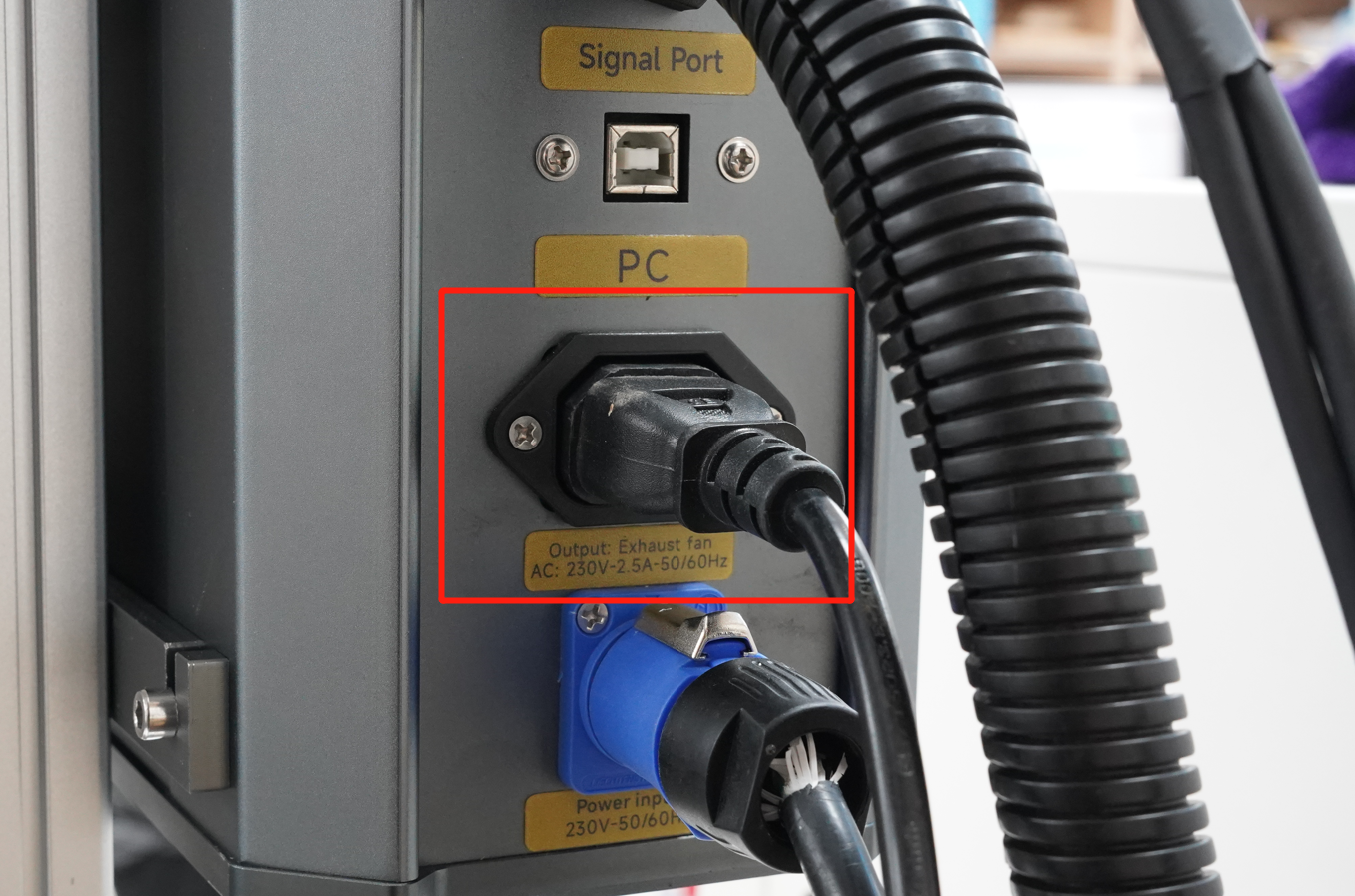
  1. Plug the exhaust fan power cable into the Controller Case.

Exhaust fan power cable plugged into the Controller Case
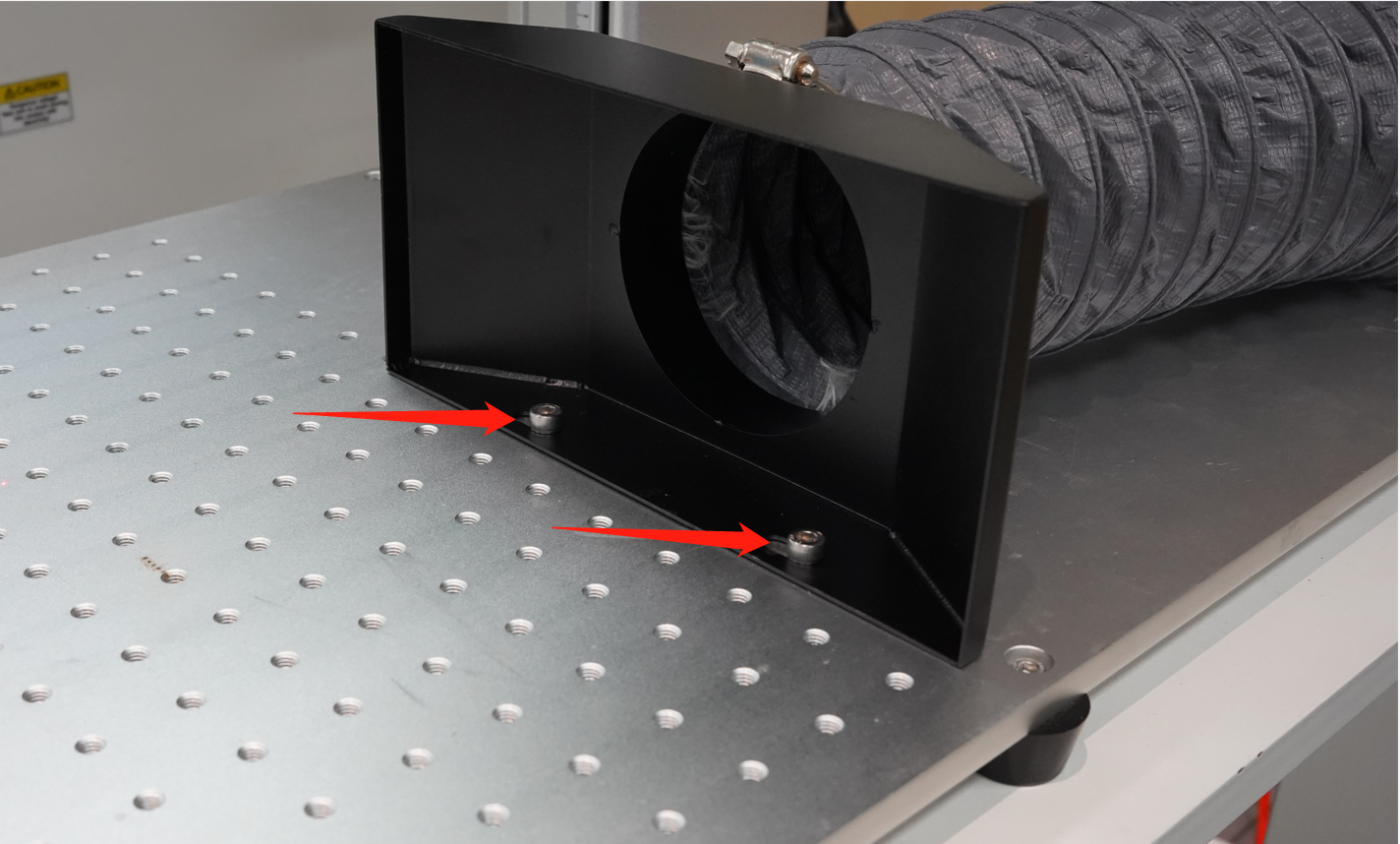
  1. Secure the exhaust flange to the Worktable with the M6 screws.

Exhaust flange secured to the Worktable with M6 screws

2. Connect the Machine to Your Computer

The Thunder CO2 Galvo works with two software options: EzCad2 (Windows only) and LightBurn (Windows or Mac). Choose the one that fits your work. You only need one.

Important: The EzCad2 and LightBurn drivers cannot be installed on the same computer at the same time. If you're switching from one to the other, uninstall the current driver first (see Section 5).

  1. Connect the machine to your computer with the USB cable and power the machine on.

Note: The machine must be connected and powered on before you install the driver or open the software, or the computer won't detect it.

USB cable connected between machine and computer
  1. Continue with Section 3 for EzCad2 or Section 4 for LightBurn.

EzCad2 and LightBurn software options

3. Set Up EzCad2 (Windows Only)

EzCad2 and its driver run on Windows only. On a Mac, use LightBurn (Section 4).

3.1 Install the EzCad2 Driver

  1. Right-click This PC, or click the Windows search bar and type device.

Right-click menu on This PCSearching for Device Manager in Windows
  1. Open Device Manager.

  2. Find the unknown device named USBLMCV2.

  3. Right-click it and select Update driver.

USBLMCV2 unknown device in Device Manager
  1. Click Browse my computer for drivers.

Browse my computer for drivers option
  1. Browse to the driver folder on the USB drive that came with the machine:
    Thunder CO2 Galvo > Laser Software > Driver > LMCV4_RL

Selecting the driver folderLMCV4_RL driver folder on the USB drive
  1. Finish the installation.

Driver installation complete
  1. Confirm that Device Manager now shows Laser Mark Control Board V4 [USB].

Laser Mark Control Board V4 in Device Manager

3.2 Open EzCad2

  1. Open EzCad2 from the USB drive that came with the machine:
    Thunder CO2 Galvo > Laser Software > EZCAD_LITE

EZCAD_LITE folder on the USB drive
  1. Check the title bar. If it does not show "Demo version-only for evaluation", EzCad2 is connected to the machine.

If the demo message appears, confirm the machine is powered on, the USB cable is connected, and the EzCad2 driver is installed (Section 3.1).

EzCad2 connected, without the demo version message

4. Set Up LightBurn (Windows or Mac)

4.1 Install LightBurn and Its Driver (Windows only)

  1. Download LightBurn from the LightBurn download page. To pick the right version for your computer, see LightBurn's guide Downloading & Installing LightBurn.

LightBurn download page
  1. Run the LightBurn installer. On the last screen, check Install EzCad2/EzCad3 driver.

Install EzCad2/EzCad3 driver checkbox in the LightBurn installer
  1. Approve the Windows permission prompt. The installer replaces the default driver with one LightBurn can use to talk to the galvo.

If you missed the checkbox, run the LightBurn installer again and check it, or run dpinst-x64.exe directly from C:\Program Files\LightBurn\EzCad2Driver\.

dpinst-x64.exe in the LightBurn EzCad2Driver folder
  1. Confirm that Device Manager now shows USBLMCV2.

USBLMCV2 device in Device Manager after LightBurn driver install

4.2 Add the Machine in LightBurn

  1. Open LightBurn.

LightBurn icon
  1. Click Devices > Create Manually > JCZFiber.

Selecting JCZFiber in the LightBurn device wizard
  1. Click Import EZCad Config and select the markcfg7 file from the USB drive:
    Thunder CO2 Galvo > Laser Software > EZCAD_LITE > plug > markcfg7

Import EZCad Config button in LightBurnmarkcfg7 file in the plug folder
  1. Finish creating the device.

  2. Check the Laser window. A successful connection shows Ready.

Finishing the LightBurn device setupLightBurn Laser window showing Ready

4.3 Load the Correction (COR) File

  1. Click Device Settings > Load COR file.

  2. Select the COR file from the USB drive:
    Thunder CO2 Galvo > Laser Software > Correction file

Load COR file in LightBurn Device SettingsCorrection file folder on the USB drive

5. Switching Between EzCad2 and LightBurn (Windows only)

Only one driver can be installed at a time, and the second one won't install while the first is present. Uninstall the current driver before installing the other.

Uninstall the EzCad2 Driver

  1. In Device Manager, right-click Laser Mark Control Board V4 [USB] and select Uninstall device.

  2. Check Delete the driver software for this device, then confirm.

Uninstalling the EzCad2 driver in Device ManagerDelete the driver software checkbox for the EzCad2 driver

Uninstall the LightBurn Driver

  1. In Device Manager, right-click USBLMCV2 and select Uninstall device.

  2. Check Delete the driver software for this device, then confirm.

LightBurn also has a video walkthrough of this process.

Uninstalling the LightBurn driver in Device ManagerDelete the driver software checkbox for the LightBurn driver

Need Help?

If you run into problems during installation, contact Thunder Laser USA Support at [email protected].

Still stuck?

Fastest response times in the industry from our US-based support team.