
How to run EzCad3 without being connected to the Thunder Aurora Laser machine
Preface: This article covers how to run EzCad3 without being connected to the machine.
This article was purposely made short and brief, as the user is expected to be versed in EzCad3 to be able to complete it. The settings changes being shown, if not done right, can lead to erratic behavior. Pay attention.
What you will need:
Later version of Ezcad 3, Build 1817 was used (Attached to this article, use at your own risk)
Small Parameter Change
You must know how to Transfer Your Files\Settings over to the new Ezcad 3 folder as it is not covered in the article. Your param library, cor file, settings etc. Way too many things to cover.
Small Parameter Change:
We need to change the start button to be a pulsed input vs constant. This will eliminate an error message that EzCad3 is wanting to mark objects where there are none selected or available. There are two ways to do this.
First Way:
- Close Ezcad3.
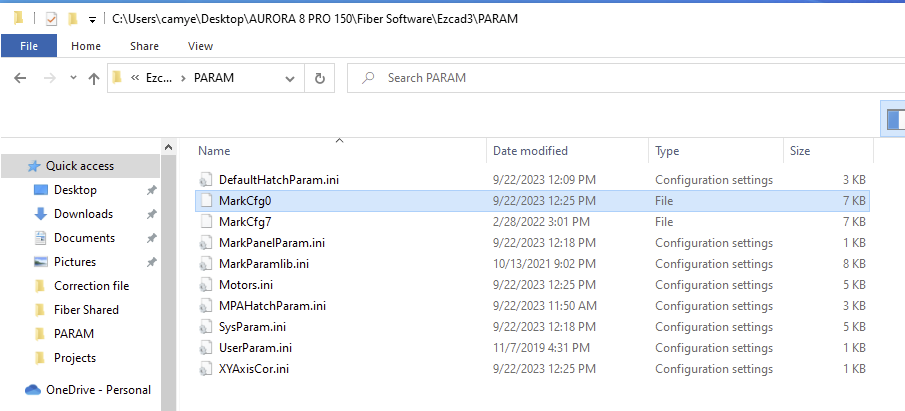
- Open up the MarckCfg0 file with a Text Editor.
- Change Int38=0 to Int38=1
MarkCfg0 File:
Int 38 Changed to 1:

Save and Close. Open up EzCad3 and confirm that the Start button on the machine still works.
Second Way:
You must be connected to the machine to make this change, else you will get an error message even with the newer version of EzCad3.
Navigate to the Port editor under Parameters. Set the Pulse Mode to True for the Start marking IO section.

Downloads
Still stuck?
Fastest response times in the industry from our US-based support team.