
Titan - How to import the Camera Calibration File into Lasermaker
Preface: This article covers how to import a calibration file for the Titan cameras into Lasermaker. You must have a valid license to use Cameras in Lasermaker, otherwise you will get a warning.
If the calibration file was created in an older version, it will import into V2.3 but you will need to manually calibrate the cameras using the wizards which is NOT covered by this article. Even if you import the calibration file, we suggest doing the Proportional and Offset calibration wizards for the overhead/headcam.
Video Guide
Complete Guide
You will need your USB stick with the factory provided calibration file or a copy of the file on your computer.
Open Lasermaker and connect to your laser

Open up your settings

Select the Camera tab
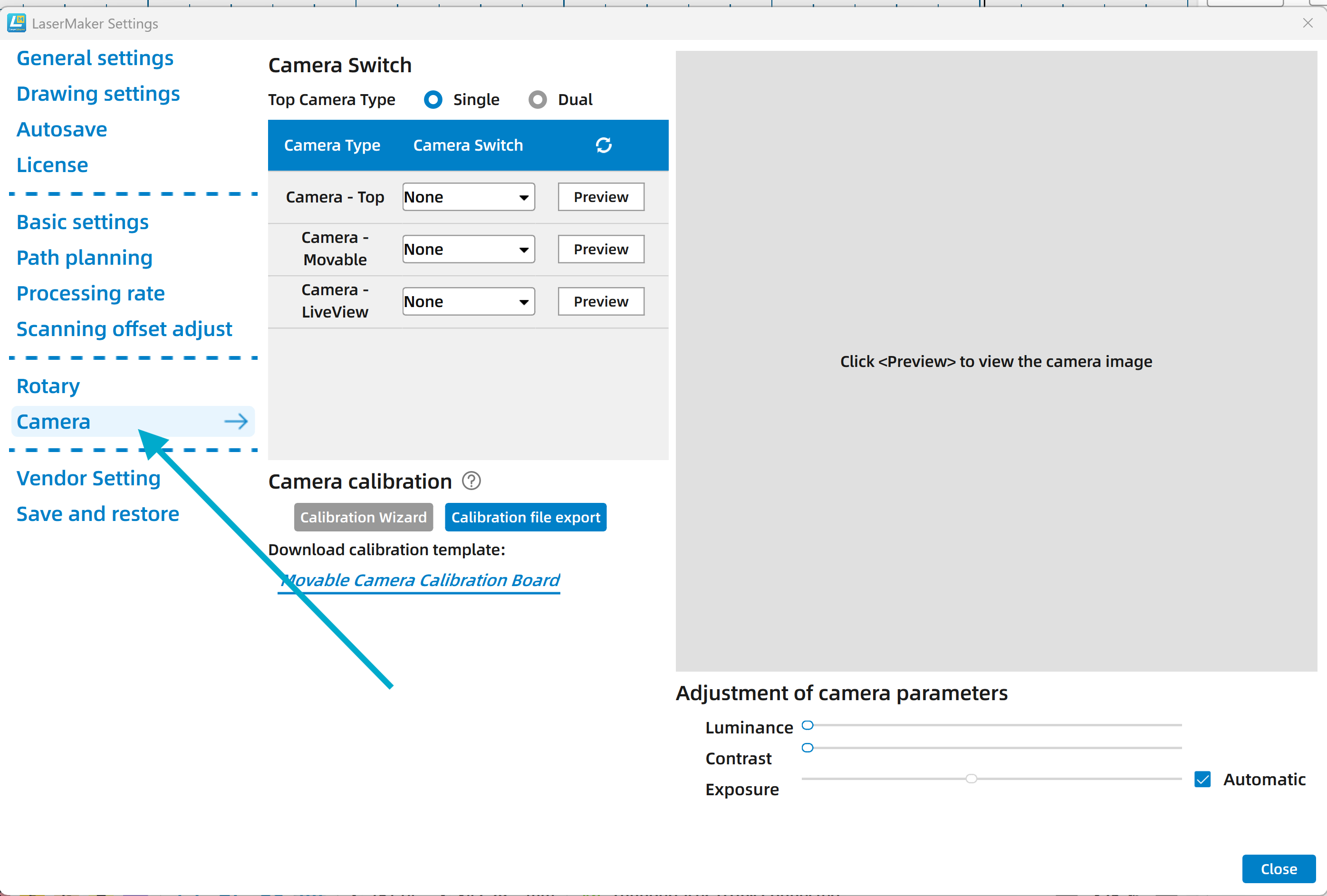
Confirm your camera Selections (Varies by machine)

Select the calibration wizard button

Select External import

Navigate to the calibration file (Stored on USB or computer)

Select the file (.zip type) and Click the "Open" button
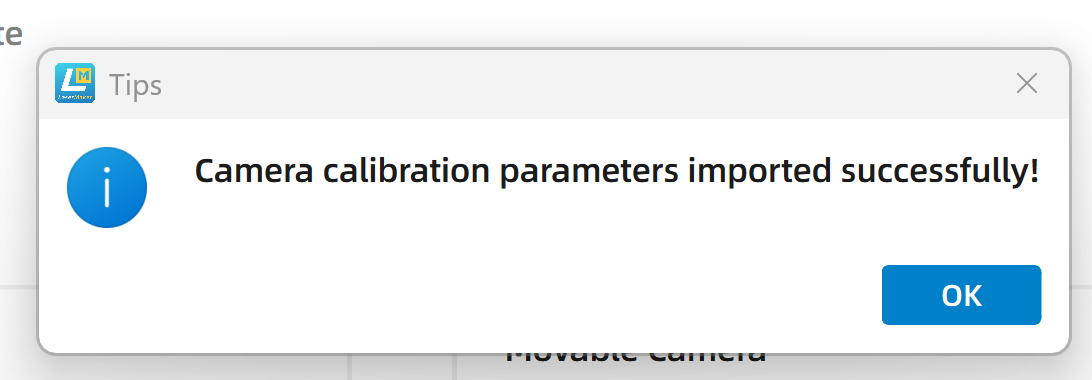
All done
Still stuck?
Fastest response times in the industry from our US-based support team.