
SUPPORTKnowledge BaseMaterials & ParametersTraining Academy · Submit a Ticket · Warranty
Materials & Parameters · Resource

100 Watt Materials Libraries

Copying and re-distribution for profit of these library files is forbidden. *This information is provided “AS IS” to provide a starting point. It is always a good idea to run tests on each substrate and update the library as necessary. The Official

How to import

  1. Download the .clb library file above.
  2. In LightBurn, open the Material Library window (Window ▸ Material Library).
  3. Click the load icon and choose Load an existing library, then select the downloaded .clb file.
  4. Assign settings to a layer by double-clicking an entry.
Provided as-is for Thunder Laser USA customers. Always run a test cut on scrap first — settings vary by material and machine. Please do not redistribute.
Copying and re-distribution for profit of these library files is forbidden.

*This information is provided "AS IS" to provide a starting point. It is always a good idea to run tests on each substrate and update the library as necessary.

The Official Thunder Material Library PDF below and the precompiled LightBurn library file is here.

The LightBurn file may differ from the original document.

Here is short tutorial on how to upload the clb file into LightBurn: Uploading the LightBurn Materials Library
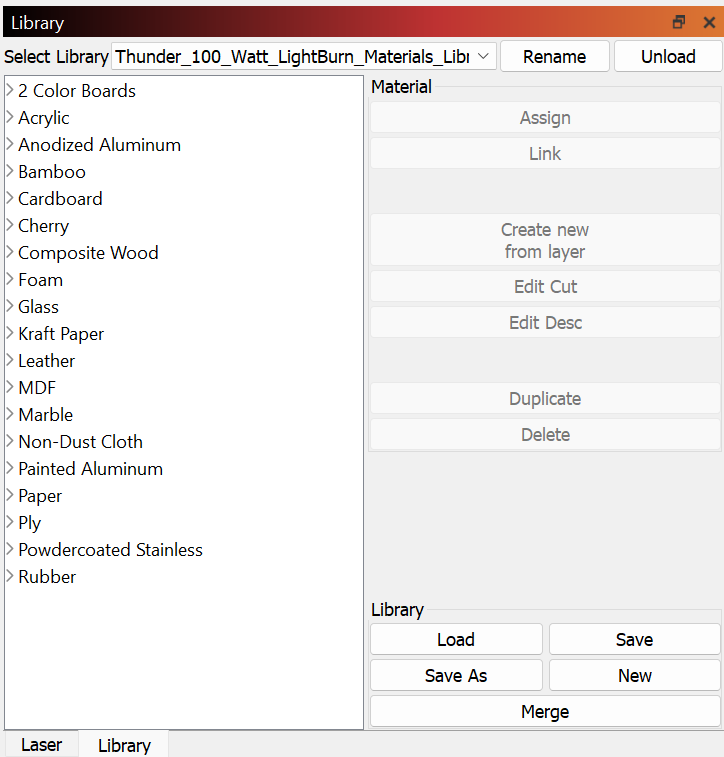
100 Watt LightBurn material library preview