
Uploading the LightBurn Materials Library
Applies toAll machinesTopicSoftware
Preface: This article covers how to Load the Material Library that you download into Lightburn
Please note that the exact steps to load the library may depend on which version of Lightburn you have installed. Please refer to the Lightburn Documentation Repository for the latest and version specific information.
How to Video
This video should be applicable to pre V2.0.03 Versions of Lightburn
Complete Guide
Things to note
- The Library File that you download will always need to exist. Do not Delete it. Lightburn will reference the file and if the file is deleted, so is the library in Lightburn.
- If you move the library file, then you will need to Re-Load into Lightburn
- You can share a Library over a network or Cloud service but you may get errors if Lightburn cannot connect to the file (say you are remote and offline). Local storage is best
- It is best to not leave the Library File in your Downloads folder. Move it to a specific Lightburn folder where you keep other Lightburn stuff
How to Load
If you haven't already downloaded the Library that is appropriate for your machine, go grab it from the Material Libraries and Safe/Unsafe Resources article.
Step 1: Make sure you have the Library Window available
If not, use the Window button in Lightburn to make it visible.
| Typical Location (It is missing) | How to Make the Library Tab Show Up |
|---|---|
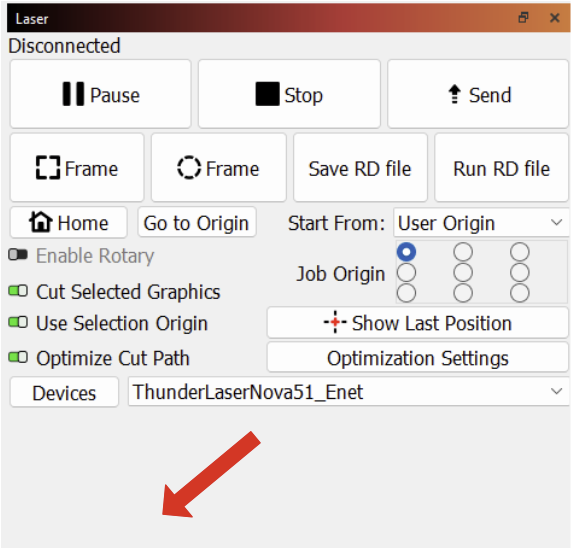
Here is typically a Laser Window and Library Window Tab Here |
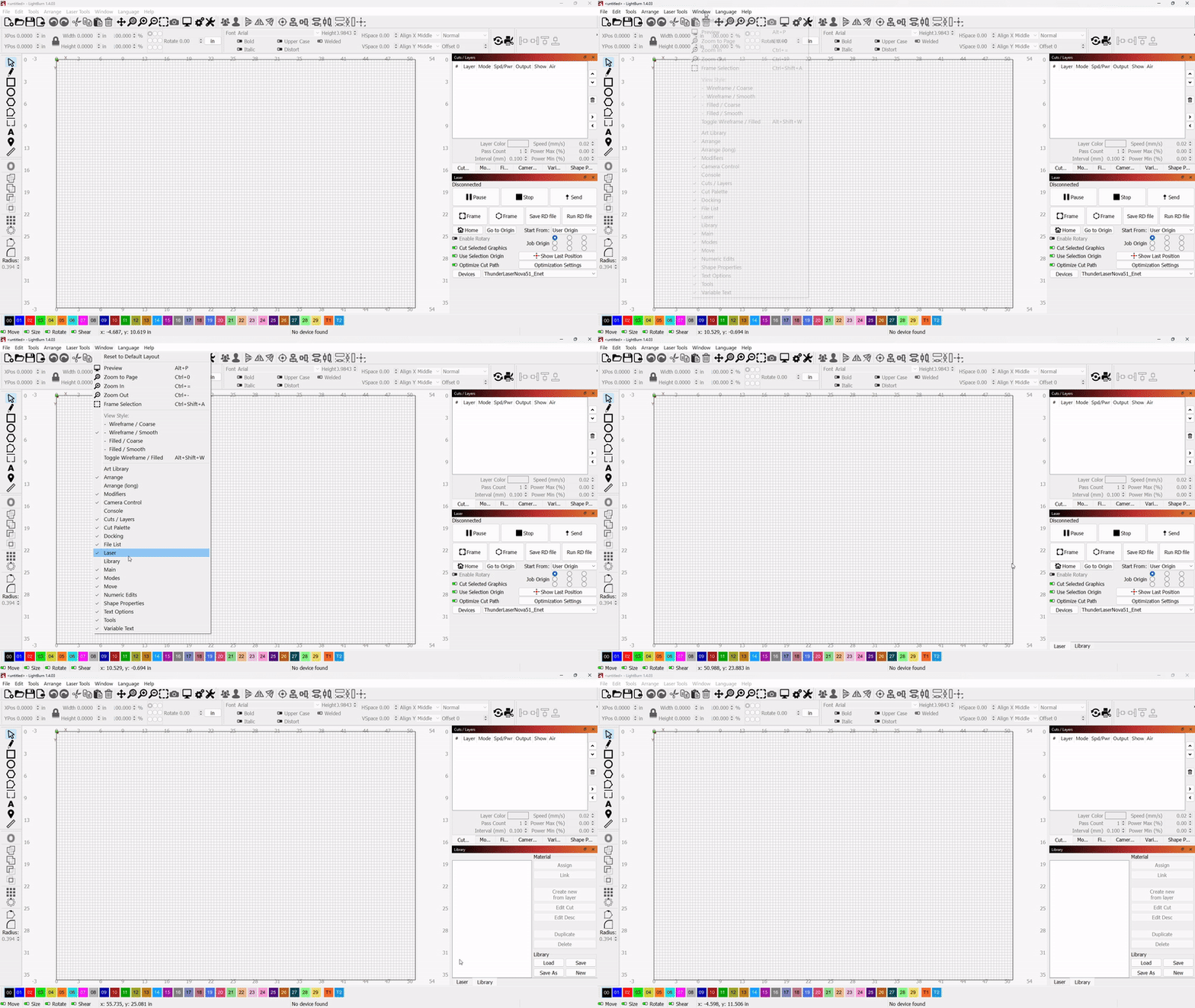
|
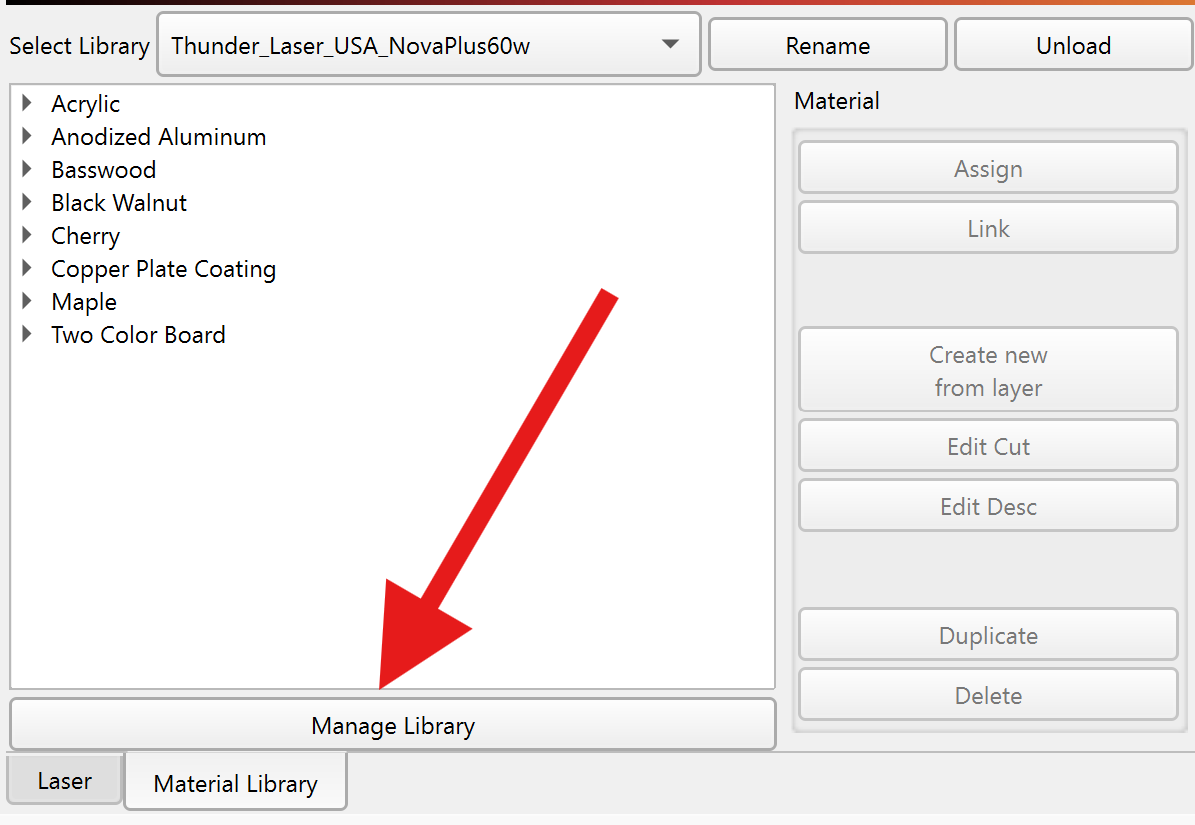
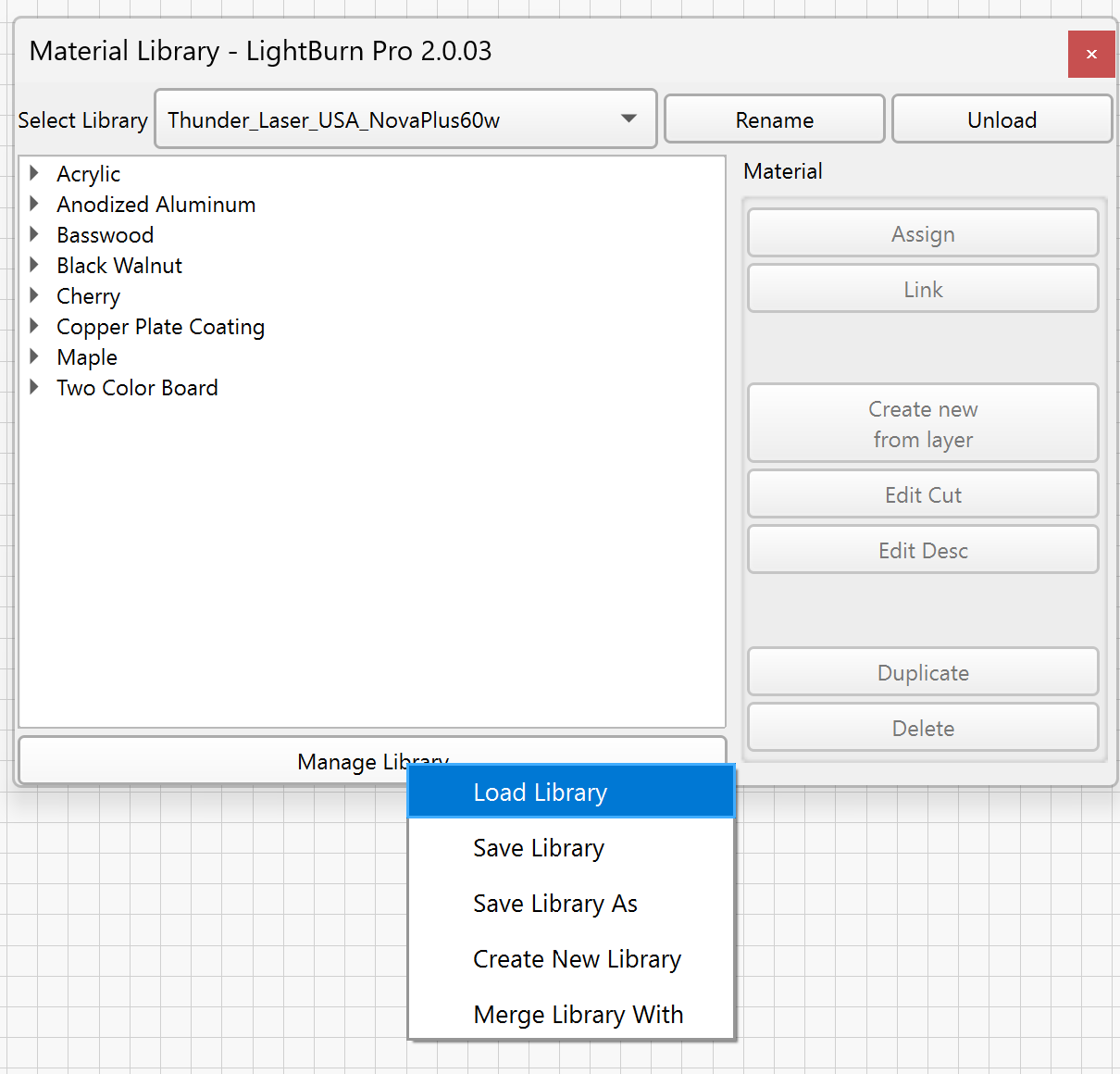
Step 2: Use the Library window to Load the .CLB file
Your file location of where you stored the library on your computer will not be the same as shown. You will need to navigate to your specific save location.
Pre V2.0.03 of Lightburn
| Library Window without a Library Loaded | Process of Loading the Library |
|---|---|
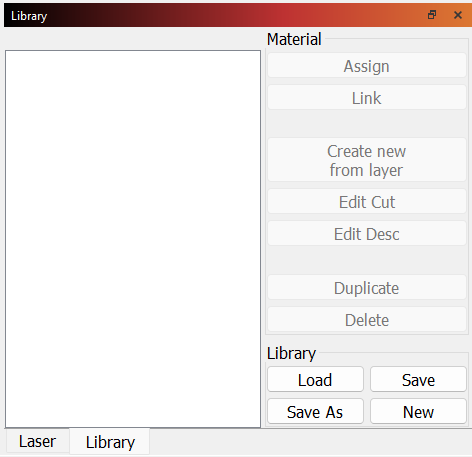
|
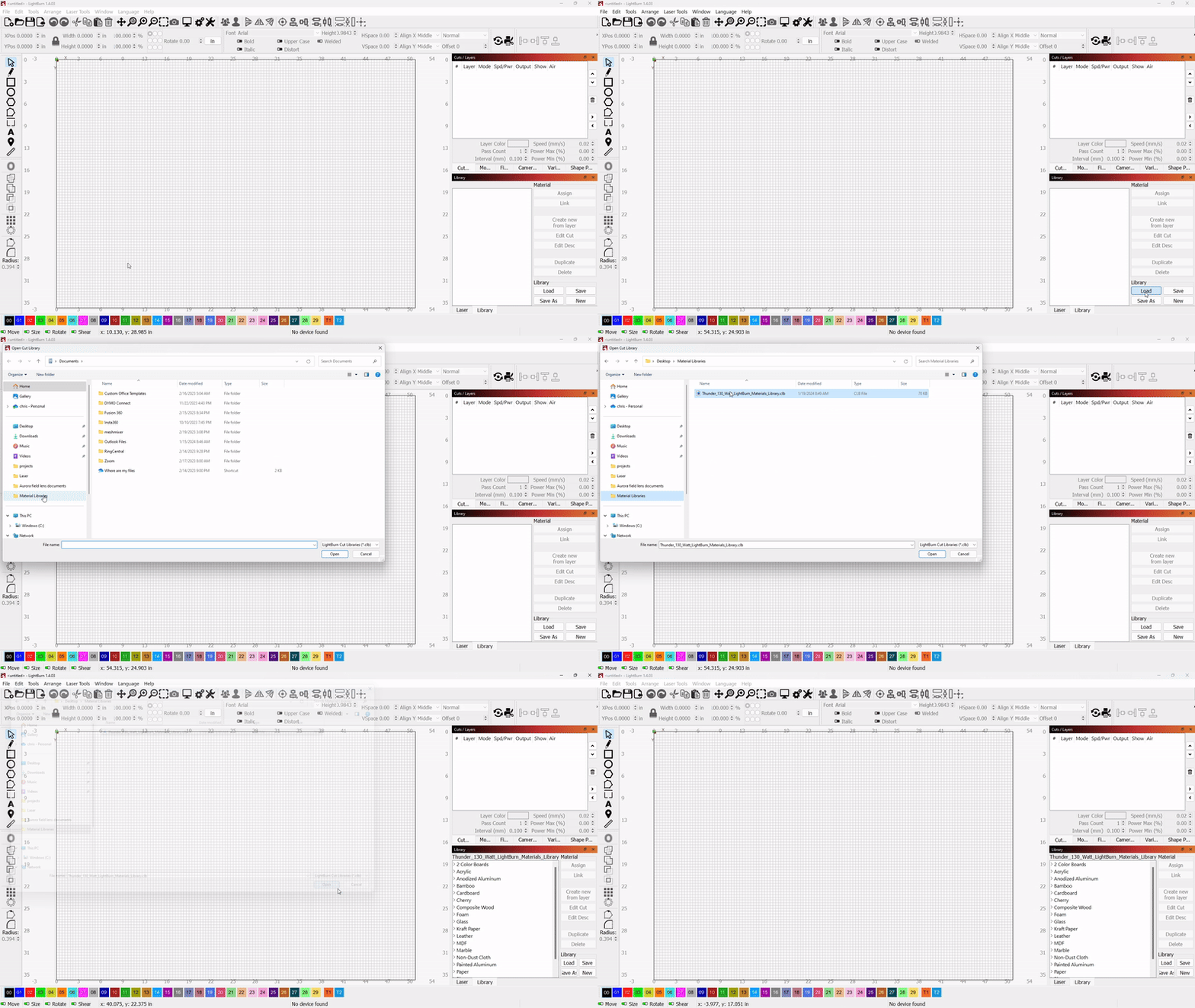
|
Lightburn Version 2.0.03 and later
| Select "Manage Library" | Select "Load Library" |
|---|---|
|
|
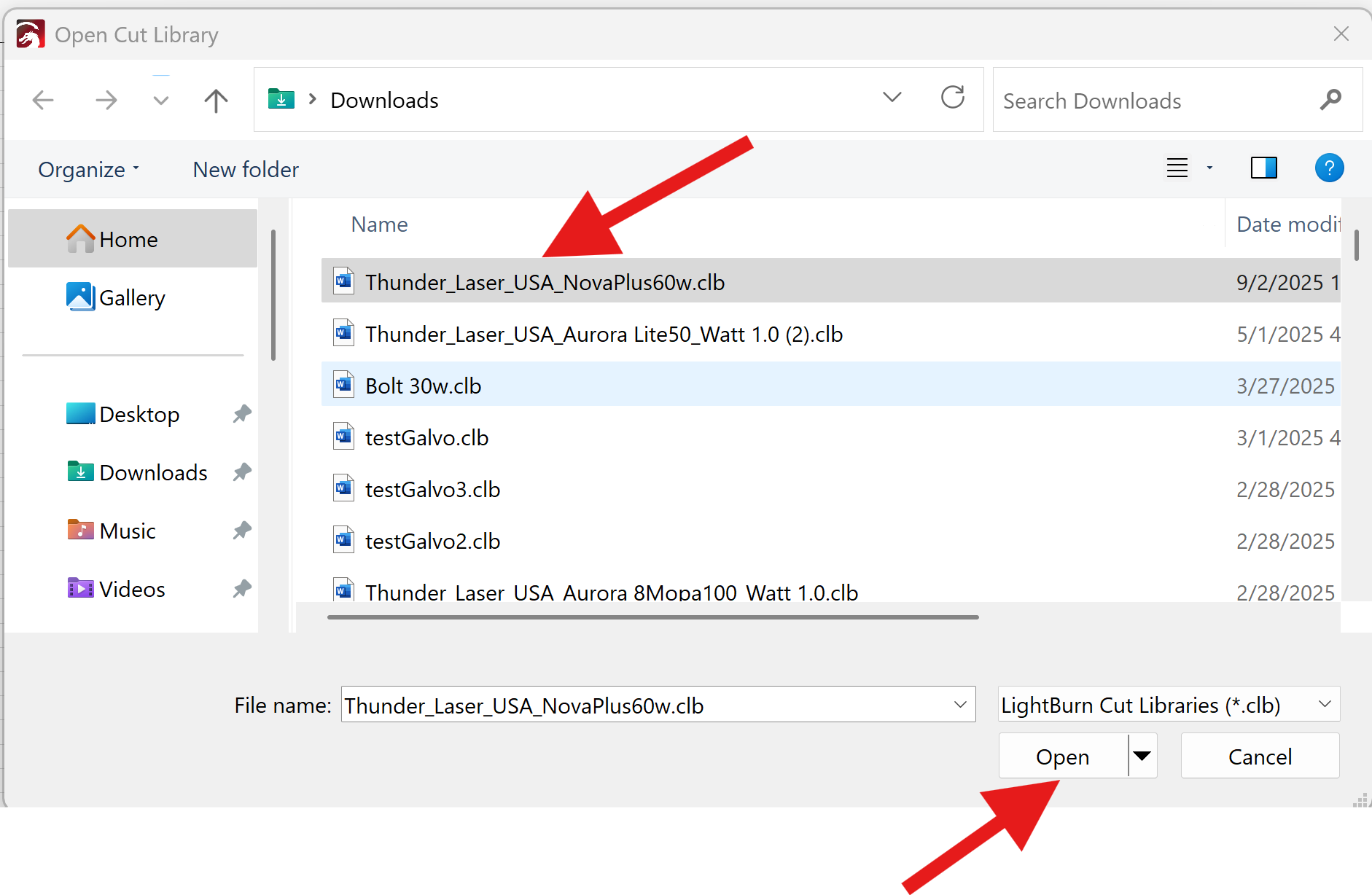
Select the Library to load:
Your library name and location may be different, it will be based on the library you wish to load and where you stored it.
Navigate to where you stored the library file (*.clb type) and select it and press the Open button on the popup window.
Reference Articles
Material Libraries and Safe/Unsafe Resources
Still stuck?
Fastest response times in the industry from our US-based support team.