
Aurora Series Over Temperature Error
Here are the steps to mitigate an over temp message in EzCad.

Check The E-Stop
⚠️ Pulling out on an e-stop can damage its mechanism.
The machine can appear to look fully powered-up and ready even with the e-stop engaged.
Gently twist the button to the right and it will pop out if it were engaged.
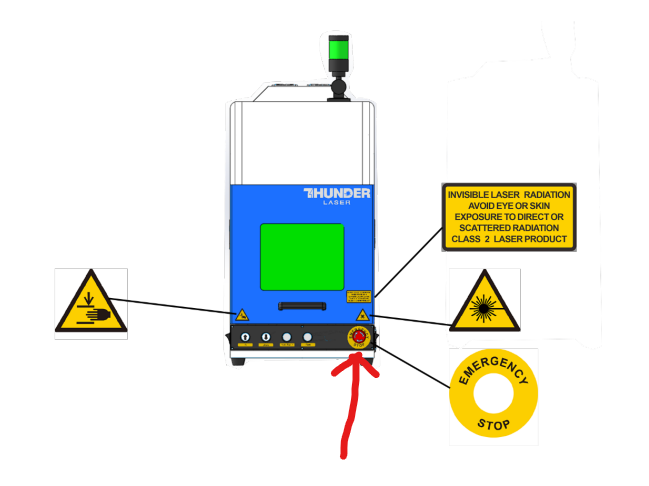
⚠️ On Aurora V2... you must press the on button if an e-stop event occurred, just like during normal power up.
If the red on LED is flashing, press the ON button and the LED should remain on and power will be restored.
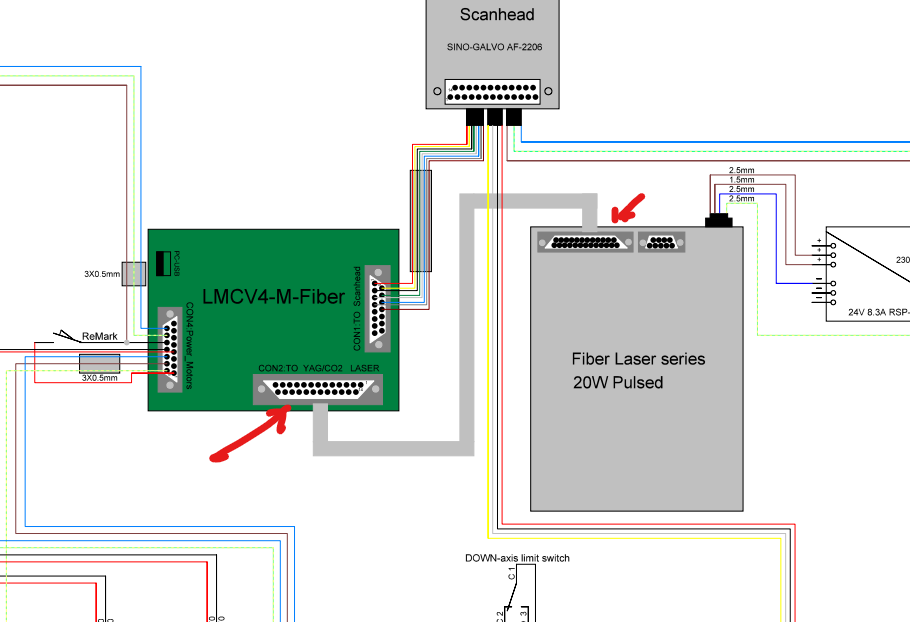
Check The Data Cable
There is a DB25 cable that runs from the controller to the laser source.
Remove, inspect, and even check continuity of the cable.
Check The Power Supply
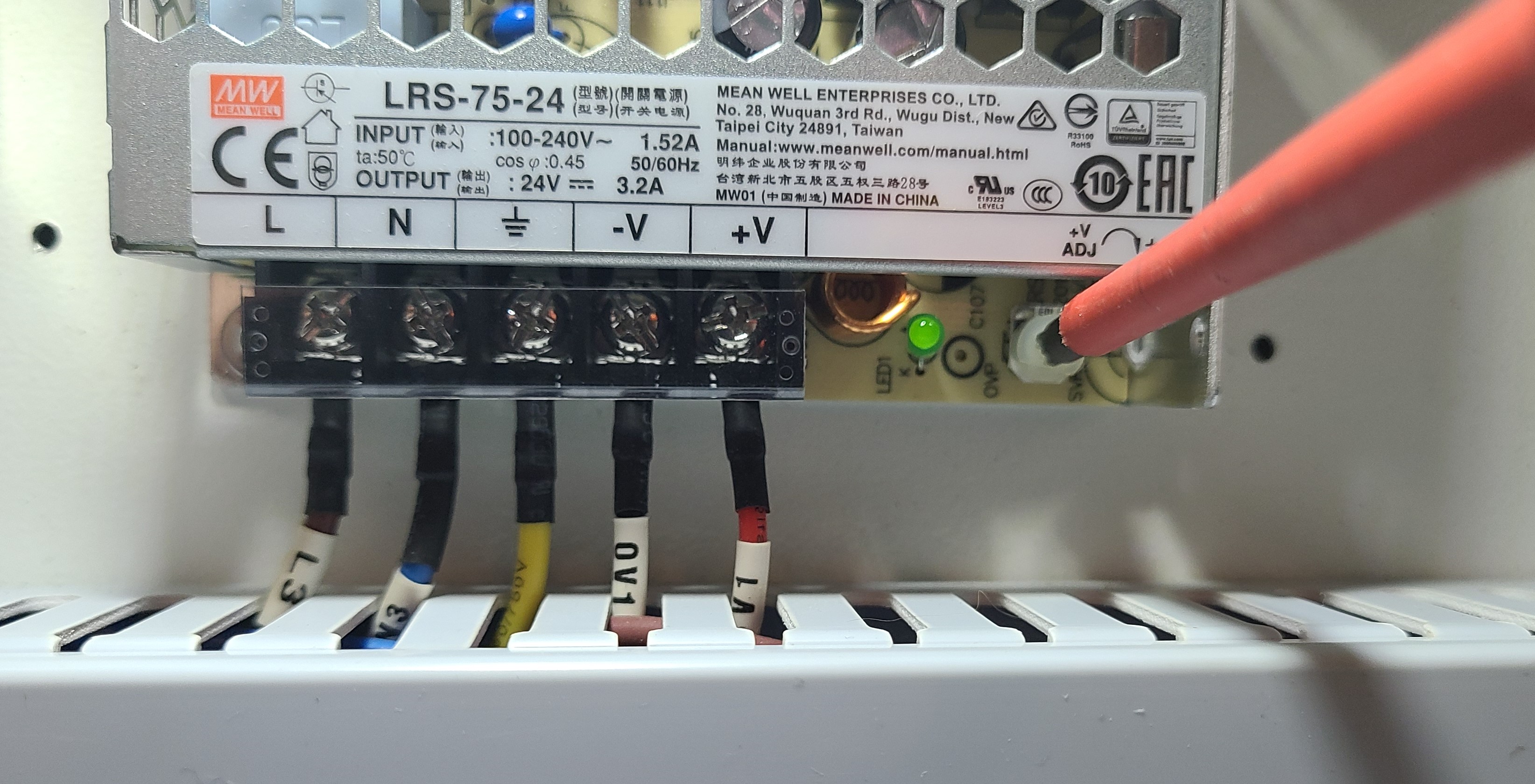
You will need to verify that the low voltage 24 Volt DC power supply dedicated to the laser source is outputting 24 volts.
Access The Correct Power Supply
You will have to access the power supply as shown below:
COMING SOON
Power Supply Calibration
Use a voltmeter to measure the output from V+ to V- and Adjust the White Trim Pot to get 24V reading on the voltmeter.
With a small flat head screwdriver, turn the trim pot next to the green LED slowly clockwise to increase voltage, counter-clockwise to decrease.
If Message Isn't Cleared
If you are a Thunder Laser USA client and haven't created a ticket yet, please do. Just email [email protected] or submit one via the portal.
If you already have a ticket open and were instructed to do these tests, please reply back to that ticket with your results.
Still stuck?
Fastest response times in the industry from our US-based support team.