
How to Flash Screen (HMI) and Controller (DSP) Firmware on a Thunder GT5 Touchscreen Laser using the Screen and USB
How to Flash GT5 / GT5c Touchscreen (HMI) and Ruida DSP Controller Firmware
Preface: This article covers flashing the firmware on machines with a Ruida GT5 or GT5c touchscreen, for either the Screen (HMI) or the Controller.
Warning: Perform this procedure only under the guidance of Thunder Laser USA. Make sure you have stable power and enough time to stay at the machine. Failure to perform this procedure correctly can cause hardware failure.
Note: If your screen is displaying Chinese at startup and the X/Y drivers are not plugged in, wait for the homing screen to time out (about 60 seconds), then change the language using this article: How to Change the Ruida GT5 Touchscreen from Chinese to English.
Quick Start Guide
Note: If you are replacing the DSP controller (not just updating the firmware on your original controller), write your machine settings to the new controller before performing any firmware updates. You may need to set up a USB or Ethernet connection before flashing so that you can write your machine settings. This is covered in Step 3 of the Replacing the DSP Controller guide.
Video on How to Flash the HMI Screen and DSP Controller
Complete Guide
Note: Thunder recommends updating the HMI screen first. Do not power cycle the machine. Then update the Ruida DSP controller using the firmware provided by [email protected].
Where to Get the Latest Firmware
Email [email protected] for the latest firmware. We do not recommend downloading firmware from third-party sources such as social media groups or forums. Include a picture of your serial plate and your current firmware version in your email.
How to Find Your Current Firmware Version
Press the Menu button and then the Right Arrow button | Press the System Info button |
|---|---|
 |  |
The firmware versions for your HMI and Controller will be displayed:
Example: Older Firmware Version (No Date) | Example: Newer Firmware Version (Dated March 15, 2024) |
|---|---|
 |  |
Prepare Your USB Stick with the Firmware Files
Copy the firmware files sent to you by Thunder to the root of the USB stick (the top level of the drive, not inside any folder). The files must not be in a subfolder or zipped. With newer revisions, the firmware file names may not exactly match those shown in the picture below.
Note:
Ruida DSP Controller firmware files have a .upd extension.
HMI Screen firmware files have a .hmt extension.

Flash the Firmware: Initial Steps for Both the Screen and Controller
Power up and home your machine. The steps for flashing the HMI Screen and the Ruida DSP Controller are similar, so this guide starts with the common steps and then branches off for each piece of hardware.
Insert your prepared USB stick into the USB port on the screen | Press the Menu button |
|---|---|
 | 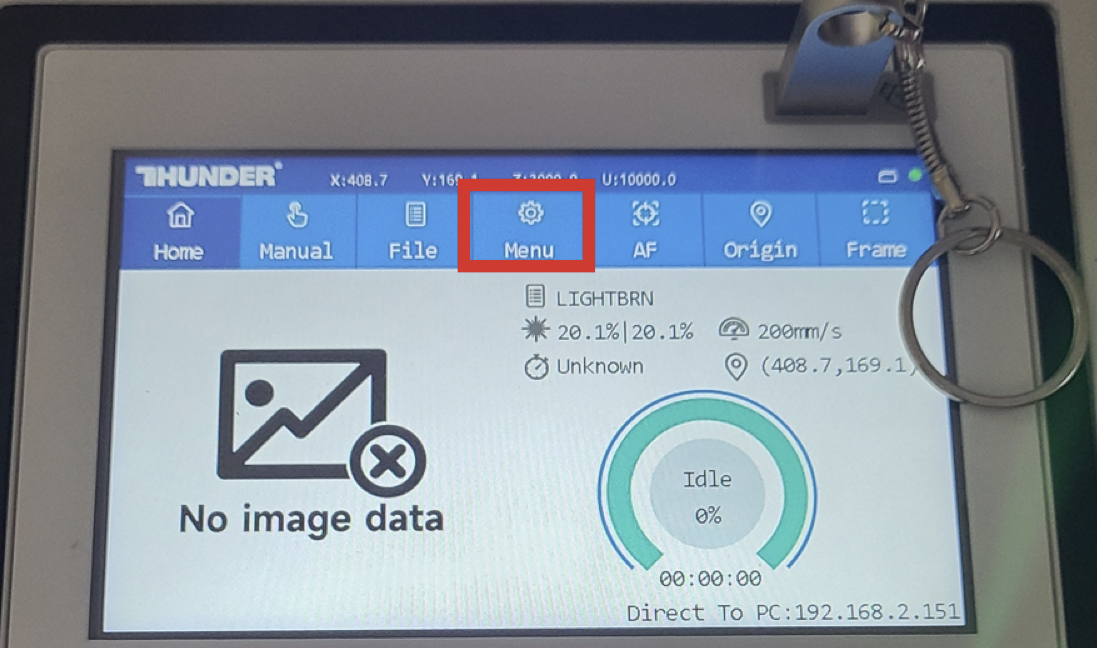 |
Press the U Disk button | Note the options for Controller (Board) and HMI |
|---|---|
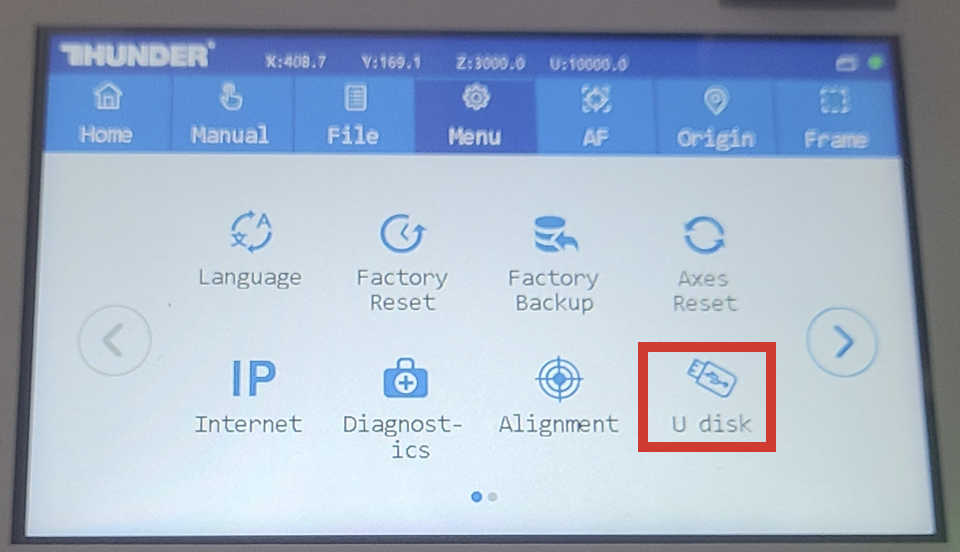 |  |
From here, the instructions branch depending on whether you are flashing the Screen or the Controller. Choose the appropriate section.
To Flash the HMI Screen
Press the HMI button | Screen Upgrading Message | Screen Upgrade Complete |
|---|---|---|
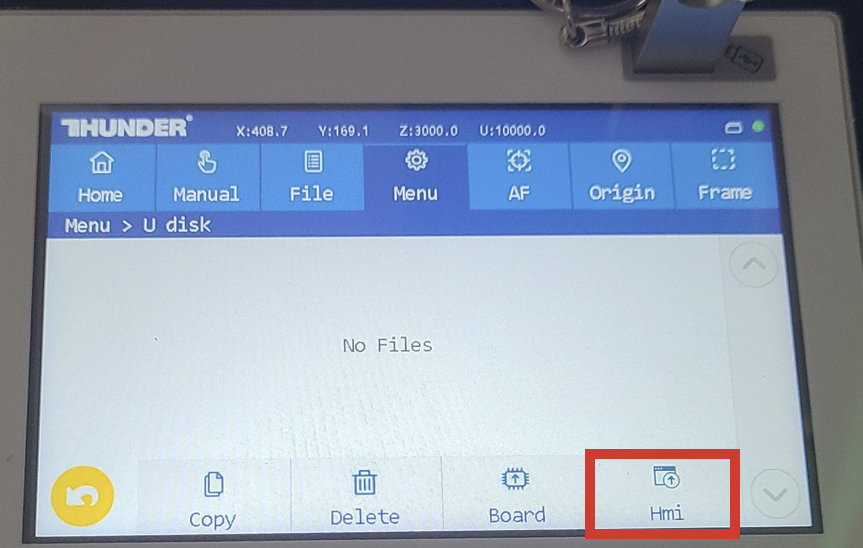 | 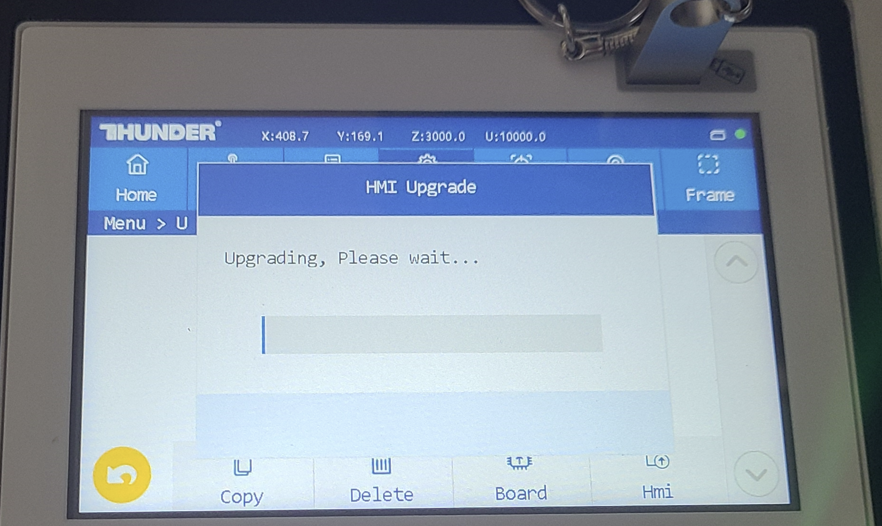 If the screen can read a valid update file, this message will appear while it upgrades. This takes 5–10 minutes. | Warning: DO NOT POWER CYCLE THE MACHINE AFTER UPDATING THE HMI! 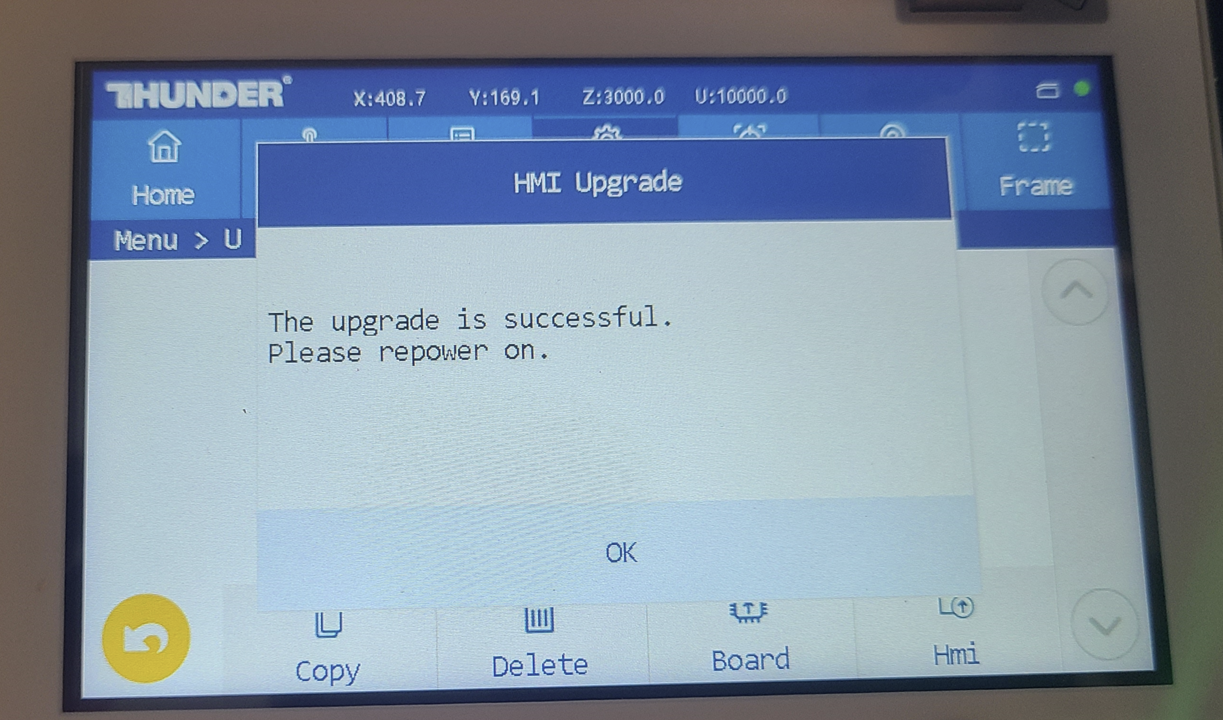 When the upgrade is complete, this message will appear. Press OK, then continue to the next section to flash the controller firmware. |
To Flash the Ruida DSP Controller
Press the Board button | Controller Upgrading Message | Controller Upgrade Complete |
|---|---|---|
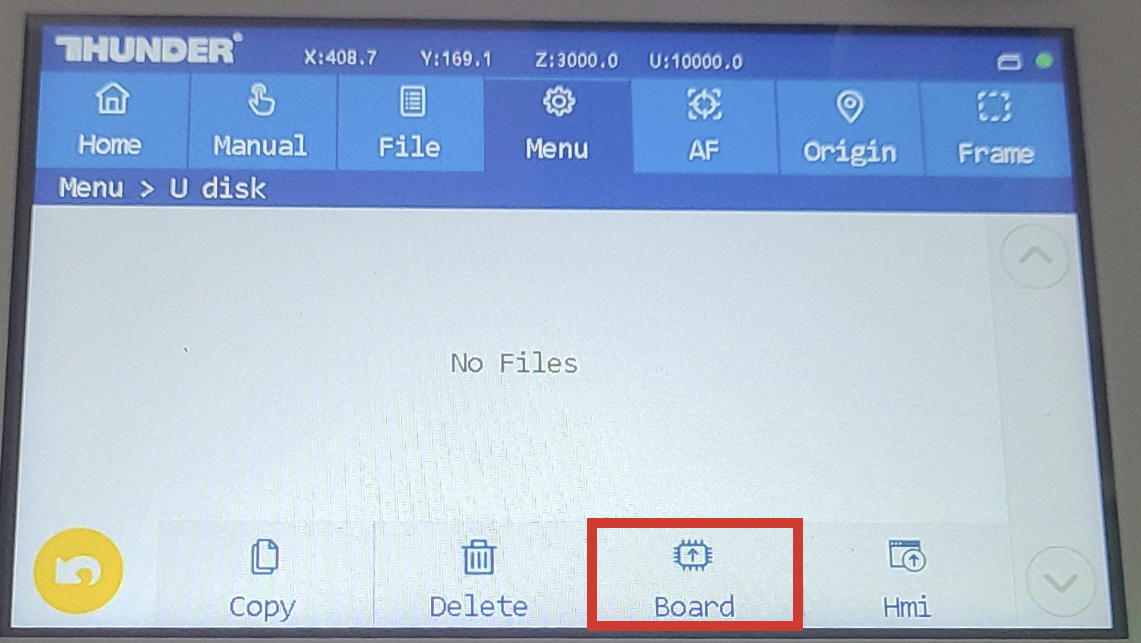 |  If the screen can read a valid update file, this message will appear while the controller upgrades. This takes 1–2 minutes. | 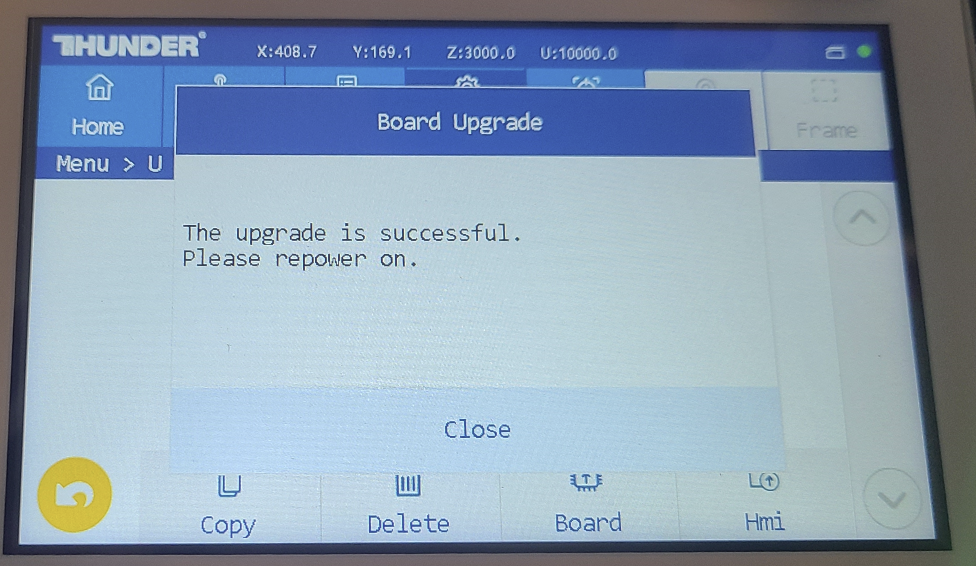 |
When the controller upgrade is complete, power cycle the machine.
Possible Errors and Messages
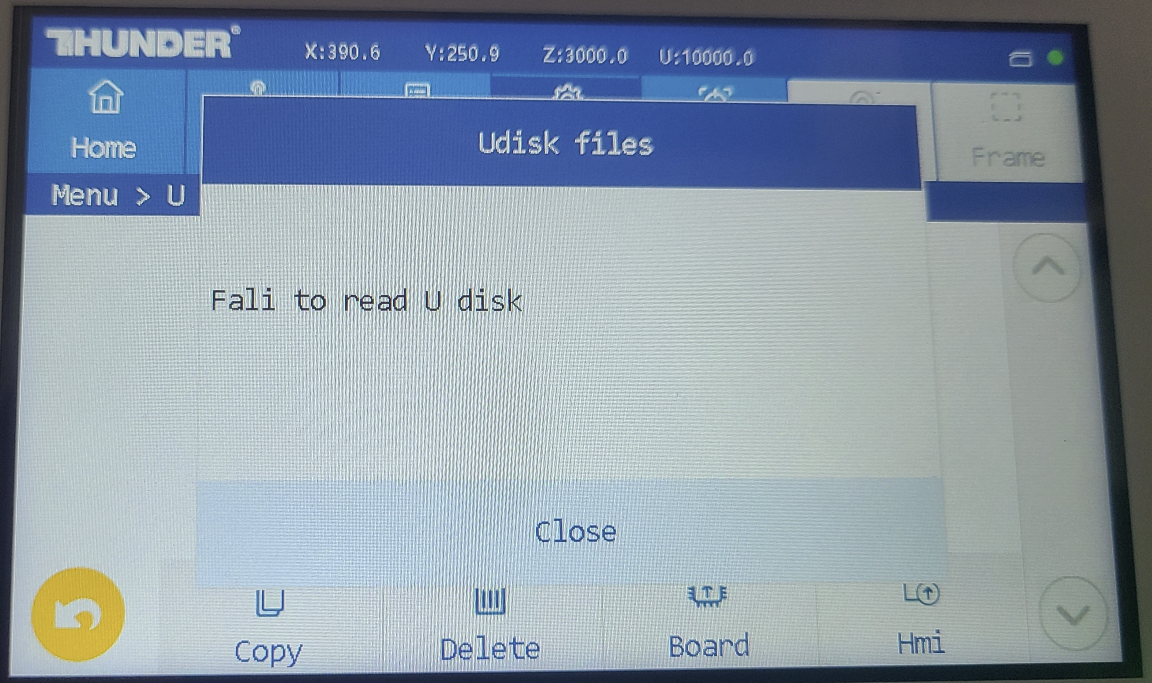
Failed to Read U Disk
This generally means the USB stick cannot be read. (An inserted USB stick with no files on it will not trigger this message.) Use a USB stick of 128 GB or smaller.
Upgrade Timed Out or Did Not Complete
Try again. The screen update may fail a few times before it succeeds. If it keeps failing, email [email protected].
Error Condition After Trying to Flash
If you attempt to flash firmware without any files on the USB stick, the screen will keep waiting to read a file, and other screen and machine functions may not work properly. Remove the USB stick from the screen and acknowledge the error message that appears. If you leave the USB stick inserted, the screen will likely stay stuck trying to read it.
Reference Articles
Still stuck?
Fastest response times in the industry from our US-based support team.