
How to Install TL Auto Focus Software on a Mac Computer
Preface: This article is a rough draft of the instructions as the software is a new release.
Quick Start Video
Complete Guide
-
NOTE: You need to install the driver (CH34xVCPDriver.app) before using the Auto Focus software (autofocus.app). First, double-click the entire software archive file to automatically decompress it. After unzipping, open the file and double-click the driver file.

-
There will be a pop-up prompt — please click "Open".

-
The installation pop-up window appears — click "Install".

-
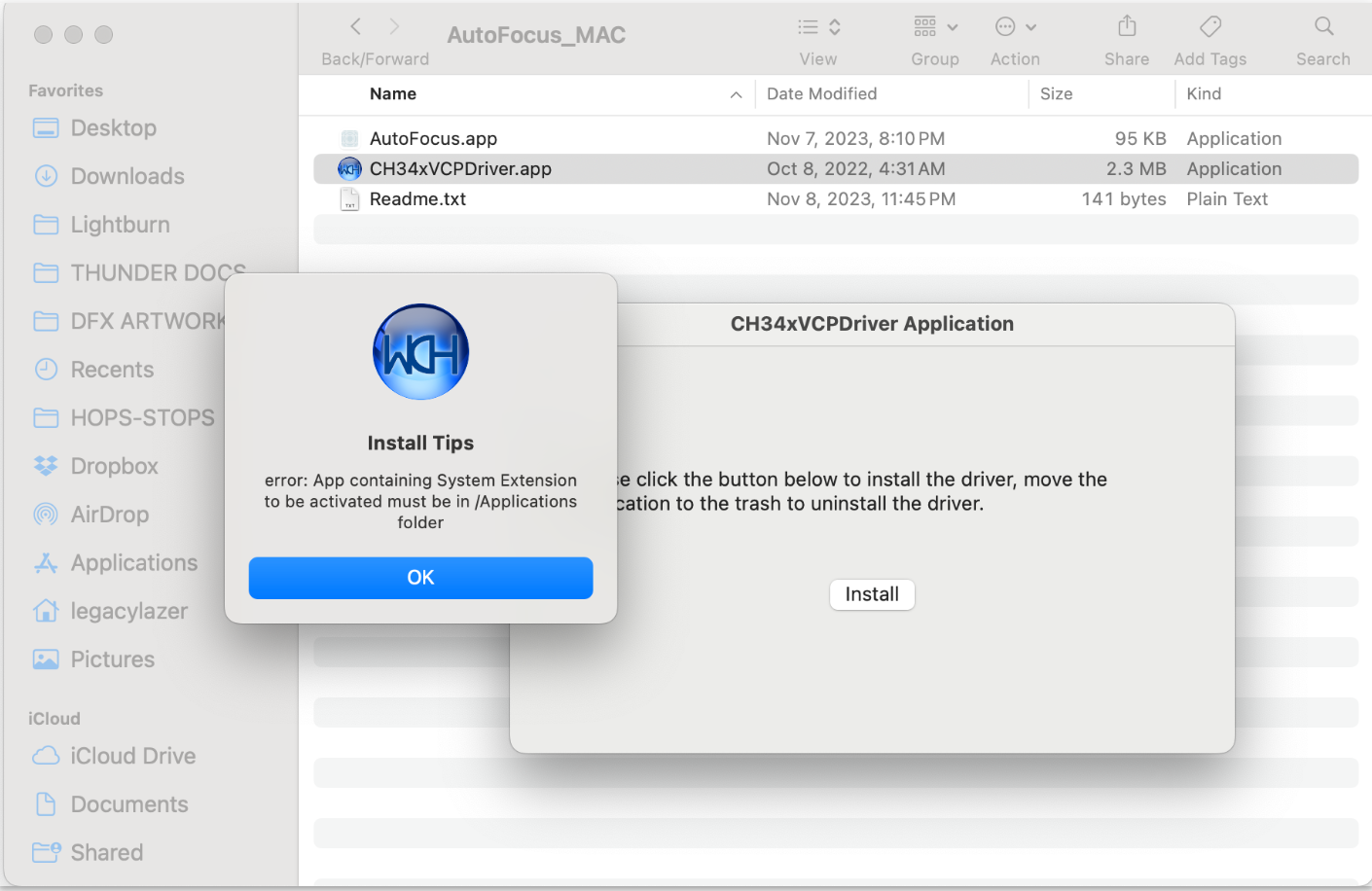
An installation pop-up window will prompt with the message "The application containing the system extension to be activated must be in the Application path" — click "OK".
-
Manually drag the driver (CH34xVCPDriver.app) into the application path. If you dragged the driver (CH34xVCPDriver.app) into the application path at the beginning of opening the zip package, you can omit the steps before step 5.

-
Double-click the driver (CH34xVCPDriver.app) again. The installation window will pop up — click "Install". The System Blocked window will pop up — click "Open System Settings".

-
In the pop-up system settings page, find the "Privacy and Security" option. Under the security option, click "Allow".

-
The privacy permission window will pop up — enter the system password.
-
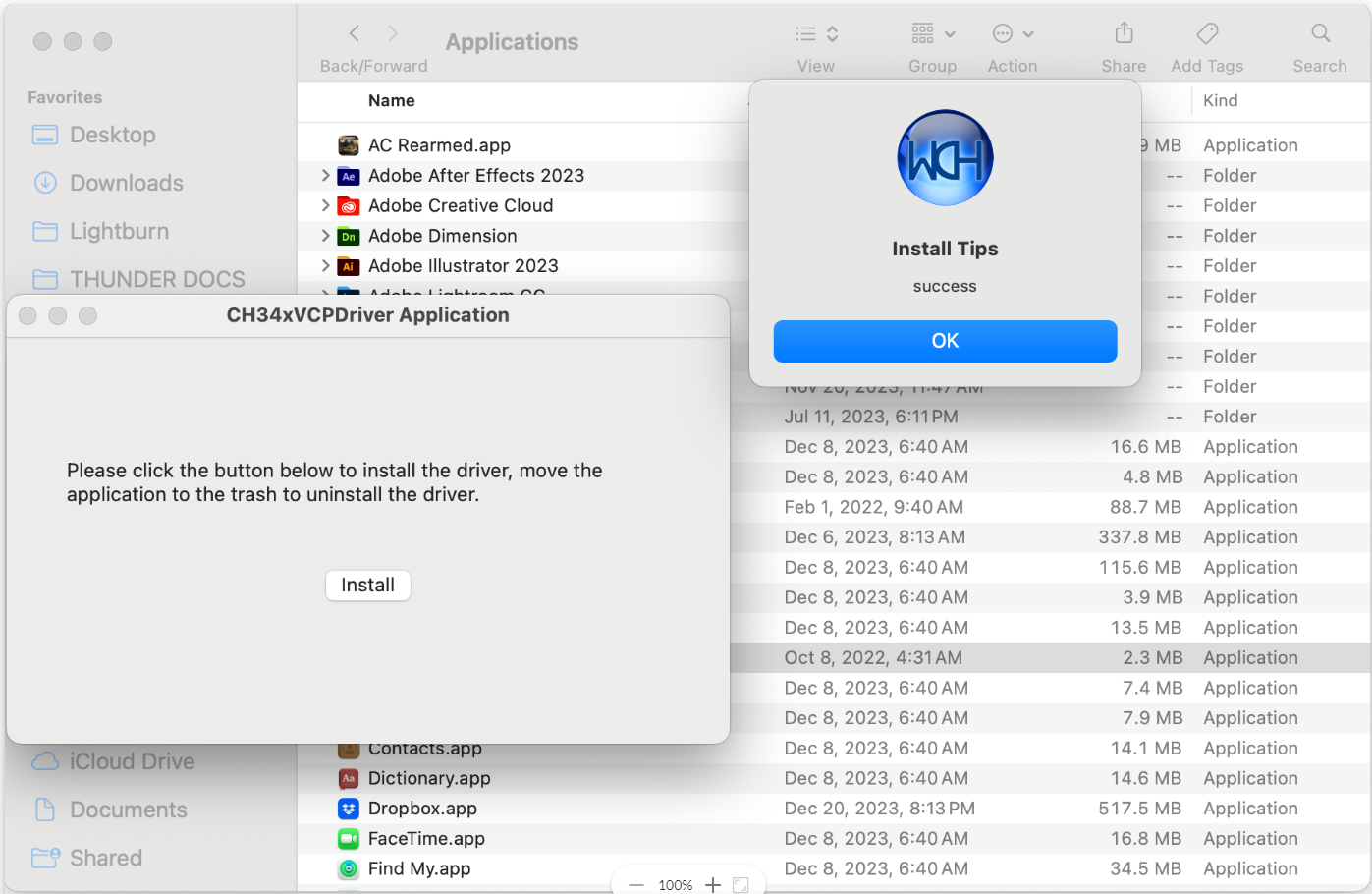
After entering the password, the program is allowed to be loaded. Click "Install" again to test whether the software is installed successfully. The successful installation window will pop up. Click "OK" on the successful installation window, and close the installation window.
-
After the driver (CH34xVCPDriver.app) is installed, install the autofocus software (Auto Focus.app). Double-click the app — a verification window will pop up. Click "Cancel" (do not move to trash). Find the "Privacy and Security" option on the system settings page, then click "Still Open" to allow installation of the software.
-
The authentication window will pop up — click "Open". Open the software and use it normally. The Auto Focus software is now installed successfully.

These are all the steps to install the Auto Focus software (autofocus.app). After installation, you can directly double-click the software to open and use it — the verification window will not pop up again. Only the first time you install the software is there no permission; you need to manually allow the installation.
Tip: The correct port connection also determines the normal use of the software. Therefore, it is recommended to check that the connection is correct before using it.
After opening the software, check that the port option is the correct port number before testing. The correct port number is shown in the figure below. The English part
cu.wchusbserialis unchanged, and the number part will change. If you cannot find the port, reinstall the driver.

Downloads
Still stuck?
Fastest response times in the industry from our US-based support team.