
Legacy Lightburn Material Test File
Preface: The article covers some pre-made material test cards and the built in Lightburn Material Test Generator for CO2 lasers like the Thunder Laser Bolt, ODIN and Nova machines
Quick Start Videos
Legacy Material Test Cards
Lightburn Material Test
Video from Lightburn on how to use the built in Material Test Generator.
Complete Guide
A test card is a good way to determine what cut or engrave settings you can use to get the desired result for your specific machine and material. Each series of machine will have different cutting and engraving abilities, so there is not a true "One Size Fits All" Material Test File. The tube wattage can vary from 30w to 130w which is over a 3x span from low to high. Also, materials can vary greatly from thin films all the way up to thick wood boards. Also keep in mind that these are sample tests on small portions of material, as you start cutting larger items with material variation you may need to adjust your speed\power and as your DC Co2 ages, optics get dirty\fouled you may have to adjust your settings.
The premade cards use the Power scale function that is built into Lightburn. The settings are controlled by the fill layer properties and the Shape Properties for each shape. More information can be found in this reference video.
Legacy Test Cards
The Legacy Test cards were a simple One Sizes Fits most solution that was more geared towards robust materials from about 1/8th of an inch to half an inch for a Nova Series laser machine. If the user was wanting to test on thin materials like EVA foam or Mylar films, the test card was not too useful. Also if the user only wanted to test Engrave or Test Cut, the file was not set up to isolate Cuts and Engraves. You can certainly still use the Legacy Test cards, they still work and their simplicity makes them simple to use.
Cut and Engraves
| Example Cut and Engrave File | Lightburn Preview |
|---|---|
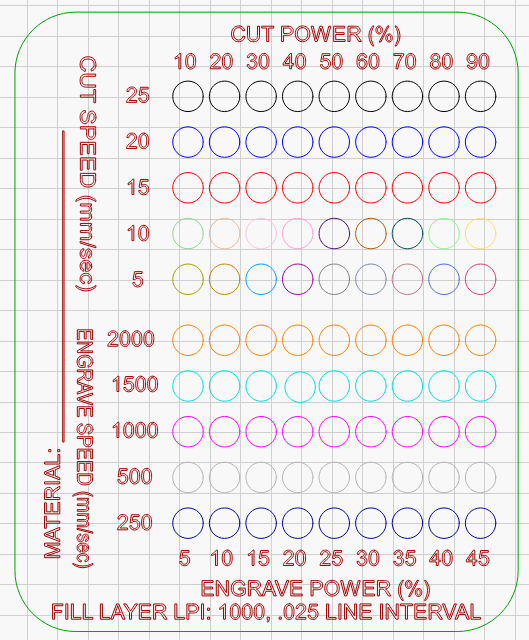 |
 Note that for Cut Layers at 10mms or slower, individual layers are set up and configured due to how power scaling and min power work at travel speeds of 10mms and slower |
Rotary Engrave
Set up for a rotary (chuck or roller) that engraves in a single direction with powers and speeds that are in the normal range for Tumblers.
| Example Rotary File | Lightburn Preview(Note the shades of Gray indicating the Laser Power) |
|---|---|
 |
 |
How to Use a Material Test Card
- Download the card you want to use for the machine you plan to run from the File Download Links section of this article
- Open the File with Lightburn. Do not import into Lightburn. Open as project
- Check your settings. We suggest using "Cut Selected Graphics", "Use Selection Origin" and a "Start From" that is set to User Origin.
- Select the card that you want to run. Ungroup it and set the Material Name
- Select the card that you want to run, and then use the SEND button to send the job to the machine
- Run the job. (If the card does not cut out completely, go back to Lightburn, select only the Cut Border and Hole for the card, resend and run)
- Evaluate the results. Which sections cut out or which sections give you the engrave look you need. Use that speed\power\LPI for your projects.
Lightburn Material Test Card Reference
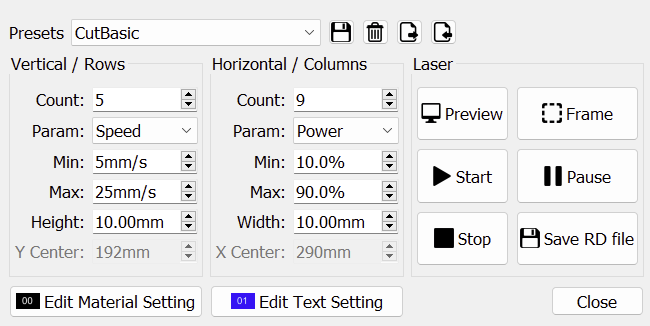
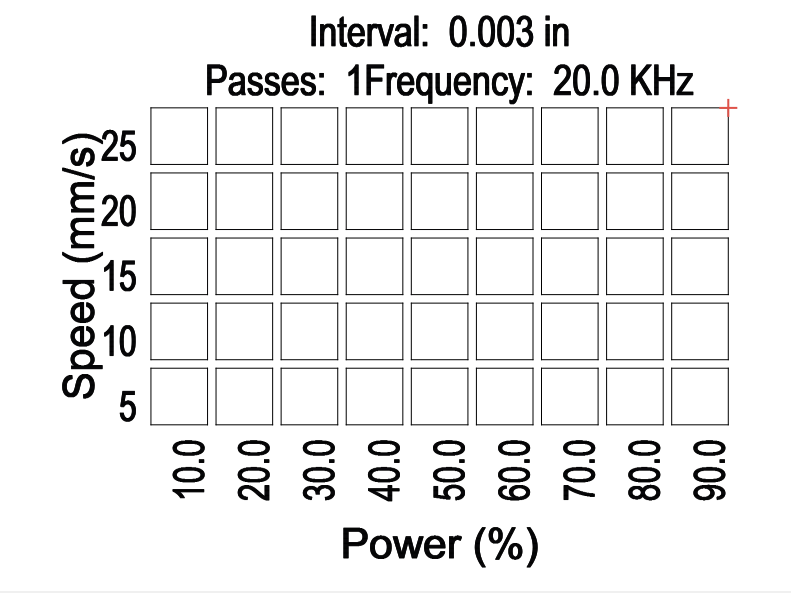
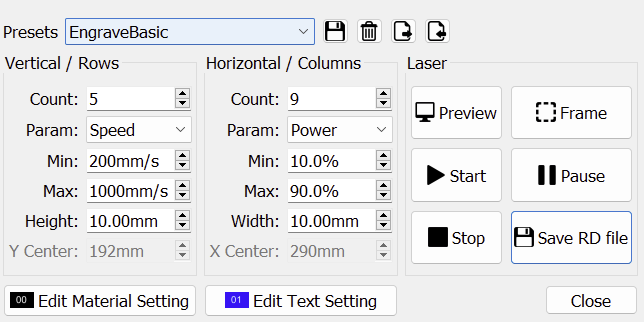
For more information about the Lightburn Material Test Generator please see the Lightburn Documentation here.
Lightburn Material Test Cut Example
| Basic Settings | Preview |
|---|---|
 |
 |
Lightburn Material Test Engrave Example
| Basic Settings | Preview |
|---|---|
 |
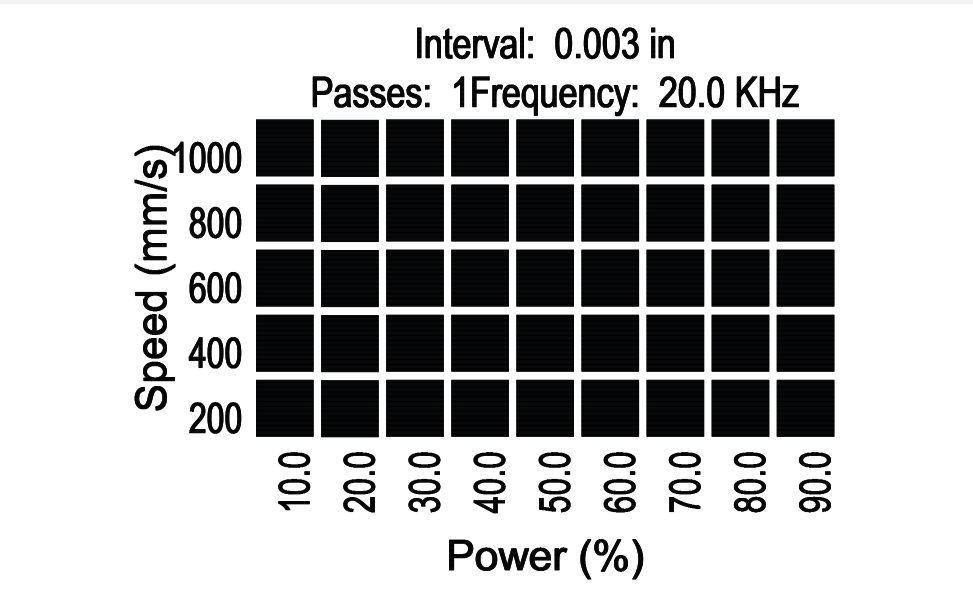 |
File Download Links
Legacy Type files:
| Type | File Link |
|---|---|
| Nova Series Cut and Engrave | Cut and Engrave |
| Nova Series Rotary Engrave | Rotary Engrave |
| Bolt Series Cut and Engrave | Cut and Engrave |
| Bolt Series Rotary Engrave | Rotary Engrave |
| Odin Series Cut and Engrave | NA |
| Odin Series Rotary Engrave | Rotary Engrave |
Lightburn Material Test
Import these Preset files into the Lightburn Material Test Generator.
| Type | File Link |
|---|---|
| Cuts Example | LB Cut |
| Engrave Example | LB Engrave |
Still stuck?
Fastest response times in the industry from our US-based support team.