
Titan - Factory Settings Screen


Walkthrough of the menu and settings available:
First, on the machine touch screen, click the Menu button and then then select the Factory Setting option.


Factory Setting Functions
Auto Focus type:

This option corresponds to the type of autofocus function on your machine:
If your machine is from the Bolt Series, please select the “Touch rod focus”.
WIFI card:

This option affects the display content on the Internet interface.

If “Yes” is selected, the following content will be displayed, showing three different connection methods:

If “No” is selected, the following content will be displayed, showing one connection method:

For the Titan series, select "Yes".
For the Bolt series, select "No".
Note: Because the Bolt series does not have a wifi card installed, it will not support a WIFI connection, even if "Yes" is checked, it cannot connect to the computer via WIFI.Door cover protection type:

"No": When the door cover is open, the XYZ axes can all be moved manually.
"XY": When the door cover is opened, the XY axes are not allowed to move. In this state, pressing any movement button of the XY axes will trigger a machine protection prompt.
"XYZ": When the door cover is opened, the XYZ axes are not allowed to move. In this state, pressing any movement button of the XYZ axes will trigger a machine protection prompt. (Required for Class I)
For the Bolt series, the factory default setting is "No" and makes the machine a Class II machine at best.
For the Titan series, the factory default setting is "No" and makes the machine a Class II machine at best.
We recommend users keep the setting at "XYZ" to ensure maximum safety. Blow aid:

If there is a Dual Air Assist Control panel installed on the left side of the machine, please select the "Double blow";
If there is no such panel, please select the "Single blow".

Laser condition detection:

It is used to detect whether the laser function is normal. If the RF laser tube is abnormal, a fault pop-up window will be prompted.
"Open" is checked by default for all models.
Do not move the Z-axis when the front cover is Open/closed:

Only applicable to the Titan series, the default setting is "Close"; We recommend users keep the setting at "Open" to ensure maximum safety. When you need to adjust the optical path during maintenance mode, you may temporarily switch the option to "Close".
This option is not enabled for the Bolt series, and the "Close" is checked by default.Laser type:
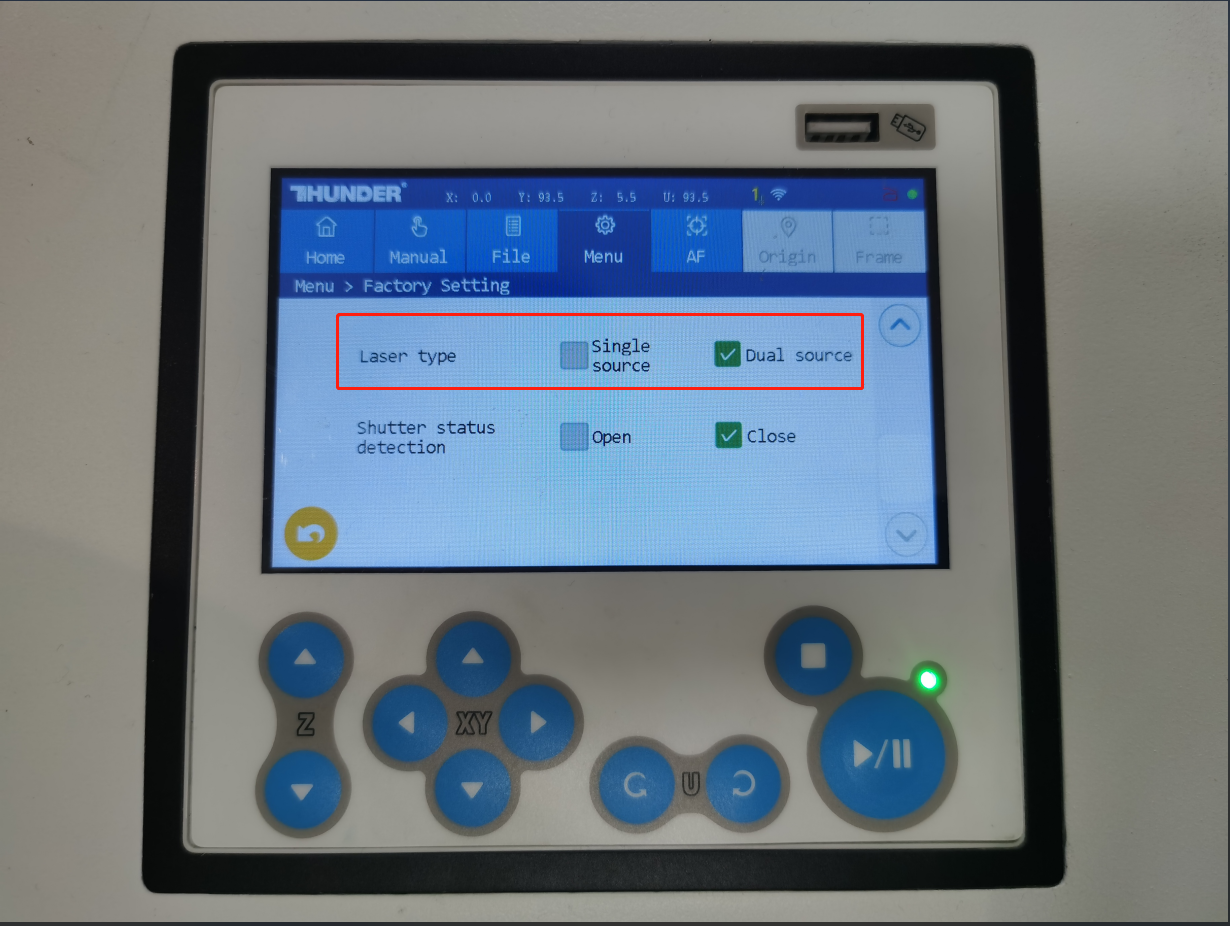
Laser source type selection should be based on your machine model:
For Bolt Series and Titan, select Single source.
For Titan Pro, select Dual source.
Shutter status detection

For machines with the Shutter, this option needs to be selected as "Open".
For machines without the Shutter, select the "Close".
For the THUNDER laser machine, this device is installed at the front end of the laser tube, as shown in the figure below.
Bolt Series:
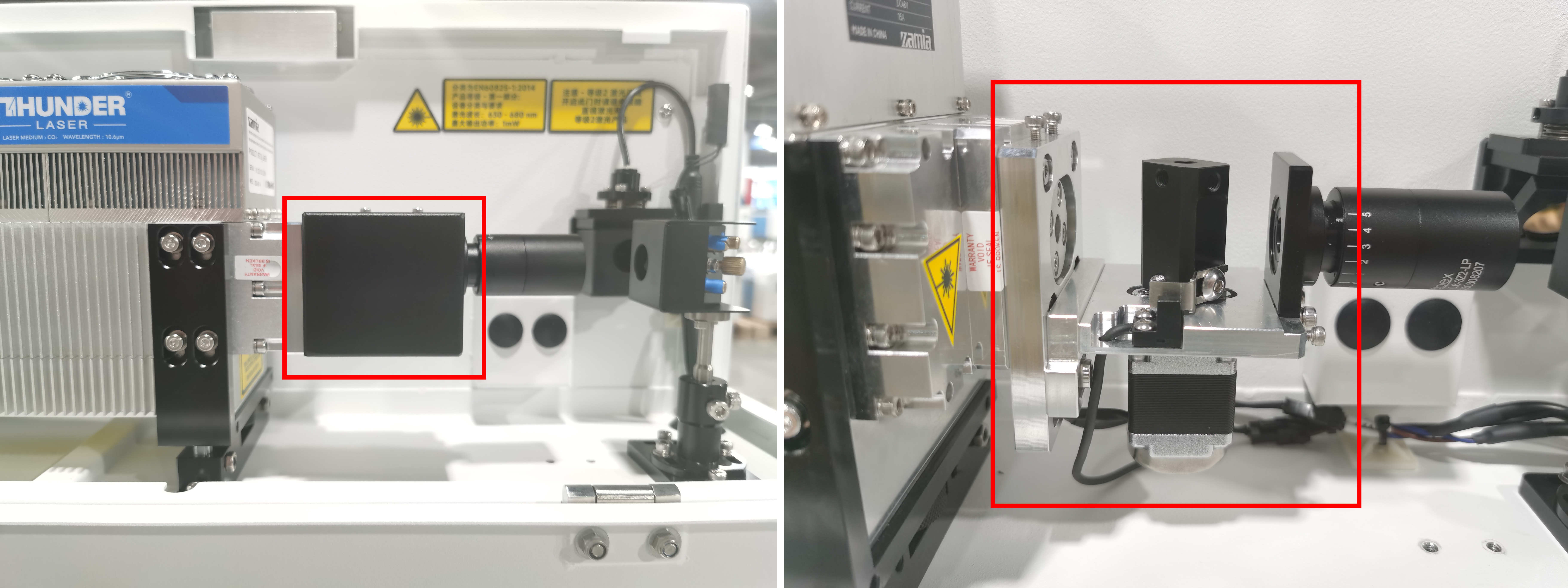
Titan Series:

Note: For machines without the Shutter, selecting "Open" will not enable it, and this function will not take effect.Still stuck?
Fastest response times in the industry from our US-based support team.