
Thunder Laser Nova Laser Power Supply (LPSU) Output Current Test Procedure
Preface: This is a diagnostic procedure to collect data on the output of the LPSU. It is not necessary to perform this unless instructed to do so by Thunder Laser USA Support & Innovation Labs. But you can if you like. This instruction is specific to the Thunder Laser USA Nova Glass Tube machines only, all wattages.

Please reply back to your support ticket with your results in an organized fashion, please avoid just sending a video of the LPSU.
The Procedure:
This procedure runs the Lightburn file and allows you to view the LPSU ammeter to record the ma output values at the LPSU. The file will start with a 10 second fan delay and then proceed to draw ten lines with five second pauses between lines. Each line will step the power level up by 10%, starting at 10% all the way to 100%. While the machine is outputting, the operator should be recording the values from the power supply milliamp meter. In between power levels, the Air assist should toggle between high and low air between each power step to help indicate the change.

Your laser will fire during this test. It is recommended to lower the bed down and clear the bed and crumb tray from any materials and foreign objects.
Step 1: Download the attached Lightburn file
The file is a run file and not a Lightburn project file and should not be imported to Lightburn as a project/vectors , instead you will use the downloaded RD file from HERE and transfer it to the Laser using Lightburn's Upload feature in the File List tab.
The file is set up to run a small set of lines in the Top Left corner using absolute coordinates. The job will need about 5" of space in x and y to be able to run.

Transfer the downloaded LPSUCRT2.RD file using Lightburn:
Do not edit or rename the file. Transfer it as is.
Enable the File List Window in Lightburn | Select the File List Window Tab |
|---|---|
 |  |
Check that you are Connected and Ready | Upload the File to the machine |
|---|---|
 | 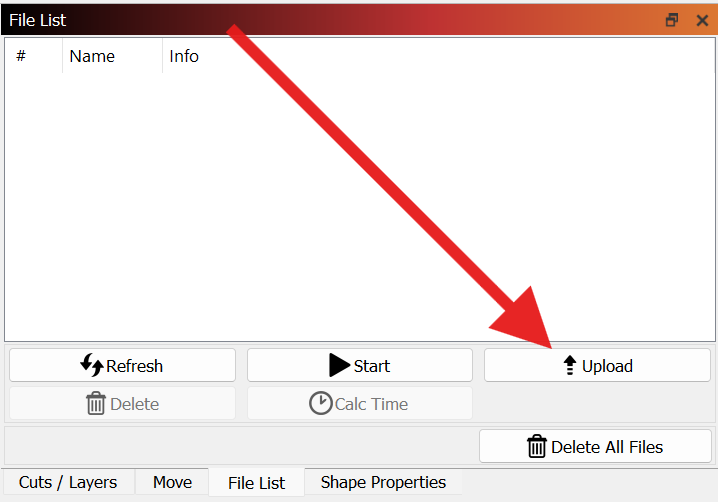 Click the upload button and navigate where you saved the RD file and select it and upload it. |
If you are unable to successfully upload the File from Lightburn, then you can use a USB stick to copy it to the machine. Please see this article for details on transferring a RD file to your Thunder Laser.
Here is a video on how to upload:
Step 2: Locate Power Supply for your machine
Nova 35, 51, and 63
Located on the back of the machine, behind the blue door to the Left of the exhaust outlet
Nova 35,51, and 63 General Location | Example of the LPSU |
|---|---|
 |  |
Nova 24:
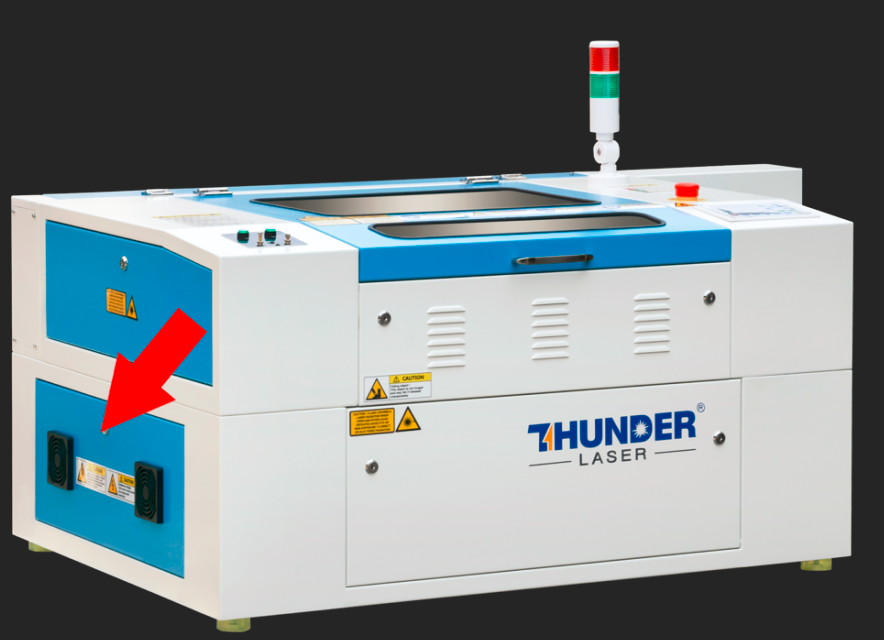
Located on the left side of your machine behind the lower blue door.
Nova 24 LPSU Location | Example of the LPSU |
|---|---|
 |  |
Step 3: Run Job and Data Log
Get your pen and paper ready. It would be good to make a column for 10-100% power in increments of 10 so that you will be ready to capture the output ma values.
Load the file you uploaded on the machine screen. You will need to select the job from the file list to get the preview on the machine.
Record the results and email them back to your ticket.
Power Percent | ma Readout |
|---|---|
10 | |
20 | |
30 | |
40 | |
50 | |
60 | |
70 | |
80 | |
90 | |
100 |
Recommended Tube Current Limits:
Tube Wattage | Starting Current milliamps (ma) | Nominal Peak milliamps (ma) | Max milliamps (ma) |
|---|---|---|---|
40 watt | 5 ma | 18 ma | 20 ma |
60 watt | 5 ma | 18 ma | 20 ma |
80 watt | 24 ma | 28 ma | |
100 watt | 5 ma | 24 ma | 25 ma |
130 watt | 6 ma | 28 ma | 30 ma |
Sample Results:


Lazy Tube:
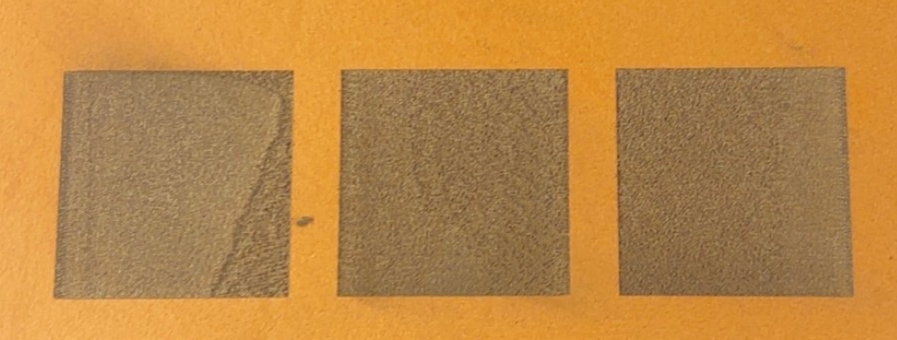
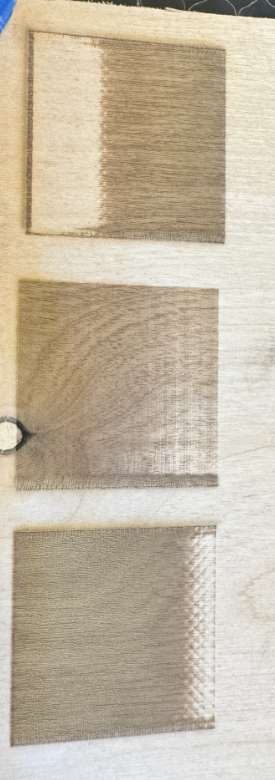
A lazy tube is one where the ma value struggles to ramp up until it reaches about 50% power, and then it resumes normal ramping to the peak. When the tube is lazy firing, you will lose small details and edges will not engrave well (like on multi layer materials, the surface color does not engrave fully on the outer edges).
Example Lazy Tube Readings:
The highlighted rows show the slow start below 50% power.
Power Percent | ma Readout |
|---|---|
10% | .04 |
20% | .03 |
30% | .03 |
40% | .09 |
50% | .11 |
60% | .14 |
70% | .18 |
80% | .22 |
90% | .25 |
100% | .27 |
You can run the LazyTube test file and check for slow starting power and edge defects.
Edge Defect Example:
Left square is firing left to right, right square is firing right to left.
Extreme Case Example:
Top square is firing left to right, bottom square is firing right to left.
Still stuck?
Fastest response times in the industry from our US-based support team.