
Thunder Bolt Touchscreen Calibration Procedure
Preface: This article covers how to perform a Touchscreen calibration on your Bolt GT5 Touchscreen
Quickstart Video
Video shows how to perform the calibration and the recovery method if it is messed up or non responsive
Complete Guide
Basic Calibration
The basic calibration is a 5 point calibration that is accessed from the Menu button on the touchscreen.
Step 1: Press the Menu Button

Step 2: Select the Calibration Icon
First use the right arrow to show the next page of Icons
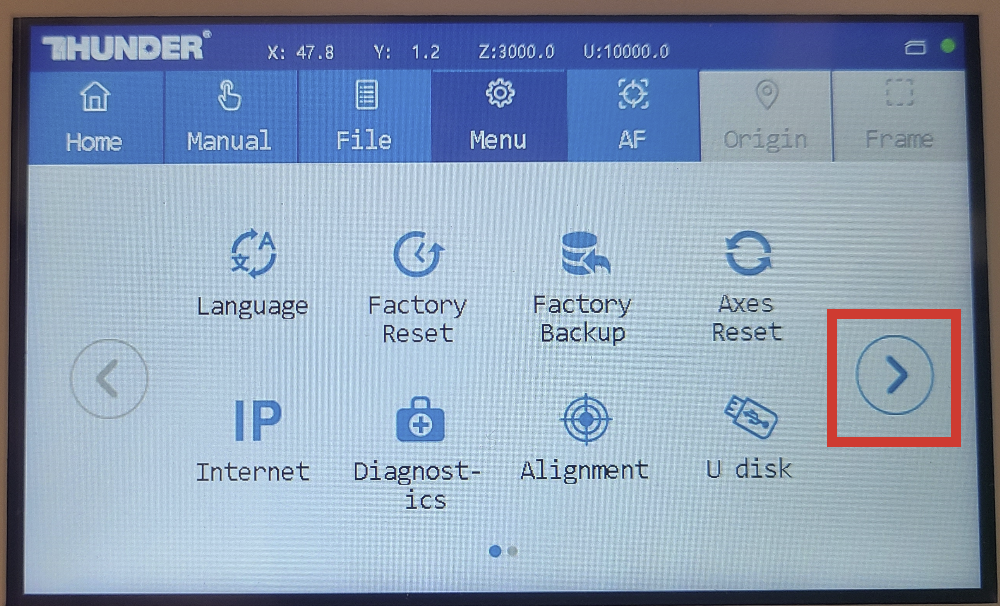
Then Select the Icon for Screen Calibration

Step 3: Perform the 5 Point Calibration
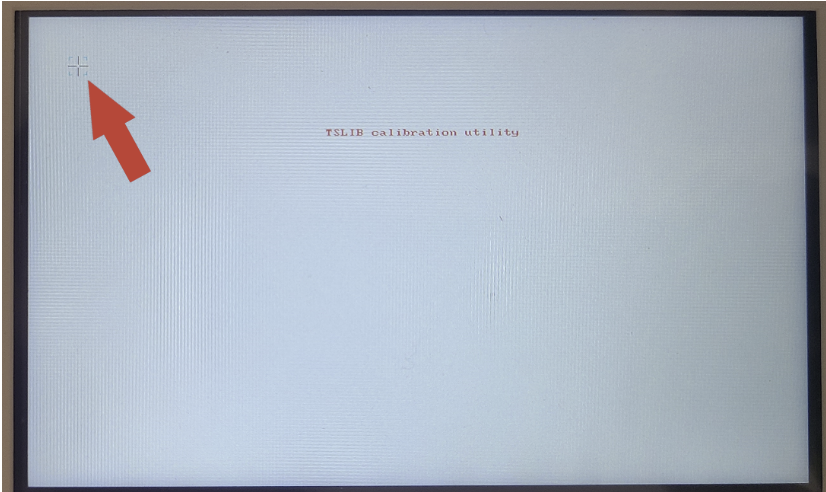
Press on the target for each of the positions as it is displayed
Top Left, then Top Right, then Bottom Right, then Bottom Left and finally Middle Center
Sample Icon shown below

Once all five points are Touched, the system will go back to the home screen.
Recovery Method
So if the touch calibration is so messed up that you cannot even get back to the prompt to re-do the calibration, then you can try this recovery method.
Step 1: Press the Physical Stop Button rapidly
From the main screen, press the Stop button rapidly for 8 presses. You can press as many times so no need to stop at 8 and do it as fast as possible, the button will stop beeping once the screen ready for the touch calibration procedure.

Step 2: Perform Touchscreen Calibration
Press on the target for each of the positions as it is displayed
Top Left, then Top Right, then Bottom Right, then Bottom Left and finally Middle Center
Sample Icon shown below
Still stuck?
Fastest response times in the industry from our US-based support team.