
Backing Up Machine and LightBurn Settings
Preface: This article discusses how to back up Machine & Lightburn Settings so that you can save them and restore them if needed. It is recommended that you perform backups every few months.
Once you have backups. Save them in multiple locations, not on the same computer. You can even store them with us here: https://command.thunderlaserusa.com/downloads#backups
Quick Start Videos
Using Bundles (Fastest, most efficient)
Manually Backing up each Device
Lightburn Settings and File Types for Backup and Restore
Bundles
Bundles have been added to Lightburn and depending on which version you have, they may be available (Note that where they are in the File menu also varies based on version).
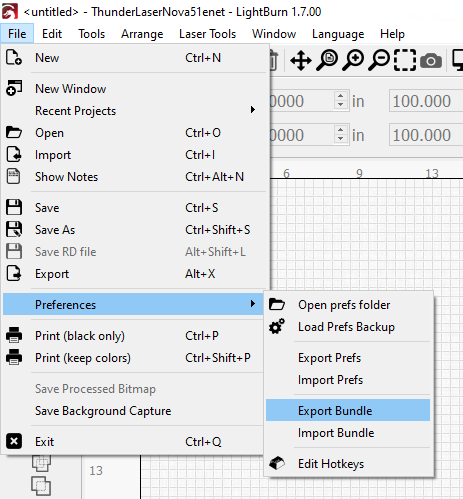
Bundles allow you to save everything in Lightburn, for all your machines, all at once. Very simple to use. The file will be saved as a .LBzip archive.
*Even with the bundles, it is recommended to backup your machine settings (if applicable) and your project files. See down below for more information
Navigate to the Export Bundles | Select What to Export and Then Export |
|---|---|
 |  |
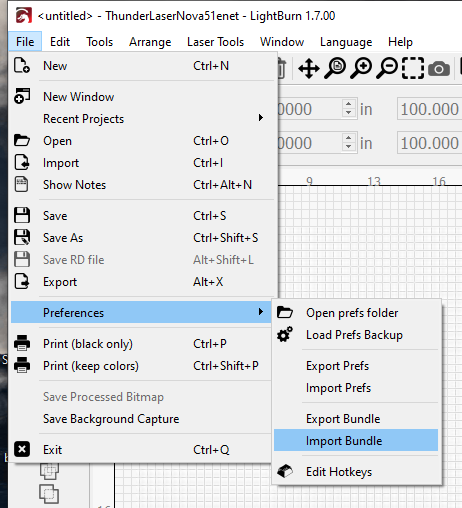
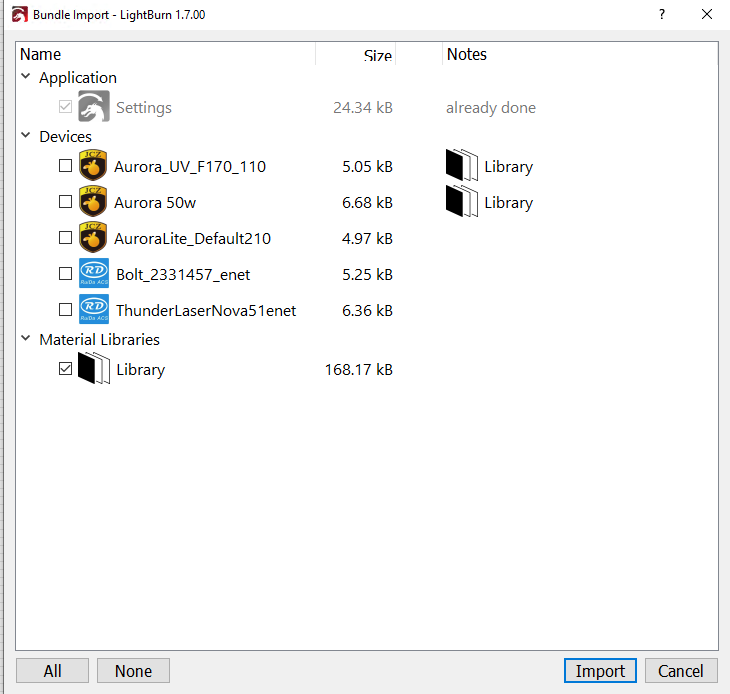
When you need to import, go to the Import Bundles option and import the data back into Lightburn. Navigate to the .LBzip and select it.
Navigate to Import Bundles | Select the .lbZip File and What all you want to import and import |
|---|---|
 |  |
Device Settings
Device settings will be saved with a file that ends with the *.LBDEV extension. If you have multiple machines (devices) then you will need to export and manage multiple *.LBDEV files. This backup will save the Device Settings that are found under the Edit > Device Settings window.
Note: .lbdev files include the information for the camera calibration (.lbcm files) as well as the scanning offset information (.lbso) files.

The "Devices" button window. You can Export the *.lbset for a selected machine as well as import one of your backups with the Import button.

More info here: https://docs.lightburnsoftware.com/BeginnerAddConfig.html#the-devices-page
Project Files
The project file can be saved in the legacy *.lbrn and updated *.lbrn2 file types. Project files should be saved as they will retain layer settings and vector graphics that are not recoverable from the *.RD file that is sent to the machine to run. You can save a project file by going to File > Save As and then saving it to your computer. If you have a project folder, back it up to an external device.
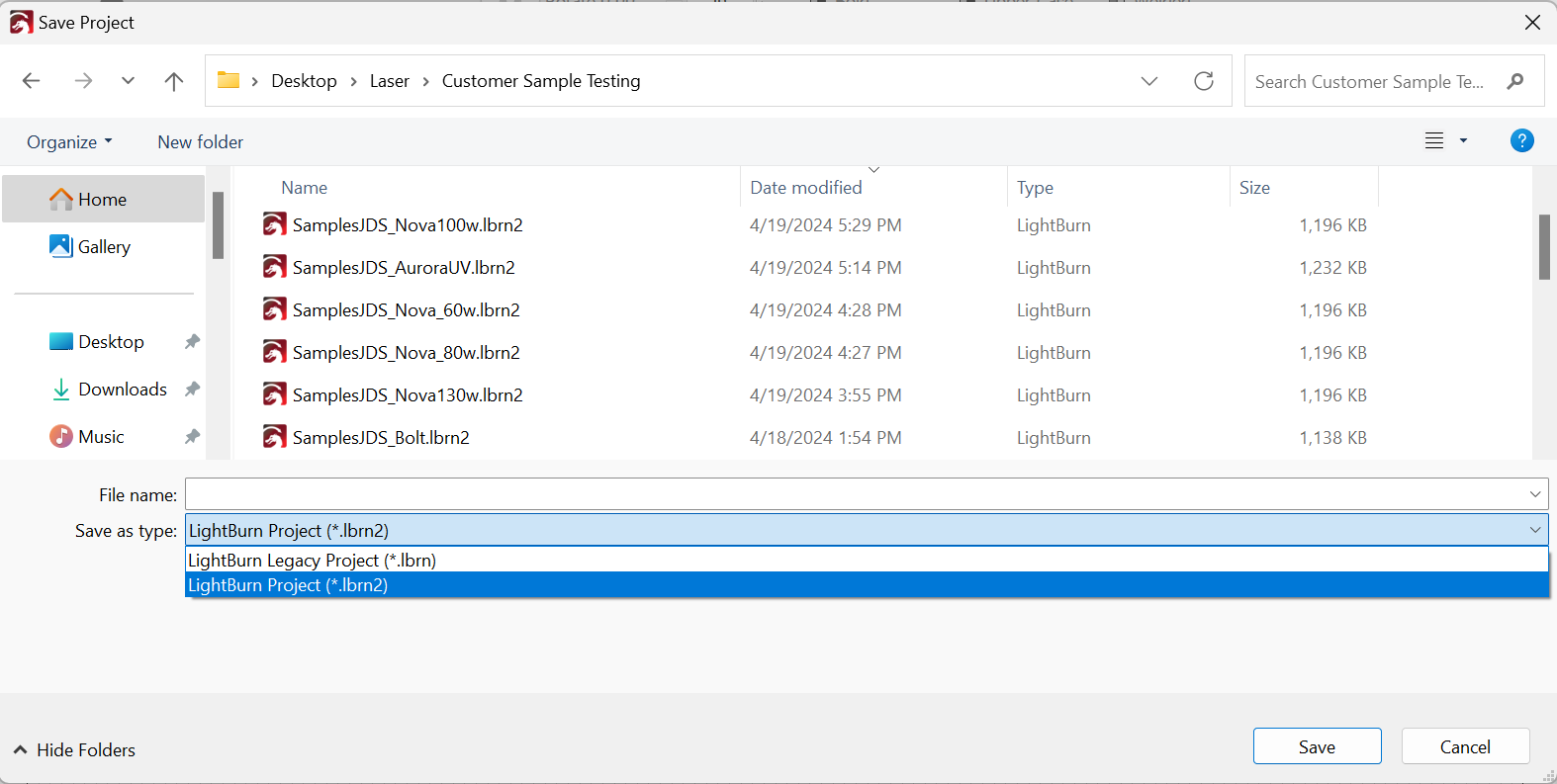
More on that: https://docs.lightburnsoftware.com/UI/Menus.html#save
Machine Settings
Machine settings are saved as .lbset file extension. You must be able to connect to the machine to be able to read and write machine settings from the DSP controller. You can access the functions to Read and Write from the Edit > Machine Settings window (On newer versions 2.0 and later, Machine Settings will be under Laser Tools). Once you Read the settings you can Save To File. If you ever need to restore settings, use the Load From File button and select your backup file, then click Write.

Lightburn will also attempt to save backups of the machine settings automatically. They will be located near the prefs Folder that can be accessed from the File menu in Lightburn.
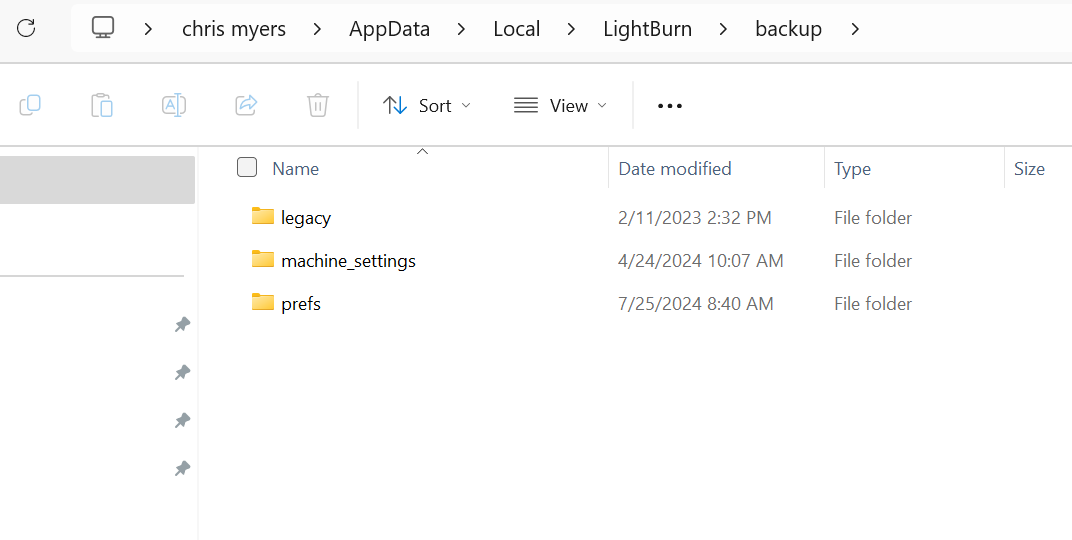
More info here: https://docs.lightburnsoftware.com/UI/MachineSettings.html#save
Camera Lens Calibration and Alignment
The Camera Lens Calibration and the Alignment data can be saved in a single file with the extension *.LBCM. To export or import this file, select the desired camera in the Lightburn Camera Window and then Right Click on the camera Live Image and select whether to Import or Export the Camera Settings File.
Note that the file contains both the Lens Calibration and the Alignment Data

Scanning Offsets
These files contain the scanning offset (reverse compensation) settings from your gold card and will be saved with a *.LBSO file extension. You can access them by going to Edit > Device Settings and then use the Import and Export buttons to re-install or create backups.
Note that the Scanning Offsets will also be saved in the Device Settings File with the *.LBDEV extension

Preferences
The Lightburn Preferences file contains the users unique settings for how they have set Lightburn up. You can access the Preferences folder by going to the File menu in Lightburn and navigating to the option for the Preferences Folder (Depending on your installed version of Lightburn it may look a little different). The file extension will be *.LBPREFS. You can use the Export Prefs and Import Prefs options from the menu to save a backup and then import that backup to your new computer.


Art Library
The Art library is an external file that the user can save in many locations. Lightburn allows you to create the Libraries with the New button or to Load with the Load button. You will need to locate where you have these files saved in order to be able to transfer them to a new computer. Once you have them, simply use the Load button to add the library back into Lightburn. The file extension for a Lightburn Art Library is *.LBART.

Material Library
The material library is an external file that the user can save in many locations. Lightburn allows you to Save and Save As a copy to create backups. You will need to locate where you have these files saved in order to be able to transfer them to a new computer. Once you have them, simply use the Load button to add the library back into Lightburn. The file extension for a Lightburn Cut Library is *.CLB.

Old Video Overview
Old Video Prefs Overview
Still stuck?
Fastest response times in the industry from our US-based support team.