
Clearing files from the Ruida Controller
Clearing files from the Ruida Controller
Cleaning your file system memory on the Ruida Controller should be part of your periodic maintenance. The controller's onboard memory is limited and as it nears its max capacity of 128mb/1 Gig (Model Dependent) we have seen some file corruption and file sending issues. So it is always best to clear unused and unnecessary files loaded into this onboard memory.
Below you will find the processes to clear files directly from the controller and from Lightburn.
Deleting and/or Formatting from the controller for Nova, Nova Plus and Odin
When deleting files from the Laser Machine Controller you will:
- Press the File button
- Right arrow over to the menu list
- Down arrow over to "Other"
- Press Enter
- Format memory (There is a format speedily and at grain level)
*Please see video
Deleting and/or Formatting from the controller for Bolt
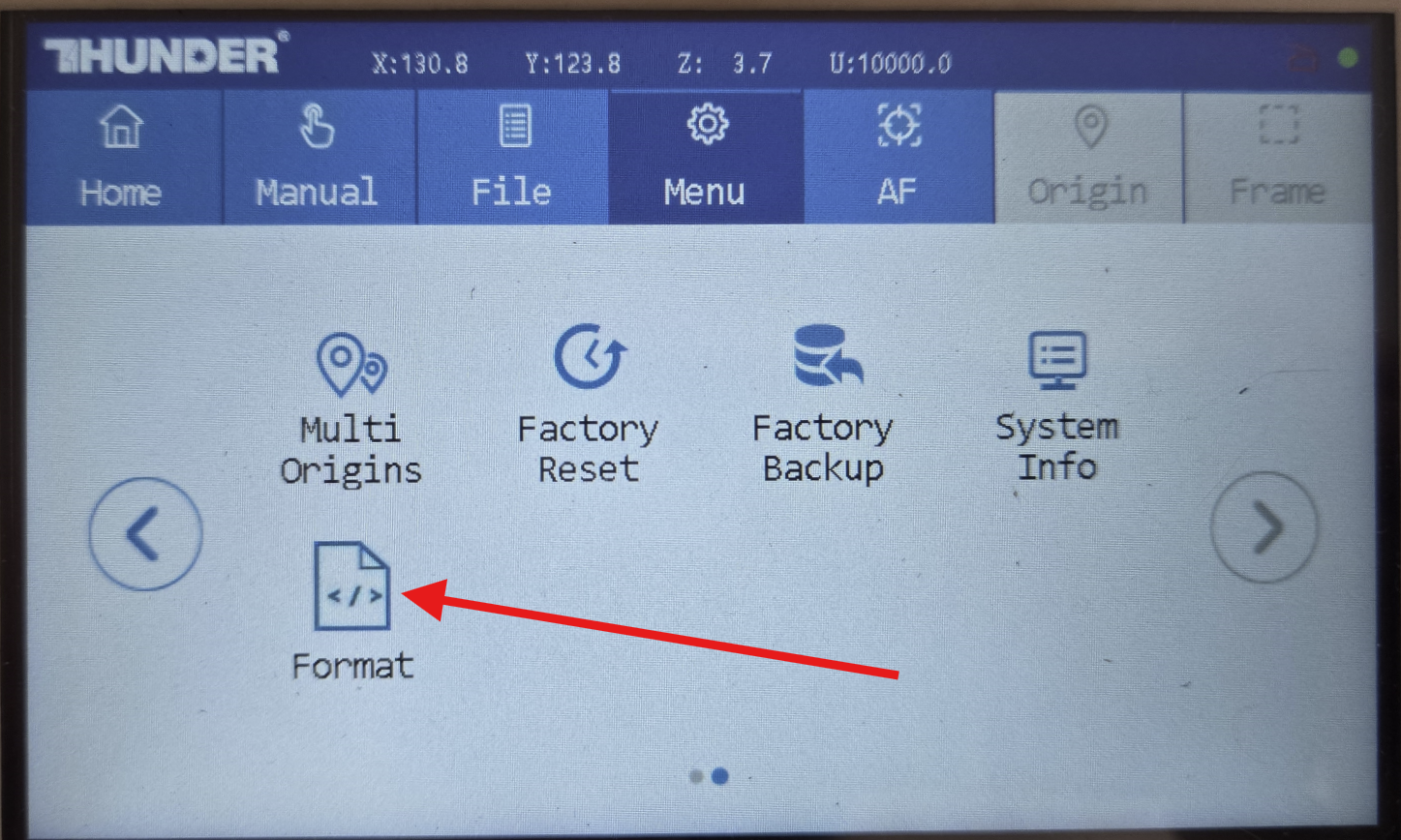
Depending on your firmware version, you may have the Format option on your Bolt Screen that can be accessed from the MENU.
Video
Written Instructions
| Locate Format Icon in Menu | Press Format Button and Press Ok |
|---|---|
 |
 |
| Format Process Begins | Format Complete. Press Close |
|---|---|
 |
 |
Deleting files Using Lightburn
This procedure should work for all Thunder Laser Gantry based machines that use a Ruida controller.
When deleting files using Lightburn you should:
- Open Lightburn and have it connected to a powered ON laser
- Open your File List tab (if the File List Tab is not visible go to the top taskbar in Lightburn and select Window > File List)
- Once you open your File List press Refresh to read the file list from the controller
- Select some or all of your files for deletion and delete
Here is a link to Lightburn's documentation on the FILE LIST
*Please see video and start at the 1 minute mark
Still stuck?
Fastest response times in the industry from our US-based support team.