
How to Swap a GCode (Core) License to DSP (Pro) for Lightburn
Preface: This article covers how to check if you have a DSP License installed and how to swap from a GCode/Core License to a DSP/Pro License
Note: There are changes coming to the Lightburn License Structure that will go into effect Oct 1, 2024 which will make some of the information in this article moot. Please read about it here. The old license types were GCode, DSP and then Fiber...now it is just CORE or Pro.
Warning: Before you deactivate your license, be sure to sign up/into the Lightburn portal to confirm your current license, Deactivations and Activations ability. More on that here.
Quickstart Video
Note: In the video, substitute the words Gcode/Core and DSP/Pro.
Complete Guide
Most Common Symptoms that you only have a Gcode License Activated
-
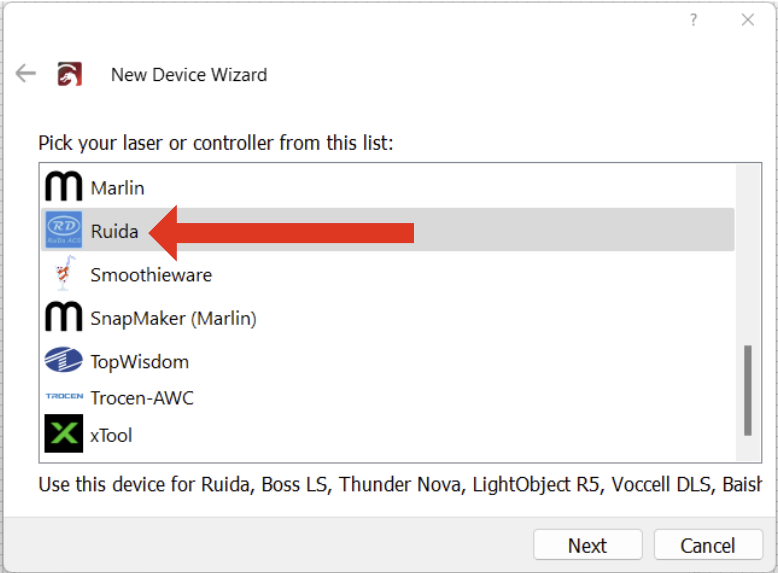
Ruida controllers not shown as an option in the Device List
Ruida Controller Option Missing Ruida should be here if you have an active DSP License 
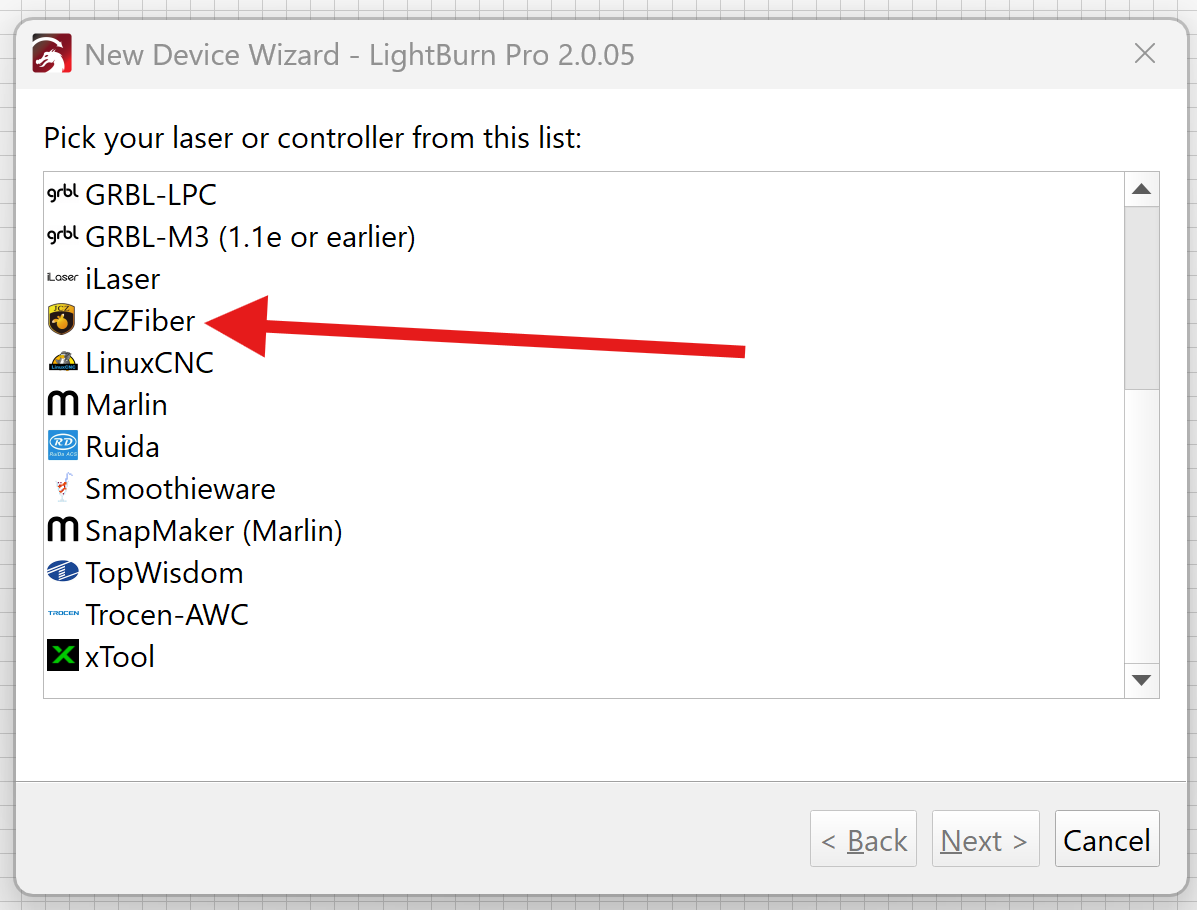
If looking for a Fiber, it would be here:
-
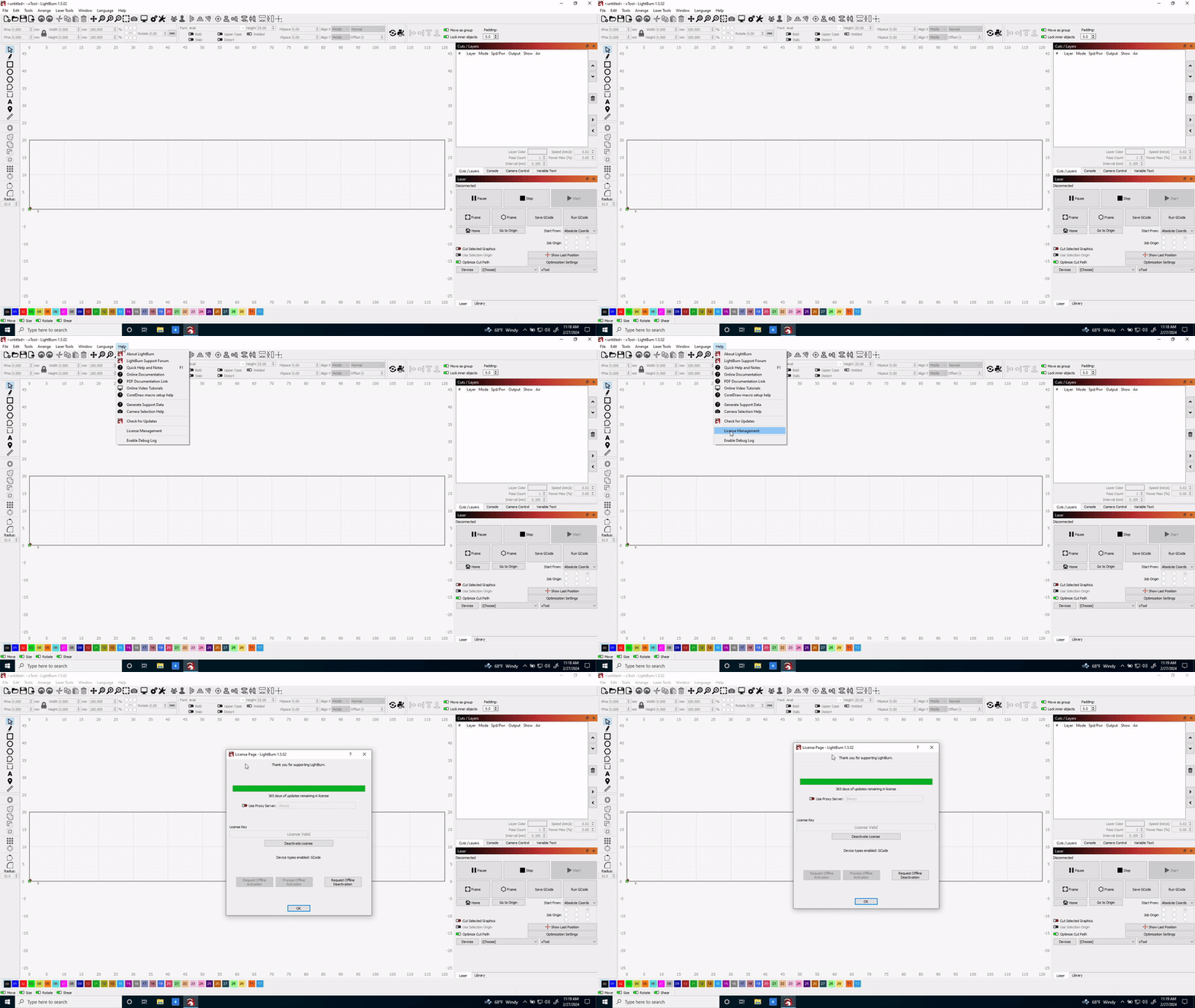
License Doesn't show DSP/Pro
If it shows Core or Gcode, you need to update

-
Importing LBDEV File, No Device Imports
If you are using the "Easy" Button import, but the device does not actually import then you likely do not have the proper license

How to Swap a Gcode/Core License to a DSP/Pro License
Locate your DSP/Pro license key that was sent to you by Thunder Laser USA for applicable machine purchases.
Note: If you plan to upgrade your current Gcode/Core key to DSP/Pro on Lightburn's site directly, you can do that as well and skip these steps since you do not have a new key to enter.
-
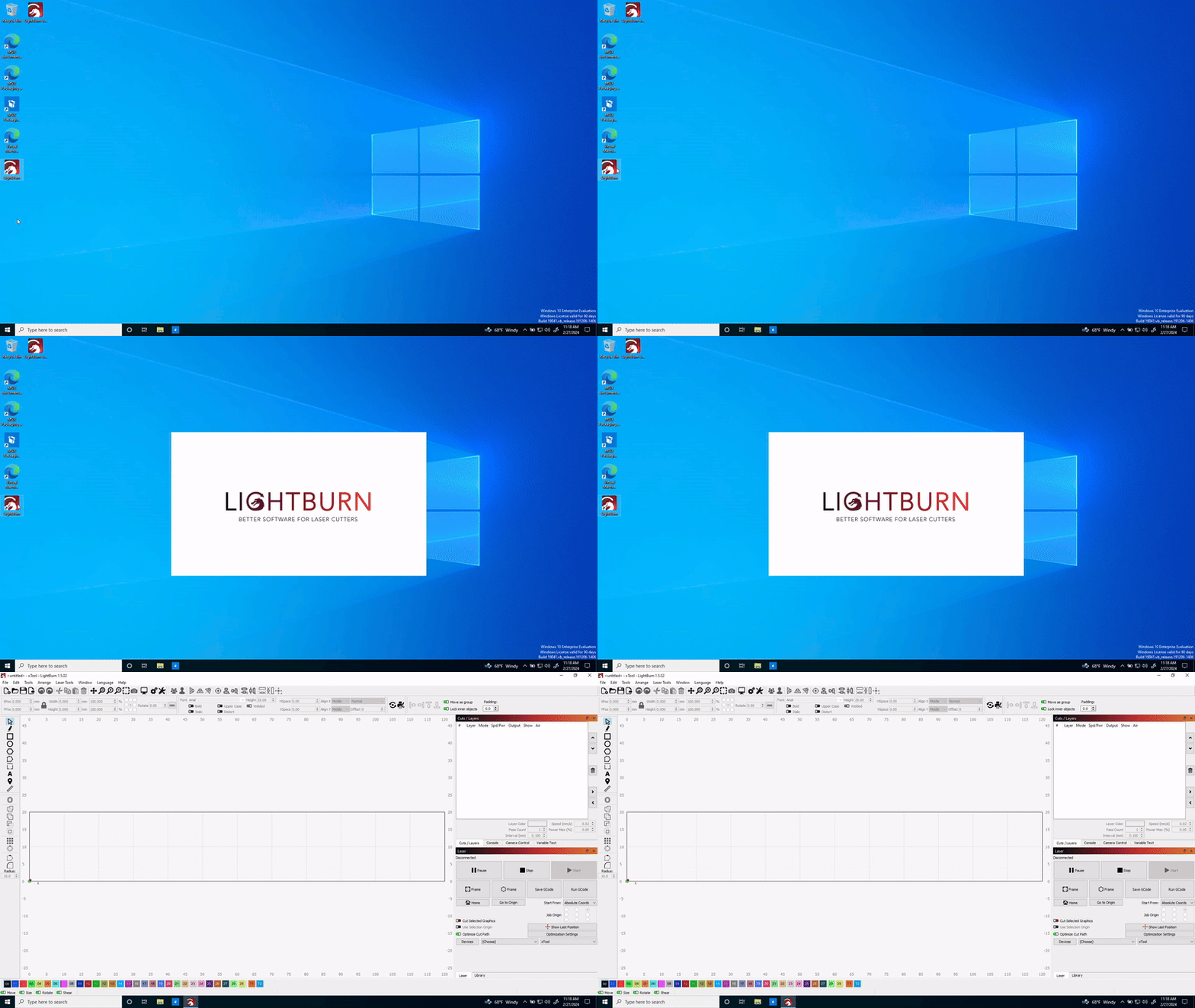
Open up Lightburn
Double Click the Lightburn Icon Let Lightburn Load 
-
Go to Edit > License Management
-
Deactivate existing key (Lightburn will close)
Click the "Deactivate License" Click "Ok" to let Lightburn Close 

-
Open Lightburn back up. Enter new DSP Key and Activate
Open Lightburn Back up Enter your new DSP key and Click Activate 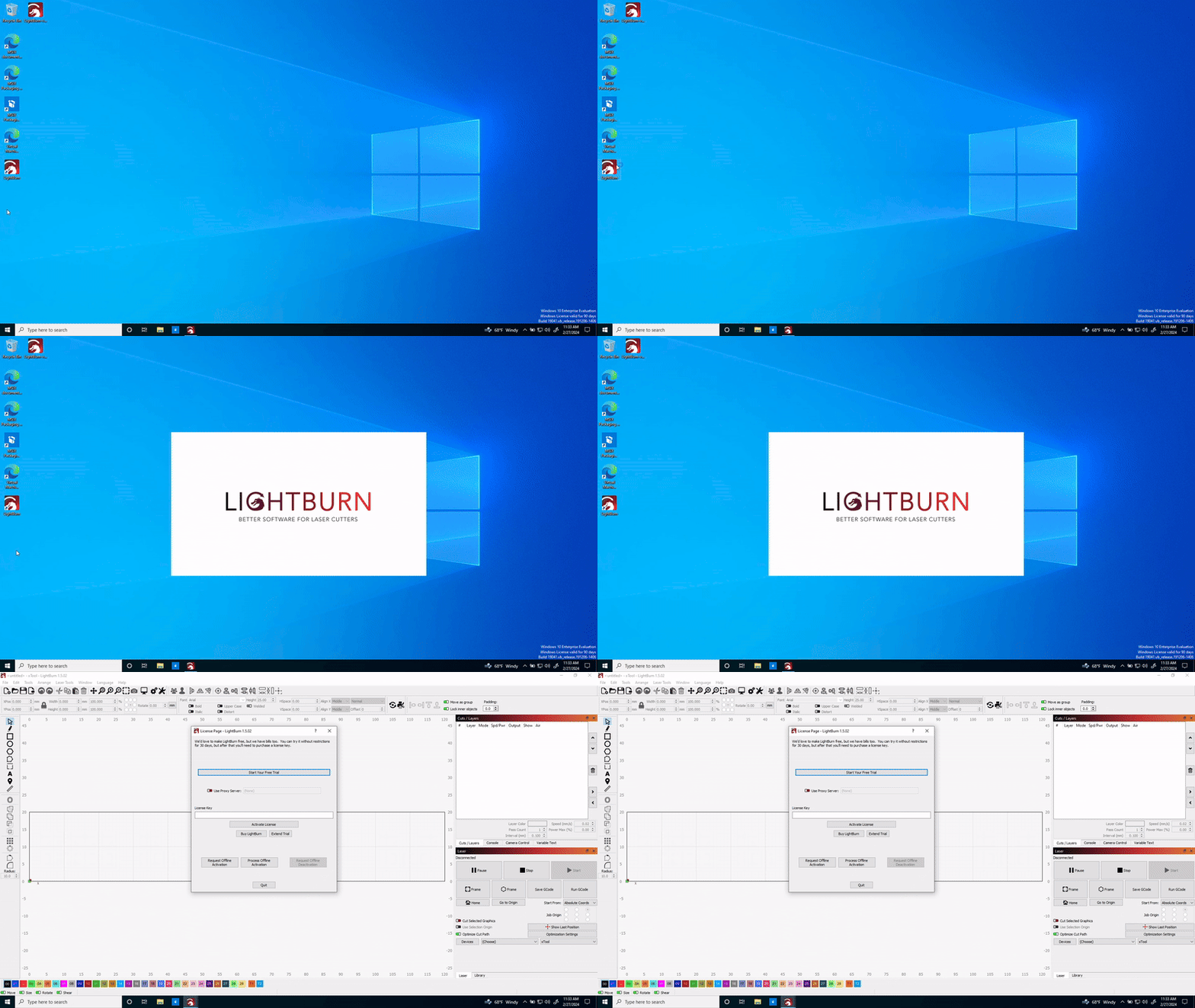

-
Check for DSP/Pro License

Newer version:

Now that you have your DSP/Pro key entered, proceed with setting up your new laser device!
Reference Information
The Lightburn License - Everything you need to know about it
Still stuck?
Fastest response times in the industry from our US-based support team.