
Installing The RDWorks CorelDRAW Macro
-
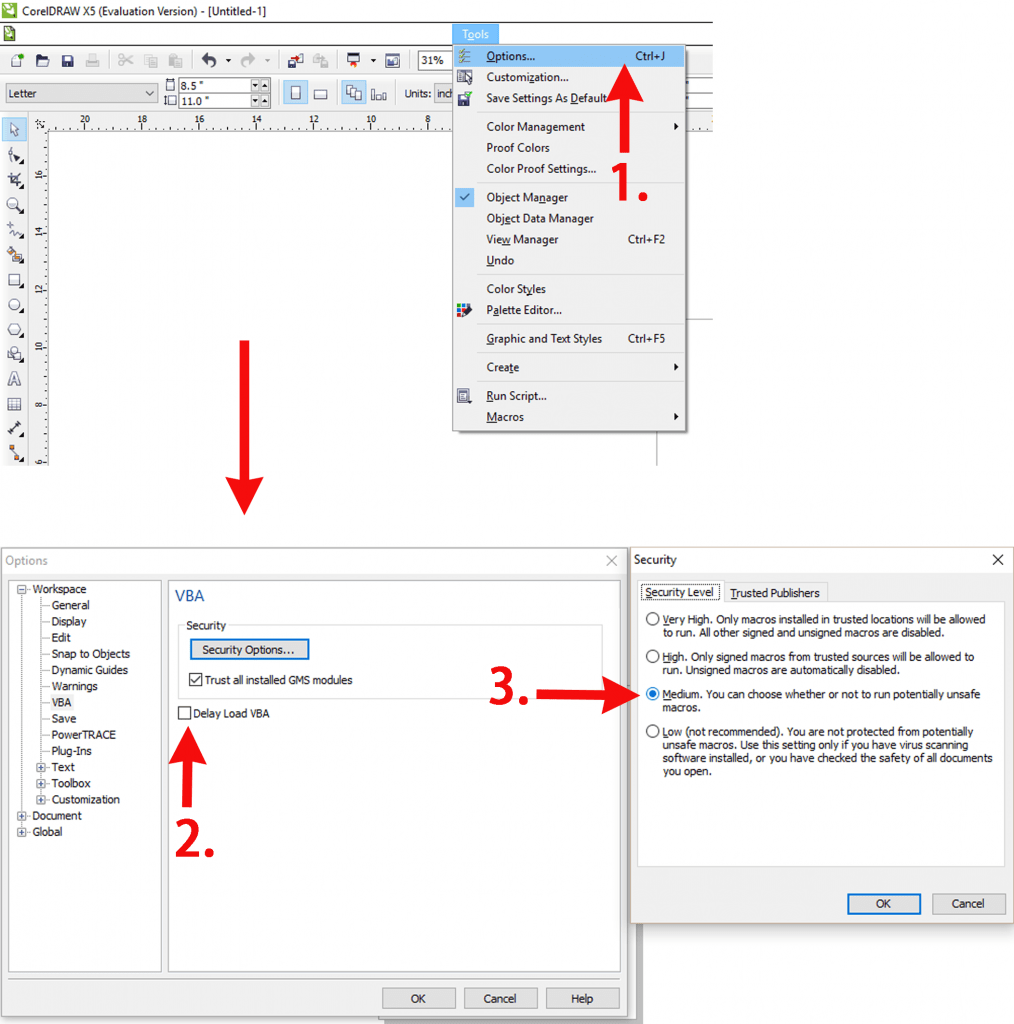
First run CorelDraw and set the parameter following the instructions below:
-
After that, close CorelDraw. Double click to open RDWorks installation program. Choose the type of CorelDraw_Laser (be sure the RDWorks main program has been already installed), and then tick the item RDworks, as shown below:
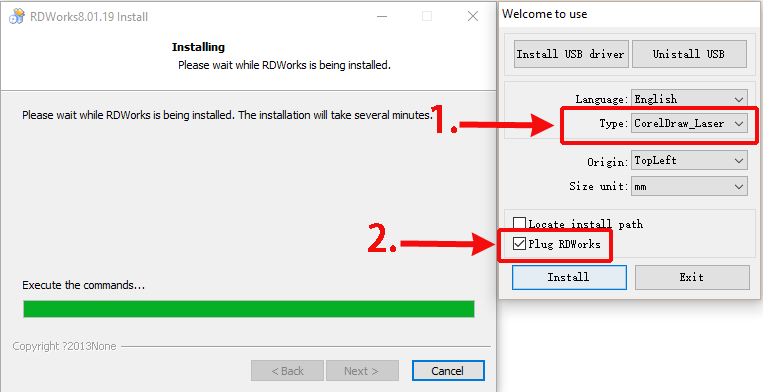
Click "install" and wait to complete the installation.
-
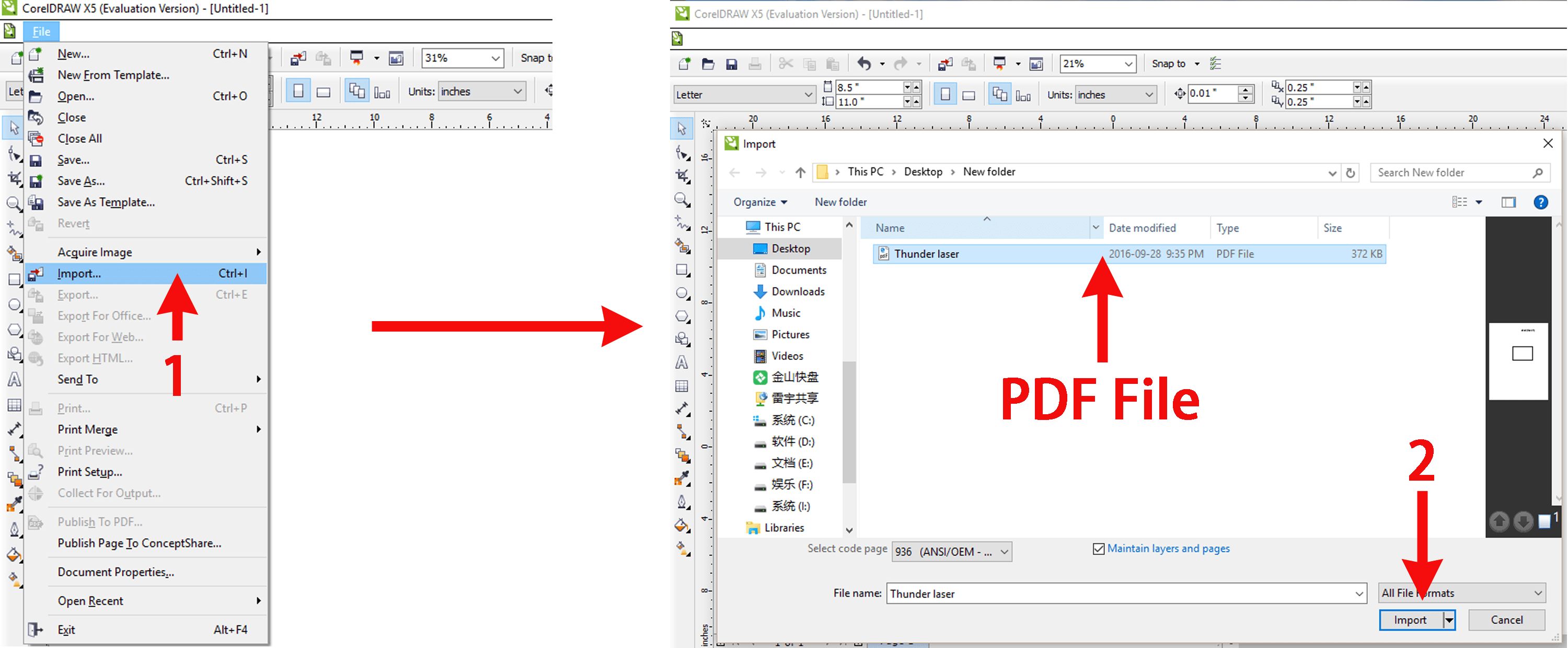
Again run CorelDraw. Choose and enter "Run Macro" (Tools > Macros > Run Macro). Choose Macros in: [Globalmacros (RDWorks15/16/17V8.gms)] > [RDWorksV8.UserInit]. Click run.
-
There will appear two extra buttons. Move them to anywhere you want them to be. After finish drawing the graphics, click "Laser running" to directly import the graphics into RDworks.
Still stuck?
Fastest response times in the industry from our US-based support team.