
How to Disable USB Power Saving in Windows (Prevent Laser Disconnects)
Preface: This article covers how to stop Windows from powering down the USB connection to your laser. Use it if LightBurn loses the connection partway through a job, or if the laser shows as disconnected until you unplug the USB cable and plug it back in.
Applies to: Thunder Laser machines connected to a Windows 10 or Windows 11 computer by USB | Time needed: About 5 minutes | Contact: [email protected]
Things to Note
- Windows turns off USB ports it thinks are idle to save power. A laser can sit idle during a long job or file setup, so Windows may cut the connection.
- You'll change this setting in three places: the USB hubs in Device Manager, the laser's own USB entry, and Power Options. Do all three.
- The Part 3 command-line fallback needs an administrator account on the computer.
- Restart the computer when you're done.
Complete Guide
Part 1: Turn off power saving on the USB hubs (Device Manager)
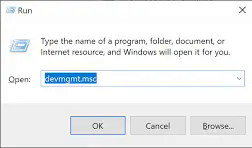
Step 1: Press Windows + R, type devmgmt.msc, and click OK.
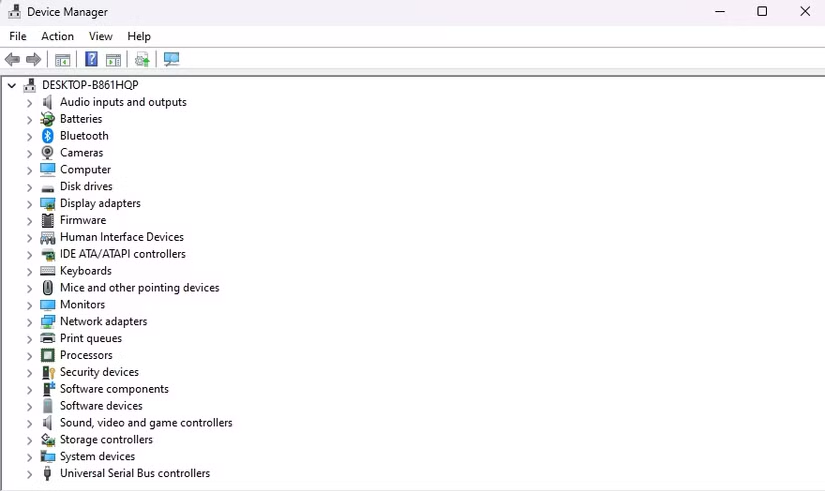
Step 2: Find Universal Serial Bus controllers near the bottom of the list.
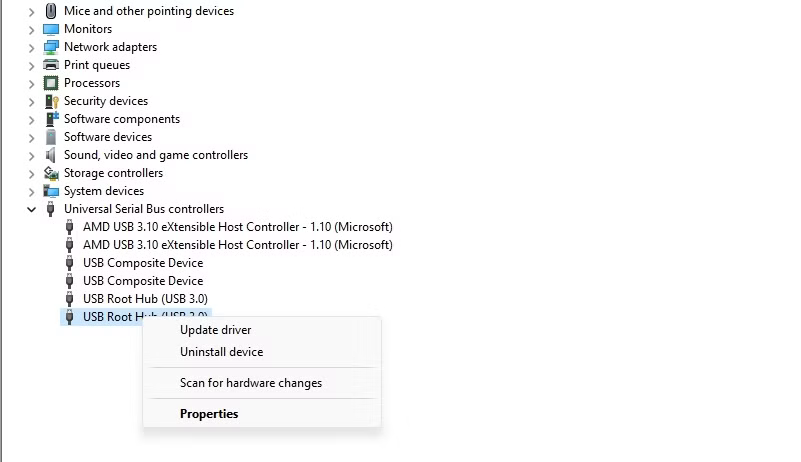
Step 3: Expand it and open each USB Root Hub. Double-click it, or right-click it and choose Properties. It may also be called USB Root Hub (USB 3.0), USB Root Hub (USB 3.1), or Generic USB Hub.
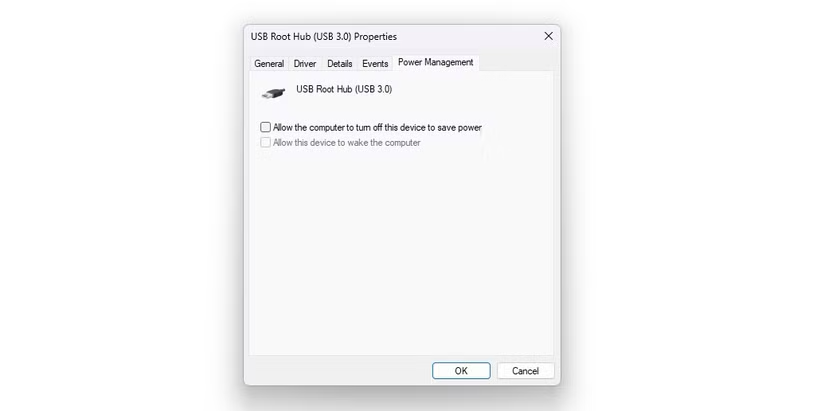
Steps 4–6: On the Power Management tab, uncheck Allow the computer to turn off this device to save power, then click OK.
Step 7: Repeat Steps 3–6 for every USB Root Hub and Generic USB Hub in the list. Most computers have several.
Note: Some entries, such as host controllers, have no Power Management tab. That's normal, so just skip them. Change every entry that has the tab.
Part 2: Turn off power saving on the laser's own USB entry
The laser shows up as its own device in Device Manager, and it can have its own power setting.
- With the laser powered on and connected by USB, keep Device Manager open.
- Look for the laser under Ports (COM & LPT), Universal Serial Bus devices, or Universal Serial Bus controllers.
- Not sure which entry is the laser? Unplug the USB cable and watch which entry disappears. Plug the cable back in and the entry comes back.
- Double-click the laser's entry and open the Power Management tab (if it has one).
- Uncheck Allow the computer to turn off this device to save power and click OK.
Part 3: Disable USB selective suspend (Power Options)
Step 1: Press Windows + R, type powercfg.cpl, and press Enter. Power Options opens.
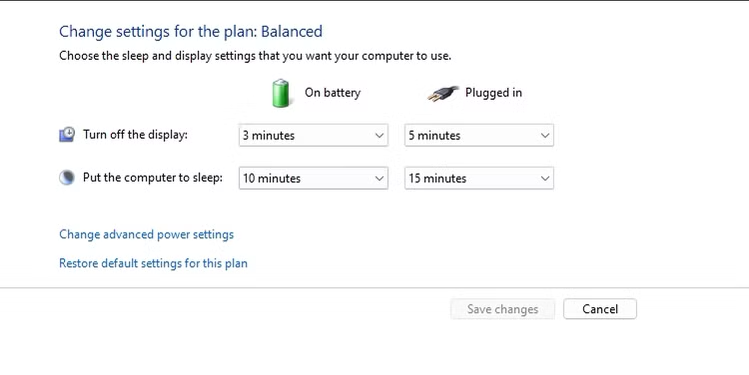
Step 2: Next to the plan that's selected, click Change plan settings.
Step 3: Click Change advanced power settings.
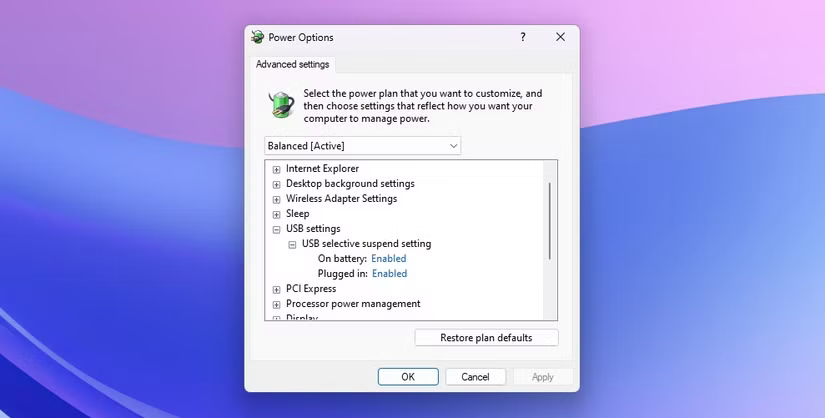
Step 4: Expand USB settings, then USB selective suspend setting.
Step 5: Click each value and choose Disabled. On a laptop, set both On battery and Plugged in to Disabled.
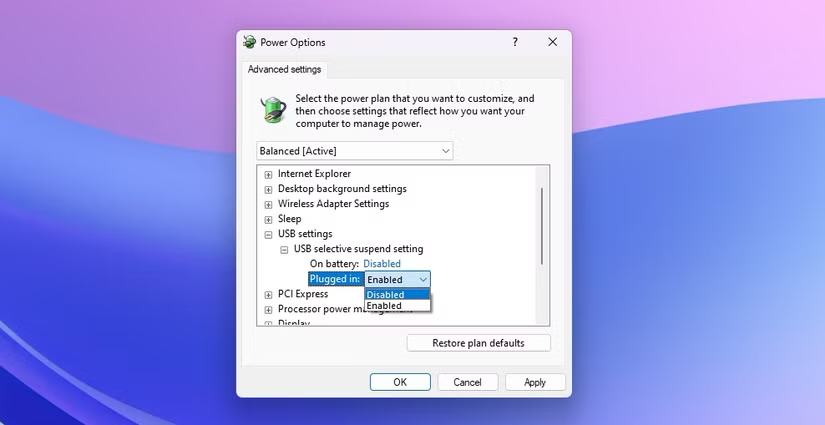
Step 6: Click Apply, then OK.
If "USB settings" isn't in the list
Some newer computers hide this option. You can set it with a command instead:
- Click Start, type
cmd, right-click Command Prompt, and choose Run as administrator. - Paste these three lines, pressing Enter after each one:
powercfg /SETACVALUEINDEX SCHEME_CURRENT 2a737441-1930-4402-8d77-b2bebba308a3 48e6b7a6-50f5-4782-a5d4-53bb8f07e226 0
powercfg /SETDCVALUEINDEX SCHEME_CURRENT 2a737441-1930-4402-8d77-b2bebba308a3 48e6b7a6-50f5-4782-a5d4-53bb8f07e226 0
powercfg /SETACTIVE SCHEME_CURRENT

The first line covers plugged-in power, the second covers battery, and the third applies the change. If a line shows no message, it worked.
Still disconnecting? Quick checklist
- ☐ Restart the computer after making all the changes above.
- ☐ Plug straight into the computer. Use a port on the back of a desktop. Don't use hubs, docks, front-panel ports, or extension cables.
- ☐ Use a short, good-quality shielded USB cable. A cable with ferrite cores helps block electrical noise from the laser and exhaust fan.
- ☐ Check again after big Windows updates. Major updates can turn these settings back on.
- ☐ Think about switching to Ethernet. On machines that support it, a network connection doesn't use USB power saving at all and is usually more stable for long jobs.
Still Need Help?
If you're a Thunder Laser USA client and still need technical support after working through this guide and the Knowledge Base, email [email protected] and the Technical Support Team will help you.
To speed things up, include your machine's serial number, a photo or video of the problem, your software and version, whether you're on Windows or Mac, and which steps in this guide you've already tried. See How to Help Us Troubleshoot Your Machine Faster for the full list.
Still stuck?
Fastest response times in the industry from our US-based support team.