
Improving Job Time Estimates In LightBurn's Preview
Preface: This article covers how to upload settings to make the LightBurn Preview time more accurate and discusses some pitfalls of the preview time.
What is the Job Time Estimate in the Preview?
You can access the preview in LightBurn by pressing the Preview Button  or with the Alt+P shortcut. In the lower right corner, there will be a time estimate based on your selected artwork to cut and its layer settings. In this example, it is a 20 Minute and 44 Second job. The Job time estimate is a good value to determine how long a project will take to run.

More on the LightBurn Preview can be found here.
Good and Bad of the Job Time Estimate
Good:
- For the most part, it is accurate enough to give you an idea of the project runtime and cost
- The Estimate Time can be tweaked to your liking by dialing in the settings
- It's fast to calculate and shows you the motions the laser plans to do
- Can get an Estimate without being near the machine or even connected to it
Bad:
- Depending on if you are doing a lot of Line Layers with small graphics or just a bunch of Engraves, the accuracy can vary
- It does not use S-Curves for accel and decel like the Machine does, causes error in the calculation
- Uses basic Kinematic Equations for Accel, so every start, stop or speed change can cause accuracy error
- Not as accurate as the Work Time Preview
- It is only an estimate, the actual time to complete can and will vary
More information on Kinematics and S-Curve vs Trapezoid Curve Accelerations.
How to Make the Estimate More Accurate
You should only need to do this one time for each computer or LightBurn you set up for a given device.
In LightBurn, be connected to your machine. Then click the Wrench/Screwdriver Button  in the Top Bar (same as Edit > Device Settings) and then go to the Additional Settings tab of the popup.
Click the button to Read From Controller. You should see the values populate/change. Then click the OK button to accept the changes.
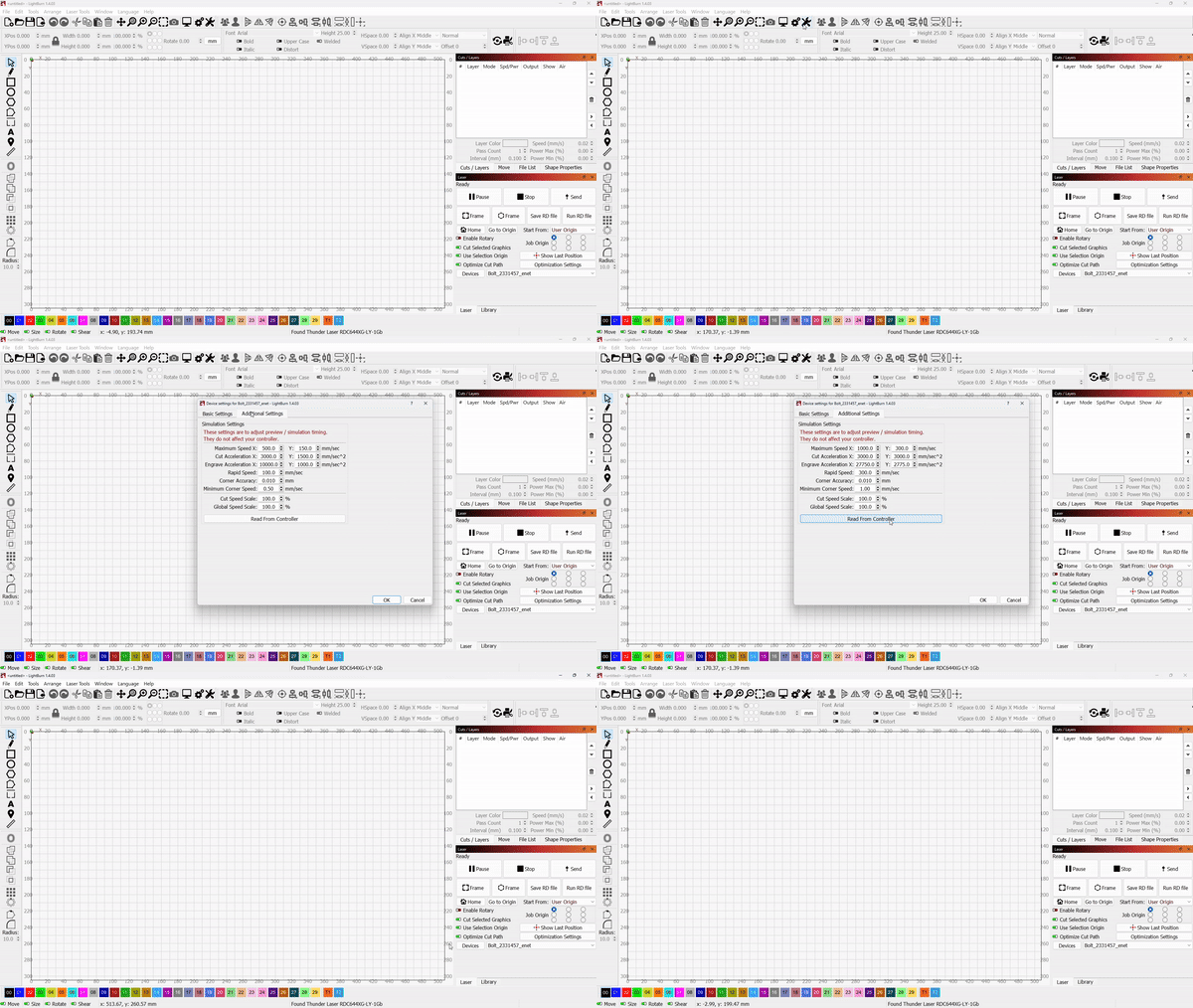
The Values that Upload
The values that upload will vary by machine type. You can adjust the values that were uploaded to your liking. They will not affect how the machine runs, they only affect the Job Time Preview in the Estimate. Heavy amounts of Line Layers with small shapes, scoring and cutting may require different values to be more accurate.

Be sure to back up your device profile afterwards to save these new settings: Backing Up Machine and LightBurn Settings
Still stuck?
Fastest response times in the industry from our US-based support team.