
MAX Fiber Laser: Back-Reflection Lockout
Warning signs, alarms and how to clear a lockout · Thunder AccuMetal with MAX fiber laser source
A back-reflection lockout is the MAX laser source protecting itself after laser light bounces back into it. The machine still moves, but the laser won't fire, and restarting won't bring it back. A lockout rarely comes out of nowhere: it follows warning signs and alarms you can catch early.
Light reflects back into the source most often when cutting copper, brass or aluminum, when the protective window is dirty or burned, or when the pierce doesn't fully break through.
A lockout follows warning signs and repeated alarms
Risk rises; the earlier you act, the easier the fix
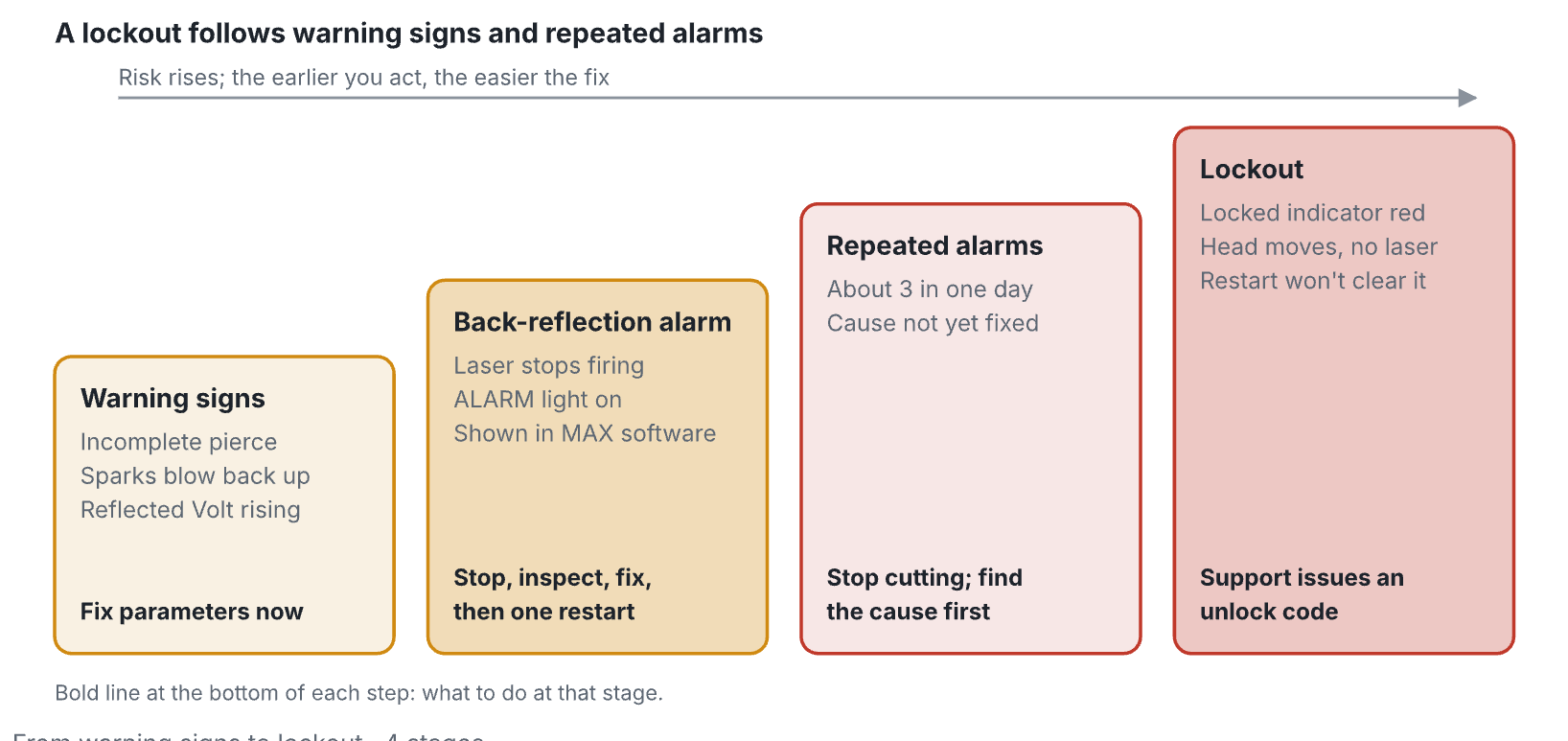
Bold line at the bottom of each step: what to do at that stage.
From warning signs to lockout · 4 stages
Rule of thumb: treat the first back-reflection alarm as the warning. Fix the cause before cutting again.
Where to look
| Where | Warning sign | Alarm | Lockout |
|---|---|---|---|
| The cut | Pierce doesn't break through, sparks blow back up at the nozzle, rough or incomplete cut on reflective metal | Laser stops mid-job | Head moves through the job with no laser |
| NcStudio | Nothing | Often nothing clear | Often nothing clear |
| MAX software, Monitor (Laser) | Reflected Volt reading climbing | Back-reflection or optical alarm active | Locked indicator red; alarm active |
| MAX software, Log | Earlier back-reflection entries | New back-reflection entry | Repeated entries leading to the lock |
| Source front panel | Normal | ALARM light on | ALARM light on |
| Restart | Not needed | May clear it once the cause is fixed | Does not clear it |
Because NcStudio often shows nothing, open the MAX monitoring software whenever the head moves but no laser fires.
After a back-reflection alarm
- Stop cutting. Don't keep restarting to get past it.
- Save evidence: screenshots of the alarm and the Log page in the MAX software.
- Inspect the protective window. Clean it, or replace it if it's burned, coated, pitted or scratched.
- Check the nozzle: condition, centering and height.
- Check focus and parameters for the material and thickness.
- Confirm full penetration: the pierce breaks through and the cut goes all the way through.
- Check the assist gas type and pressure.
Clearing a lockout
Only Maxphotonics can issue the unlock, through Thunder Laser support. The code clears the lock but doesn't fix anything, so the source will lock again if the cause is still there.
Back-reflection lockout: fix the cause, then get a one-time unlock
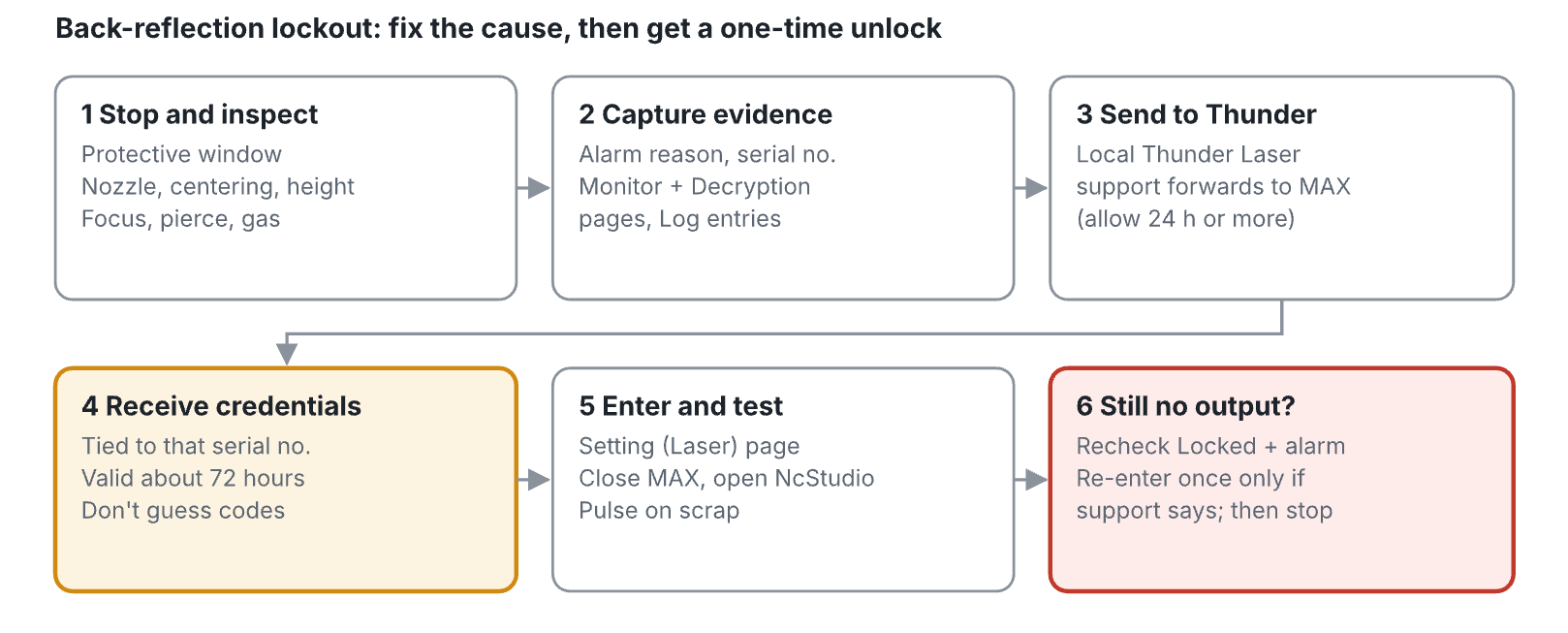
Clearing a lockout · 6 steps
- Fix the cause using the checklist on the previous page. Support will ask you to confirm the window, nozzle and parameters were checked.
- Capture evidence in the MAX software: alarm reason, laser serial number, and the Monitor (Laser), Decryption and Log pages.
- Send it to Thunder Laser USA support. They forward it to Maxphotonics. Allow at least 24 hours.
- Receive temporary credentials. They work only on that serial number and are generally valid for about 72 hours. Never guess codes; wrong entries can cause another lock.
- Enter the credentials on the Setting (Laser) page (a software update may be needed first). Close the MAX software, open NcStudio and fire a short pulse on scrap.
- Still no output? Recheck Locked and the alarm. Re-enter the same credentials once, only if support says to, then test again. If it fails, stop and contact support.
Report credentials that don't work right away, before they expire.
Prevention and what to send support
Prevention
- Inspect the protective window before every job on copper, brass or aluminum; replace it if damaged.
- Use verified parameters and confirm the source is rated for reflective metals.
- Tune piercing, focus and gas so the pierce breaks through cleanly without heavy blowout.
- Check nozzle condition, centering and height every day.
- Keep the head, lens drawer and fiber connector (QBH) area clean and dry.
- Stop after a repeated alarm instead of restarting around it.
- Never change engineering parameters or alarm thresholds in the MAX software.
What to send support
- Machine model and laser source serial number
- Screenshots of the MAX Monitor (Laser), Decryption and Log pages
- When the alarm happened and how many times
- Material, thickness, assist gas and cutting parameters
- Photos of the protective window, nozzle and cut or pierce
- Confirmation the window, nozzle and parameters were checked
Contact: Thunder Laser USA technical support first. Support coordinates with Maxphotonics for unlock codes.
Based on the Thunder Laser knowledge base article "How to Handle a MAX Fiber Laser Back-Reflection Lockout" and "MAX Fiber Laser Monitoring Software, Its Alarms, Protection, and Locking."
Still stuck?
Fastest response times in the industry from our US-based support team.