Bolt Series
Go from the crate to your first finished project, then into focus, camera, rotary and the maintenance that keeps your Bolt running.

First Steps
Start here. Unbox, power up, install LightBurn and run your first project.
 137:57
Thunder 101
Our President, Clay Luttrell, walks through an overview of lasers, the resources available to you, and machine basics.
 220:06
Unboxing and Overview
Chris unboxes a Bolt and walks through everything that comes in the box.
 39:15
39:15First Power Up
Power up your machine for the first time and connect it to your computer.
 411:56
Installing LightBurn
Install LightBurn on your computer and get it talking to your Bolt.
 526:29
Your First Project
Chris walks you through a simple first project from start to finish.
How To
The skills you will use every week once you are running.
 63:34
63:34Manual & Auto Focus
Focus your machine manually or with the auto-focus feature.
 713:27
Camera Setup
Set up and calibrate your camera.
 827:00
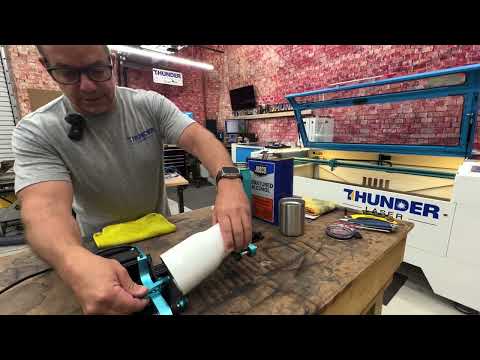
Rotary Setup
Set up your rotary for cups, tumblers and other round items.
 911:38
Twister Tray for the Junior Rotary
What the Twister Tray does and how to install it on the Junior Rotary.
 1015:41
Drop Brackets for Rotary
Install the drop brackets so your rotary sits at the right height.
 1110:30
Testing Materials
Test a material across a range of speed and power settings to find what works.
 121:24
Oversized Materials
Use the front door as a pass-through for oversized materials.
 136:27
Manual Movement from Touchscreen
Move the laser head manually from the touchscreen.
 141:19
Program Fans and Exhaust
Program when the fans and exhaust turn on and how long they run.
 151:44
De-Focusing for Different Effects
See how defocusing your laser changes the look of your engraves.
Care and Fixes
Keep it running, and fix the common stuff yourself.
 163:00
Cleaning Lenses & Mirrors
Clean your lenses and mirrors so your machine keeps running at its best.
 179:44
Leveling the Honeycomb Bed
Level the honeycomb bed for consistent focus across the whole work area.
 185:00
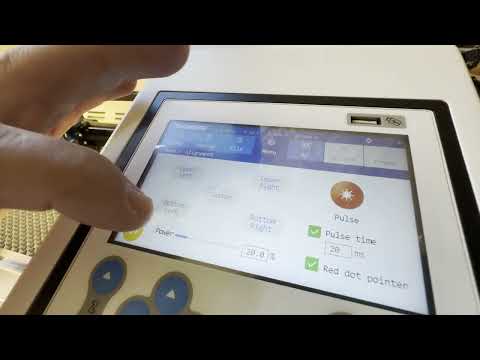
Alignment Section of the Touchscreen
Use the Alignment section of the touchscreen to pulse the laser in different areas. Useful when aligning your laser.
 1916:20
End-Stops Not Working
If your laser doesn't know when to stop, start here.
 202:35
Touchscreen Calibration
Recalibrate your touchscreen if taps are landing in the wrong place.
Talk to a real tech.
Real techs in the US, coast to coast, with a typical response under 10 minutes.